Do you want to test your WordPress site in different browsers? Cross Browser Testing is extremely important when changing WordPress themes or implementing a new design because it helps you make sure that your website looks good on all different browsers, screen sizes, operating systems, and mobile devices. In this article, we will show you how to easily test a WordPress site in different browsers.
What is Cross Browser Testing?
Cross Browser Testing is a process of testing websites across multiple browsers, operating systems, screen sizes, and mobile devices to ensure that your website works correctly on all different web browsers.
Why Test a WordPress Site in Different Browsers?
Google Chrome is the most popular web browser in the world with 65% market share on desktop computers and 57% on mobile devices. However, other browsers like Firefox, Microsoft Edge, Safari, and Opera are still widely used by hundreds of millions of users across the world.
Due to a wide range of browsers, operating systems, and devices, cross browser testing has become an important part of building a website. Cross-browser testing helps you provide a consistent web experience to all your users across different browsers, devices, and platforms.
While all popular browsers behave nearly identical when rendering web pages, they all use different code which means they may handle website elements differently from time to time.
As a website owner, this means that your website may look different across browsers. Since these are not common WordPress errors that are visible to everyone, you may go months without ever knowing about the issue until someone reports it.
This is why it’s considered best practice to test your WordPress site across different browsers on multiple platforms and screen sizes, so you can make sure that your website offers the same user experience to all your users.
Now most people do not have access wide range of devices to test a website. Even if you manage to borrow multiple devices from friends, it will be a lot of work to manually switch back and forth. Luckily there are cross browser testing tools that can help automate the process with just one-click.
But before we share the list of best cross browser testing tools for WordPress, it’s important to know which browsers are popular among your users, so you can direct your focus accordingly.
How to Find Which Browsers Your Website Visitors Use?
Considering the number of available operating systems, browsers, and browser version combinations, cross browser testing can be a tedious task for small business owners.
However if you know the popular browsers, operating systems, and devices that your website visitors use, then you can make the process considerably easier on yourself. Depending on your specific stats, you may be able to get away with testing only few popular combinations.
You can find out which browsers, operating systems, and devices are popular among your users by using Google Analytics.
Simply login to your Google Analytics account and go to Audience » Technology report. From here you can find out information about browsers, OS, screen sizes, used by your website visitors.
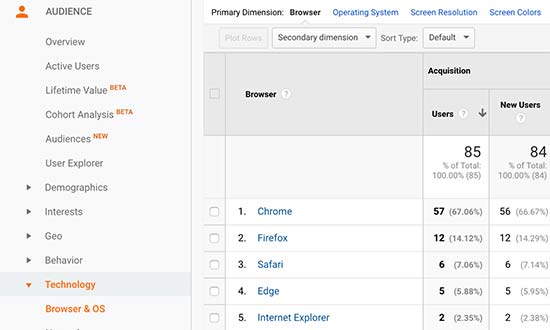
Once you have this list, you can focus on the top combinations and avoid the rest.
If you are just starting a blog or do not have Google Analytics, then we recommend that you install MonsterInsights immediately to properly setup Google Analytics. Once installed, you can either choose to wait a few weeks to collect data or proceed with testing your website across all browsers.
Best Cross Browser Testing Tools for WordPress
Cross browser testing tools make it easy for you to test your WordPress site across multiple browsers, operating systems, and devices. With just a few clicks, you can automatically test your website across different browsers.
Below is the list of top cross browser testing tools for WordPress sites:
1. Browsershots
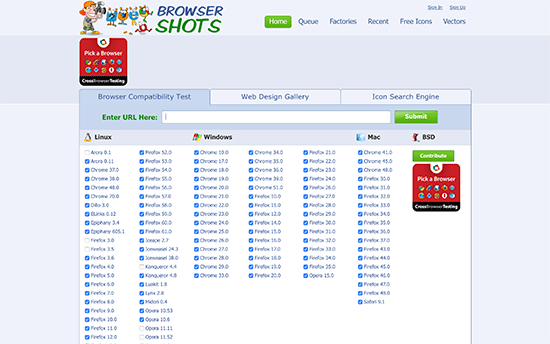
Browsershots is an open source tool that allows you to test your website with several browsers on different operating systems. The best part about this tool is that it’s free. The down-side is that it does not include Microsoft Edge or Internet Explorer. It also does not include mobile device support.
To use Browsershots, simply enter your website URL and then select the browsers you want to test. Browsers are listed in three columns for Linux, Windows, and Mac OS.
After submitting your request, you will have to wait a while as it runs the tests and generates a screenshot. Once finished, you’ll be able to see the screenshots on the same page. You can now go ahead and click on a screenshot to expand it.
Note: BrowserShots takes screenshots of a website which means it is not live-testing. You may not be able to see if your website works as intended during the tests. For that, you’ll need tools that run live tests in actual browsers.
2. CrossBrowserTesting
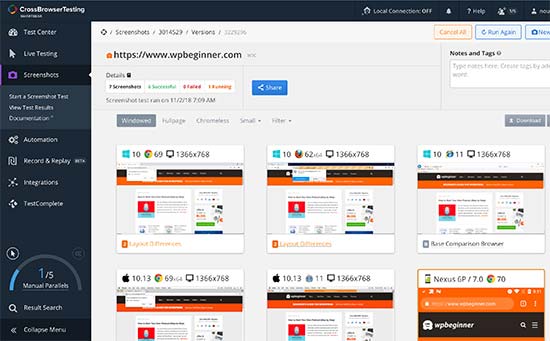
CrossBrowserTesting is an easy to use and highly powerful cross-browser testing tool with both live testing and screenshots features. This is the tool that we use here at Awesome Motive to test our websites like WPBeginner and our premium WordPress plugins.
It is a paid service, but they do offer a free trial account with 100 minutes to test out the product.
After creating your trial account, go to the ‘Live Test’ tab where you can select an operating system and browser. It will load your website URL in the actual browser appearing live on your screen.
If you’d like to quickly get multiple screen grabs at once, then click on the ‘Screenshots’ tab and run a new screenshots test. CrossBrowserTesting tool will automatically fetch screenshots on Mac, Windows, iPad, and Nexus 6P mobile phone running Chrome, Firefox, Safari, Microsoft Edge web browsers.
It also mentions layout differences below each screenshot which you can click to compare the layout with the base layout. You can also compare different layouts side-by-side or download all screenshots to your computer.
The free account is a bit limited in terms of browsers and operating systems combinations that you can run. However, it covers most popular browsers on top mobile and desktop platforms.
Pricing: Starts from $29 per month billed annually.
3. BrowserStack
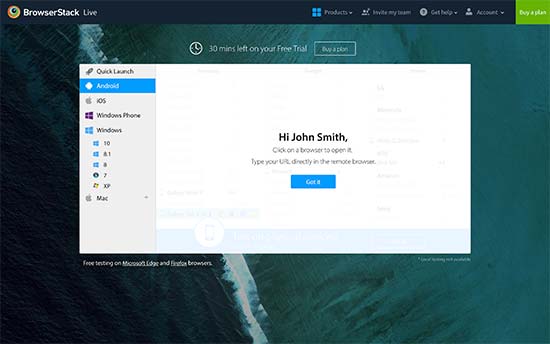
BrowserStack is a paid cross-browser and cross-platform testing tool for mobile apps and websites. They also offer a limited free trial account which gives you a 30-minute access to test their platform.
It comes with both live testing and screenshots features. You can select the platform you want to test and then select a browser. BrowserStack will load the virtual emulator with an actual browser window. You can simply enter the URL you want to test to start the test.
The results are pretty accurate and the speed is quite satisfying. However, you will have to still perform the tests manually by opening up each browser.
Pricing: Starts from $29 / month billed annually.
How to Analyze Cross Browser Test Screenshots?
Now that you have learned the easiest way to test your WordPress site in different browsers, the next part is to analyze your results and see if there is something broken that needs fixing.
If you are running a responsive WordPress theme with good quality code behind it, then most of your screenshots will look pretty much the same.
However, in some cases, website elements may look slightly different from one browser to another. If this difference is minor and doesn’t impact user experience, aesthetics, or functionality, then you can ignore it.
On the other hand, if a difference is too noticeable, affects user experience, looks unpleasant, or prevents users from using your website as intended, then it needs your attention.
In most cross-browser tests, you will discover CSS issues with your theme. This can be fixed using Inspect Tool to find out which CSS rules need to be updated. After that, you can add custom CSS to fix those issues.
If you’re unable to fix the issues, then you can always hire a WordPress developer to help you fix them.
We hope this article helped you learn how to easily test a WordPress site in different browsers. You may also want to see our ultimate step by step guide on improving WordPress speed and performance.
If you liked this article, then please subscribe to our YouTube Channel for WordPress video tutorials. You can also find us on Twitter and Facebook.
The post How to Test a WordPress Site in Different Browsers (Cross Browser Testing Made Easy) appeared first on WPBeginner.
from: WPBeginner
via Editorial Staff
Source: How to Test a WordPress Site in Different Browsers (Cross Browser Testing Made Easy) Via Business Advice.
Comments
Post a Comment