Do you want to bulk delete WordPress posts? WordPress makes it super easy to manage posts from the admin area. However, if you want to delete a lot of posts then selecting and deleting them may take some time. In this article, we will show you two quick and easy solutions to bulk delete WordPress posts from your blog.
Method 1. Bulk Delete WordPress Posts without Plugin
This method is easier and is recommended for all users. It uses the built-in WordPress functionality to quickly select a large number of posts and delete them.
First, you need to visit Posts » All Posts page. From here you can click on the bulk select box on top to select all posts displayed on the page.
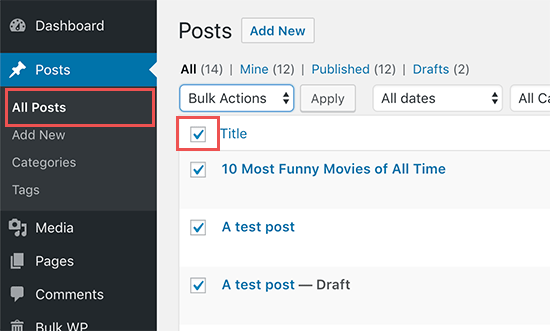
If you don’t want to delete all of the selected posts, then you can now go ahead and uncheck those posts. Otherwise, you can click on the ‘Bulk Options’ drop-down menu and select ‘Move to Trash’ option.
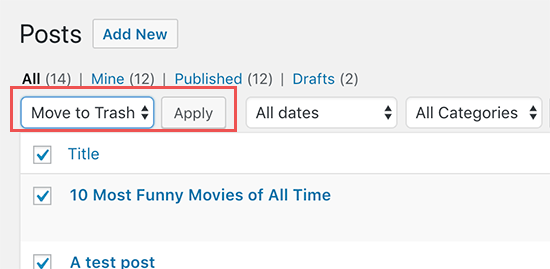
Next, you need to click on the ‘Apply’ button to delete selected posts.
WordPress will now move the selected posts to trash.
Using this default method, you can only select 20 posts at a time. What if you wanted to delete hundreds of posts?
Simply click on the ‘Screen Options‘ button at the top right corner of the screen. This will bring a pull-down menu where you need to change the ‘Number of items per page’ to any number you want.
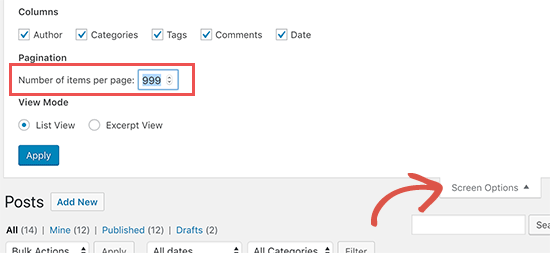
Next, click on the Apply button and WordPress will display the number of posts you selected earlier. You can now go ahead and bulk delete posts as described above.
Note: Deleted posts will be moved to WordPress trash and will remain there for 30 days. After that, they will be permanently deleted from your WordPress database.
Bulk Delete Posts by Specific Author or Category
Now let’s suppose you want to delete posts filed under a specific category / tag or written by a specific author? You can simply click on the author, category, or tag links to display posts associated with them.
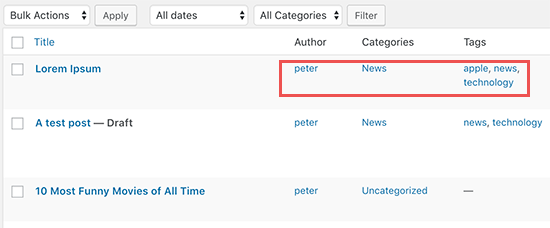
For example, clicking on the ‘News’ category will show you the list of posts filed under that category. You can then select the posts and move them to trash by using the Bulk Options menu.
Method 2: Bulk Delete WordPress Posts using a Plugin
The default bulk delete options are quite adequate for most users. However, there are some cases where you may need more options to quickly select specific posts and then bulk delete them.
For example, if you want to delete posts filed within last few days or posts older than a certain number of days?
Luckily, there is a plugin that lets you bulk delete posts using advanced filters.
First, you need to install and activate the Bulk Delete plugin. For more details, see our step by step guide on how to install a WordPress plugin.
Upon activation, go to Bulk WP » Bulk Delete Posts page in your WordPress admin area to delete posts. The plugin offers multiple ways to filter and select posts that you want to delete.
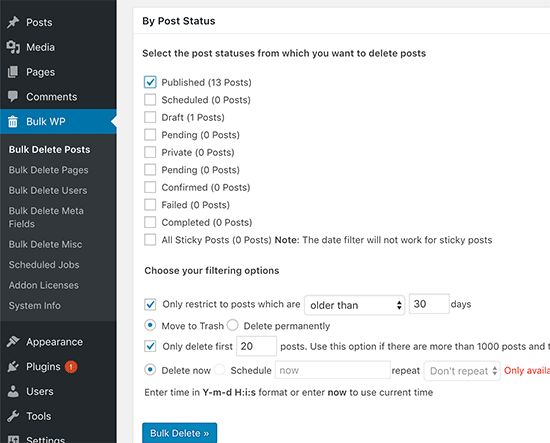
You can filter posts by duration, select posts published in last x days, delete them instantly without sending to trash, and even schedule to delete later.
As you scroll down further in the settings screen, you will find more options to select and delete posts by categories, custom taxonomies, custom post types, and more.
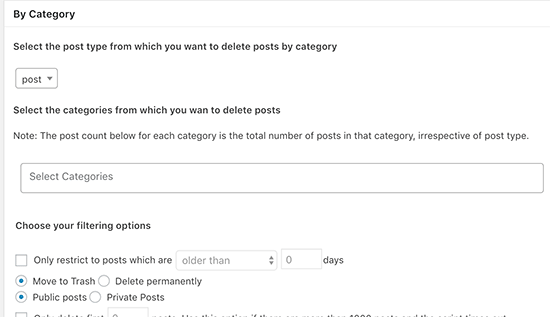
Bulk Delete can also be used to bulk delete comments, pages, users, and custom fields.
We hope this article helped you learn how to easily bulk delete WordPress posts using these two methods. You may also want to see our list of the best WordPress plugins for business websites.
If you liked this article, then please subscribe to our YouTube Channel for WordPress video tutorials. You can also find us on Twitter and Facebook.
The post How to Bulk Delete WordPress Posts (2 Easy Solutions) appeared first on WPBeginner.
from: WPBeginner
via Editorial Staff
Source: How to Bulk Delete WordPress Posts (2 Easy Solutions) Via Business Advice.
Comments
Post a Comment