
How to Add a FTP like File Manager in Your WordPress Dashboard

Do you want to add an FTP like file manager in your WordPress admin area? A file manager can help you edit WordPress configuration, themes, plugins, and other files right from your WordPress dashboard. In this article, we will show you how to easily add an FTP like file manager in WordPress.
Adding an FTP like file manager in WordPress

Why You Need an FTP like File Manager in WordPress?

A file manager in WordPress allows you to manage files on your WordPress website directly from your WordPress admin area. It works like a web-based FTP client allowing you to browse and manage files with a simple user interface.

Our recommendation is to always use an FTP client using SSH or SFTP protocols to securely transfer WordPress files.

However, a file manager is helpful when you don’t have access to FTP or cPanel of your website. It works similar to an FTP client, so you can edit, preview, upload, and download the WordPress configuration and other files.

That being said, let’s take a look at how to easily add an FTP like file manager in WordPress.

Adding a FTP like File Manager in WordPress

First thing you need to do is to install and activate the File Manager plugin. For more details, see our step by step guide on how to install a WordPress plugin.

Upon activation, the plugin will add a new menu item labeled ‘WP File Manager’ in the WordPress admin sidebar. Clicking on it will launch the file manager app, which will show your WordPress files and folders.
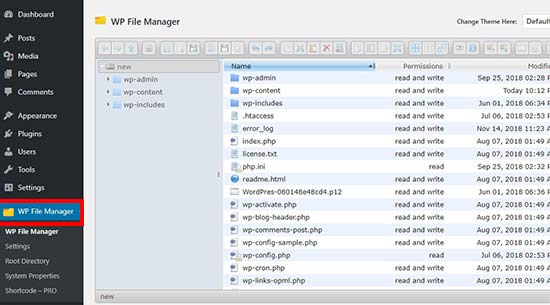
WP File Manager

You can find the settings in the toolbar above the files section. This toolbar is similar to the settings in an FTP client. It allows you to preview, edit, upload, download, and delete files or folders.
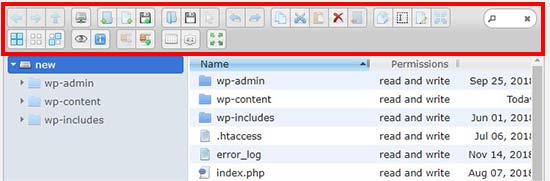
Toolbar

You can select a file and choose the option in the toolbar to perform an action.

The folders will work the same way as they do in any modern FTP client. You can click on any folder to open and view its contents.
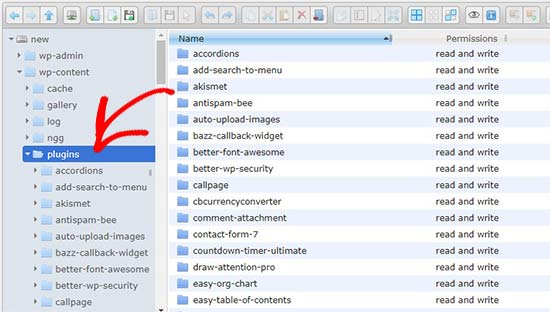
Edit plugin files

You can edit any file using the toolbar menu option. It’ll open the file in a popup, so you can make changes and save it.
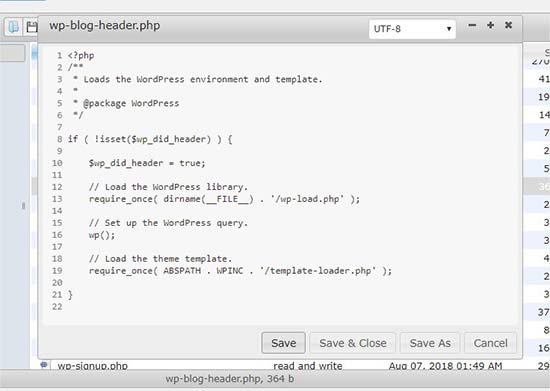
Edit file manager

If you don’t want to make changes in the file, then you can click on the preview option to see the code.

You can access the media files in the wp-content » uploads folder. The ‘Upload Files’ option in the toolbar allows you to upload multiple images in 1-click. You can also upload zip files and extract them in the file manager.
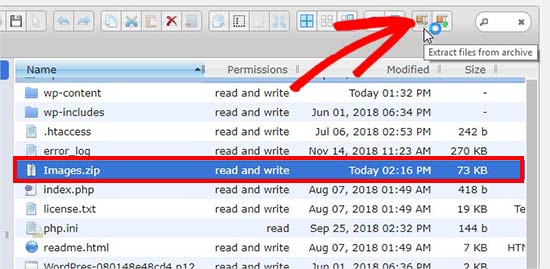
Extract zip file

That’s all. We hope this article helped you learn how to add a FTP like file manager in WordPress. You may also want to see our guide on useful WordPress configuration tricks that you may not know.

If you liked this article, then please subscribe to our YouTube Channel for WordPress video tutorials. You can also find us on Twitter and Facebook.

The post How to Add a FTP like File Manager in Your WordPress Dashboard appeared first on WPBeginner.

from: WPBeginner
via Editorial Staff

Source: How to Add a FTP like File Manager in Your WordPress Dashboard Via Business Advice.

Comments

Popular posts from this blog

7 Ways to Grow Your SaaS Startup Faster

Every startup looks for ways to catapult a business to success. Here are some tips for accelerating growth for SaaS (software as a service) companies. 1. Start charging early SaaS startups are often hesitant about charging customers. They think that their product is not yet ready, that it’s necessary to get traction and focus on expanding their customer base rather than on growing revenue. Deep inside, however, they often don’t just have enough faith in their product and are not sure if someone will buy it at all. They prefer keeping hundreds or thousands of free users to attempting to win a few serious customers. Big numbers are comforting but the product remains an unverified idea. Building a product should imply increasing revenue. So don’t hesitate too much—put it to the test by charging and see if it works in the real conditions. This is one way to minimize your risk too. Instead of waiting to launch until you’ve invested huge amounts of time and money, launch early. If...

How to Add Web Push Notification to Your WordPress Site

Do you want to add push notifications to your WordPress site? Push notifications allow you to send notifications to users even when they are not visiting your website. In this article, we will show you how to easily add web push notifications to your WordPress site. We will also talk about the best WordPress push notification plugins and how to send desktop & mobile push notifications from your WordPress site. What is Push Notification? Push notifications are clickable messages displayed on top of user’s desktop or notification area on their mobile device. They can be shown even when the user’s browser is not open. Aside from desktop, web push notifications also work on mobile devices. This allows you to reach your users across devices with latest updates and offers. Web push notifications have proven to be a very effective way to convert website visitors into customers and loyal followers. Why Add Web Push Notifications to Your WordPress Site? We have already discussed tha...

7 Best WordPress Job Board Plugins and Themes

Are you looking for the best WordPress job board plugin? There are several WordPress job board plugins that you can use to easily create a job board and charge other companies to post jobs. It is one of the ways to make money from your blog , and you can even use it to post your own job openings. In this article, we have picked the best WordPress job board plugins and themes that you can use. Building a Job Board Website with WordPress WordPress is currently one of the most popular website builders in the market, powering more than 30% of all websites on the internet. It can be used to build almost any kind of website including a job board website. There are two types of WordPress websites which often confuses new users. First, there is WordPress.com which is a hosted solution. Second, you have WordPress.org also called self-hosted WordPress. See our article on WordPress.com vs WordPress.org for a side-by-side comparison. We recommend using self-hosted WordPress.org because it g...