Are you looking for the best WordPress Chrome extensions to boost productivity? Browser extensions can help improve your WordPress workflow and make you more productive. In this article, we have hand-picked some of the best WordPress related Chrome extensions that you should try.
Why You Need WordPress Chrome Extensions?
Google Chrome is the most popular web browser in the world. It comes with hundreds of add-ons to easily perform several tasks within your browser.
You’ll find many useful WordPress extensions that can help with the website development, editing blog posts, check for grammar and spelling mistakes, manage tasks, and more.
Since there are thousands of extensions available, it becomes difficult for beginners to find the right tools they need.
To help you with that, we did the research and picked the best Google Chrome extensions that you can try.
1. Grammarly
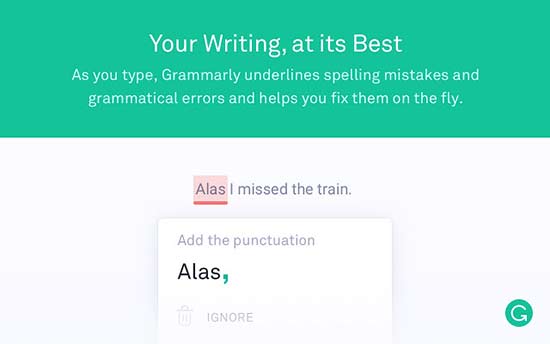
Grammarly is the most popular Chrome extension that you can use to check spelling errors and grammatical mistakes in your WordPress content. It helps you in writing and editing your blog posts easily. Grammarly also checks for contextual spelling errors and helps you improve readability of your content.
2. CloudApp

CloudApp is a popular tool to take screenshots, record screen, and share them with anyone. CloudApp’s Chrome extension makes it easy to take screenshots while browsing the web and insert them into your blog posts.
3. LastPass
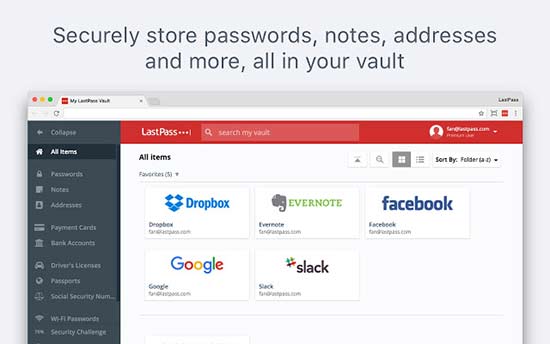
LastPass is the best password manager tool on the market. It works on Windows, Mac, Android, iOS, and more. It also comes with browser extensions for all top browsers including Google Chrome.
Using a password manager like LastPass allows you to choose strong and unique passwords for all your online accounts. It automatically fills in passwords for you so you don’t need to remember passwords.
4. Ahrefs

Ahrefs is one of the most powerful SEO tools on the market. It helps you understand why your competitors are ranking so high and what you can do to beat them. It also helps you find out keywords and blog post ideas that you can use to boost your search traffic.
They have an SEO Toolbar available as a Chrome extension which gives you a bird’s eye view of any page you are viewing with in-depth SEO analysis and keyword reports.
5. SimilarWeb
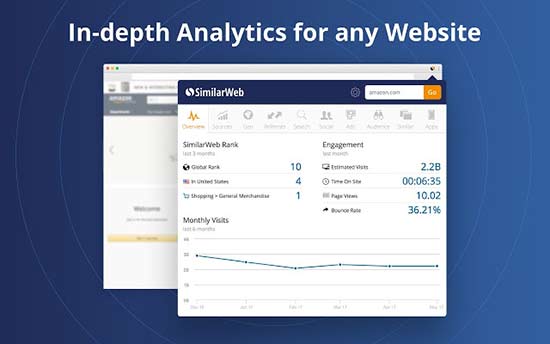
SimilarWeb is a Chrome extension for website traffic analysis. You can use this extension to see complete stats of your WordPress website including traffic sources, user engagement rate, keywords, and more. It gives an instant and detailed insight for any website with 1-click.
6. Evernote Web Clipper
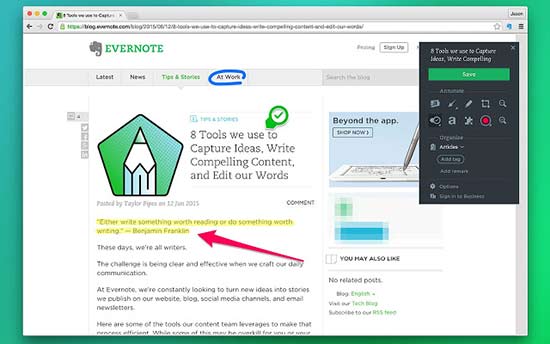
Evernote Web Clipper is a helpful Chrome extension for WordPress writers. It lets you clip the articles that you are reading and open them on any of your devices with Evernote. You can highlight the important content on any website and share it in emails or make a link out of it. Evernote is a bookmarking, social sharing, note taking, and task management tool combined in one app.
7. WhatFont
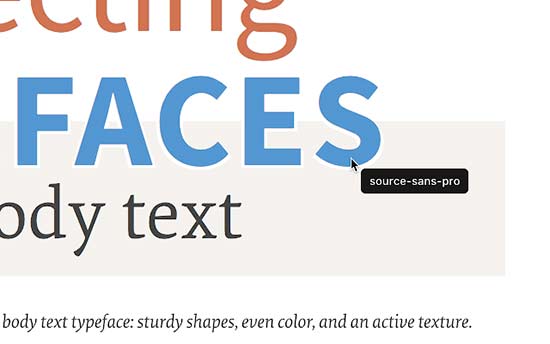
Wondering which font is used on the WordPress website you’re viewing? Simply add the WhatFont Chrome extension on your browser to find out the font by hovering on the text. It also shows the supported services for the web fonts like Typekit and Google Font API.
8. Asana
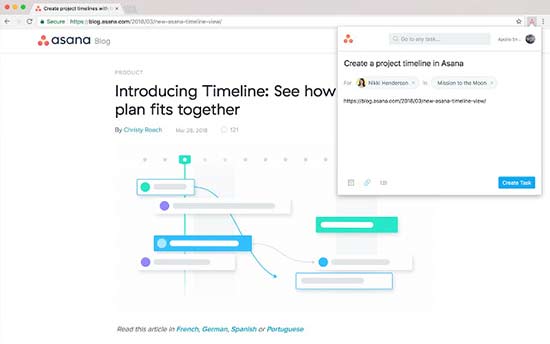
Asana is a popular productivity and task management tool. It also comes with a Google Chrome extension to manage your tasks easily from anywhere including from your WordPress website.
You can add and search tasks from any web page in your browser. It lets you create your own team and assign tasks with due dates. You can also add current URL as a task to read later or share it with your team members.
9. Buffer
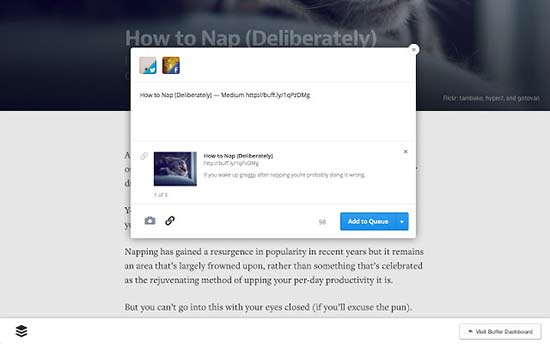
Buffer makes it easy to share your WordPress content on social media channels like Facebook, Twitter, LinkedIn, etc. It allows you to schedule blog posts and monitor the stats for better performance. You can add team members to work collectively and schedule your WordPress posts for social media websites.
10. WPSniffer

WPSniffer is a popular WordPress themes sniffer tool. You can use this Chrome extension to find out which theme is used on a WordPress website. It also displays the link of the active theme or redirects you to Google search with the theme name.
11. Dimensions
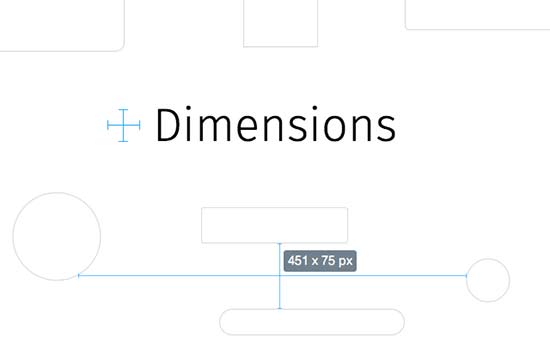
Dimensions is a Chrome extension for designers to measure different dimensions on a WordPress website. You can simply move your mouse between elements like images, text blocks, form fields, buttons, etc to find out the exact measurements. It can also help you convert JPEG and PSD files to web pages easily.
12. WordPress Keyboard Shortcuts
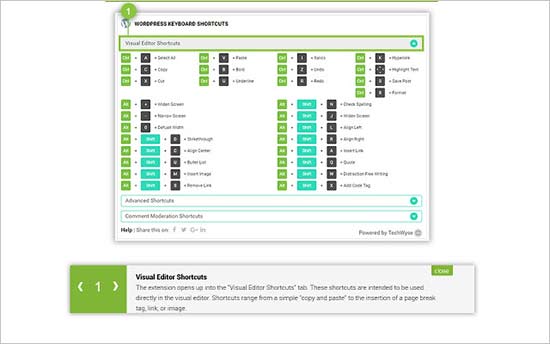
If you want to explore a new world of keyboard shortcuts for your WordPress site, then WordPress Keyboard Shortcuts is the perfect Chrome extension for it. This extension offers a complete range of keyboard shortcuts that work with WordPress and help you save time.
13. WordPress Style Editor
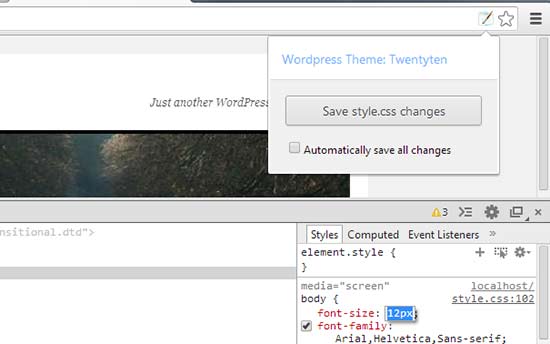
WordPress Style Editor is a useful Chrome extension that enables you to instantly save CSS changes that you make in the inspect tool of your browser. It saves a lot of time from checking the styles in the inspect tool and then manually updating your stylesheet. Make sure that you’re logged into your WordPress site to save the CSS properly.
Note: It works only with the style.css file of your WordPress theme. It makes the changes directly to the main CSS file, so make sure to keep a backup before you start editing.
14. Version Check for WordPress
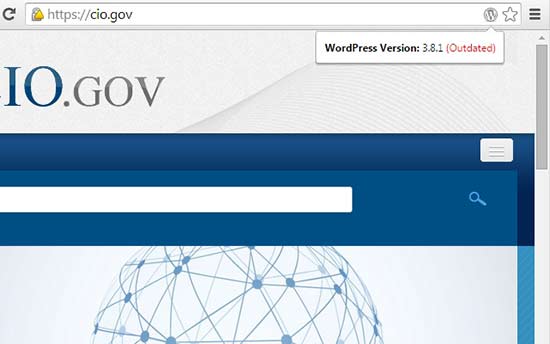
Version Check for WordPress is a simple Chrome extension that you can use to find out the version of any website built on WordPress. It displays the WordPress version in your browser while viewing a website. It also shows if the version used on the website is outdated.
15. WordPress Admin Switcher
WordPress Admin Switcher is a Chrome extension for WordPress websites. It allows you to switch to the WordPress login screen without typing the wp-admin in the browser tab. You can also directly switch to the post editor in your WordPress admin area while viewing a post on the website with 1-click.
Note: Mac users can press ‘Cmd + Shift + A’ and Windows users can press ‘Ctrl + Shift + A’ to switch to the admin login screen. You can also click on the extension icon in your browser to switch to your WordPress admin login page.
16. ColorZilla
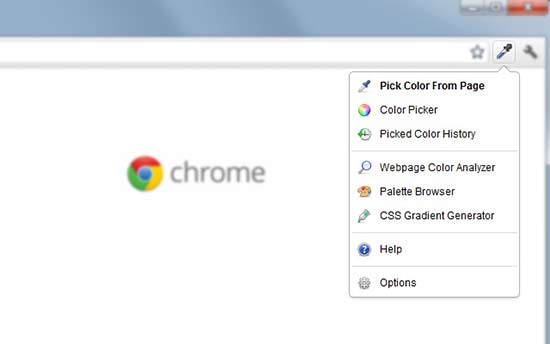
ColorZilla is an advanced Chrome extension to pick colors from your WordPress pages and posts. It lets you read the color code by using the eyedropper tool. You can also generate gradient colors CSS and use them in your stylesheets. It also maintains a history of recently picked colors.
We hope this article helped you find the best WordPress Chrome extensions to try. You may also want to see our list of the most wanted WordPress tips, tricks, and hacks to improve your website.
If you liked this article, then please subscribe to our YouTube Channel for WordPress video tutorials. You can also find us on Twitter and Facebook.
The post 16 Best WordPress Chrome Extensions that You Should Try appeared first on WPBeginner.
from: WPBeginner
via Editorial Staff
Source: 16 Best WordPress Chrome Extensions that You Should Try Via Business Advice.
Comments
Post a Comment