Did you know that you can install and use WordPress in multiple languages? Yes, you can even create a multilingual website with WordPress by translating your content into different languages. In this article, we will show you how to easily translate your WordPress with TranslatePress.
Why Use TranslatePress for Translating a WordPress Website
The best part about WordPress is that it can be used in any language. Most WordPress themes and plugins can also be used and translated into any language as well.
If your business website have a multilingual audience, then it can be very beneficial to translate your content.
You can use machine translations like Google Translate, but these translations are not good and sometimes can be quite misleading.
On the other hand, if you’re using a multilingual WordPress plugin, then you need to create multiple posts which requires switching back and forth between different languages.
TranslatePress is a WordPress translation plugin that helps you solve all these problems.
- You can translate your website and content using a live editor with the actual preview of each page on your site
- You can instantly switch languages from the live editor.
- Translate your theme, content, and plugins easily using the same interface.
- Use Google Translate for automatic translations and only edit the parts that don’t make sense.
Let’s take a look at how to easily translate your WordPress website with TranslatePress.
Translating WordPress with TranslatePress
The first thing you need to do is install and activate the TranslatePress plugin. For more details, see our step by step guide on how to install a WordPress plugin.
If you want to translate your website to more than one language, then you will also need to install ‘Extra Languages’ add-on. You can do this from the download addons button under your account on TranslatePress website.
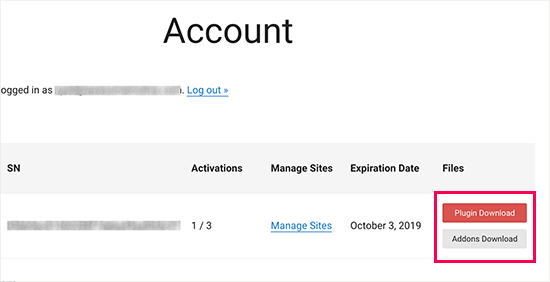
After downloading the add-on, you can install and activate it like any other WordPress plugin.
Upon activation, you need to visit Settings » TranslatePress page to configure plugin settings.
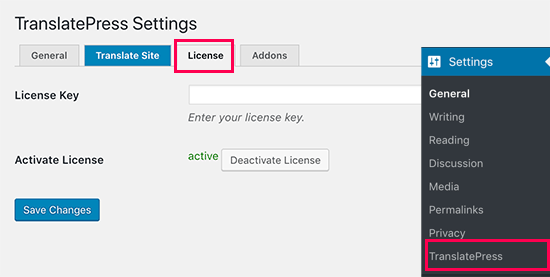
First, you need to switch to the license tab and enter your license key. You can find this information under your account on the TranslatePress website.
After that, you need to switch to the General settings tab to setup other settings.
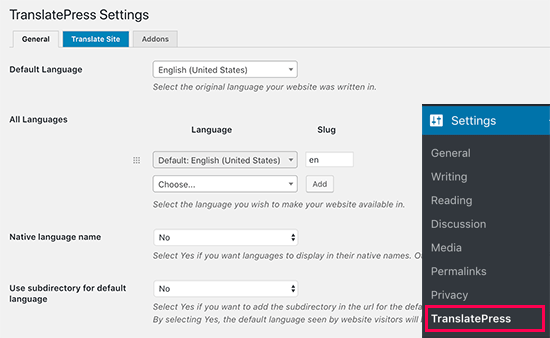
The first option on the page is to choose the default language of your website, and the languages you want to translate your website into.
Next, you need to choose whether you want to display language names in the native language. The default option is ‘No’ which means language names will be shown in the default language.
The next option is to choose whether you want to display the default language name in the URL as a subdirectory. For example, http://example.com/en/.
The default choice is no which means only the other languages will have the language name in URL as a subdirectory. We recommend leaving this setting as-is for best SEO.
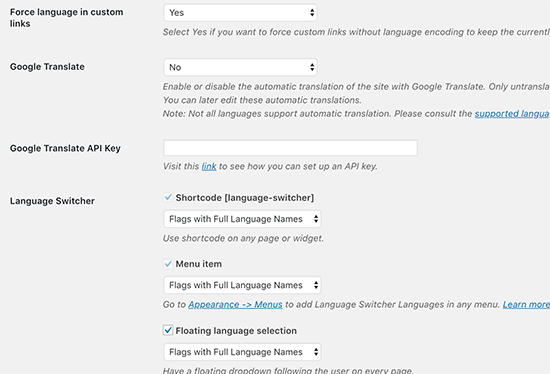
This brings you to the next setting, ‘Force language in custom links’. The default option is ‘Yes’, because that will change custom links for translated languages making the URLs more SEO friendly.
Next, you need to choose whether you want to use Google Translate for automatic translations. The default choice is ‘No’, but you can change that if you would like to use Google Translate.
You will need to provide a Google Translate API key in the next option. You will find a link under the option which will show you instructions on how to get one.
Finally, you will come to the options on how you want to display the language switcher on your website. TranslatePress provides you with three choices.
You can use a shortcode, add switcher to your navigation menu, or display a floating menu. We will show you how to add the language switcher to your website later in this article.
Go ahead and click on the ‘Save Changes’ button to store your settings.
Translating Your Website Content
To translate your website, you can simply click on the ‘Translate Site’ tab on plugin’s settings page or the button in your WordPress admin bar.
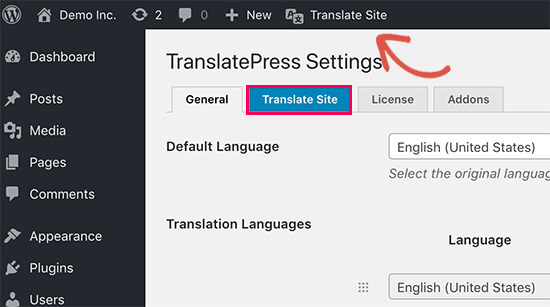
This will open the live translation editor in a new browser tab.
In this live editor, you can click on any text on your website in the right pane and TranslatePress will load it in the left column to translate.
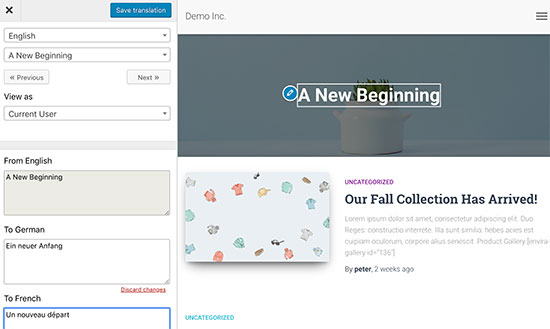
Now click on the language you want to translate the string into and then provide your translation.
After entering the translation, click on the ‘Save Translation’ button on the top and then click on the next button. TranslatePress will automatically load the next string on the page for you to translate.
You can also just click on the drop-down menu below your default language, and it will show you the list of translatable text strings on the page. You can select a string and then provide its translation.
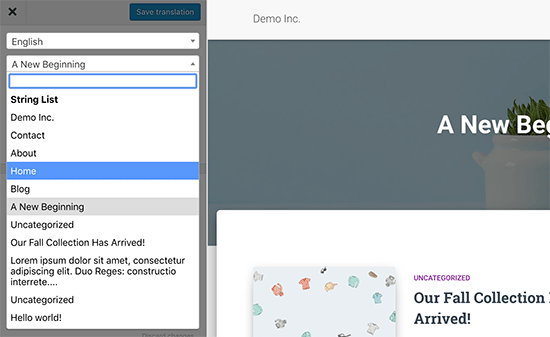
You can translate all content on any page. This includes navigation menus, buttons, sidebar widgets, meta text, and more.
You can also visit any page by clicking on the links on the screen and start translating that page.
TranslatePress allows you to instantly start translating any page or post on your site when logged in. Simply click on the ‘Translate Page’ button on the top to enter the live editor.
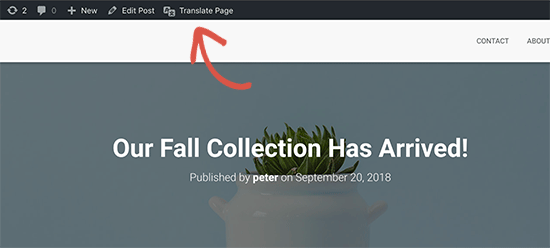
Once you have translated a string, the plugin will automatically translate it for you on other places. For example, if you translated a post title, then the post title in your sidebar widgets will be automatically translated.
Adding Language Switcher to Your Website
Language switcher allows your website visitors to select a language when they visit your website. It usually displays the flag of each country to indicate languages available on your site.
TranslatePress allows you to add language switcher by using a shortcode, as a navigation menu item, or as a floating banner. The language switcher can be displayed as flags, language names, or both.
Adding language switcher in WordPress using shortcode
You just need to add [language-switcher] shortcode to posts, pages, or a sidebar widget where you want to display the language switcher.
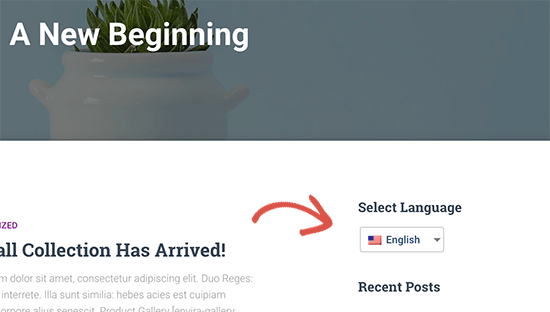
Adding language switcher to your WordPress navigation menu
Simply go to Appearance » Menus page and click on the ‘Language Switcher’ tab in the left column. Now select the languages you want to display and then click on add to menu button.
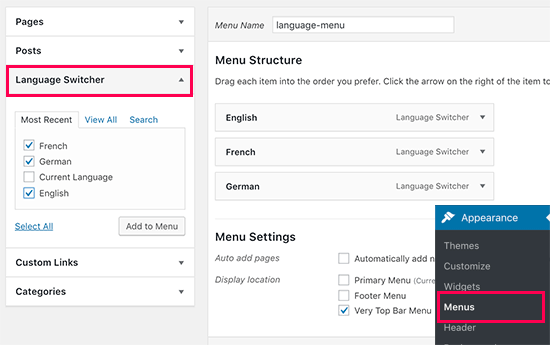
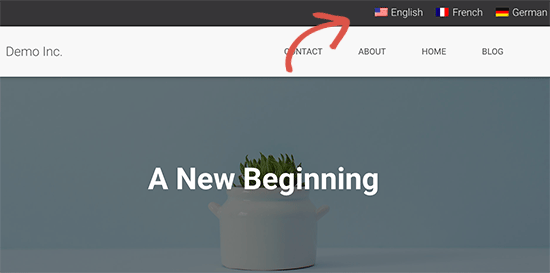
You will now see languages added to your WordPress navigation menu. Don’t forget to click on the ‘Save Menu’ button to store your changes.
This is how it looked on our test site:
Adding a floating language switcher
Go to plugin’s settings page and scroll down to language switcher section. From here make sure the box next to the ‘Floating language selection’ option is checked.
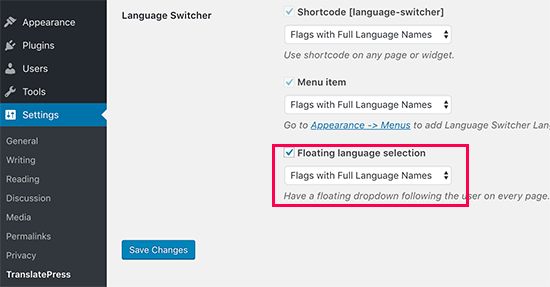
Don’t forget to click on the save changes button to store your settings.
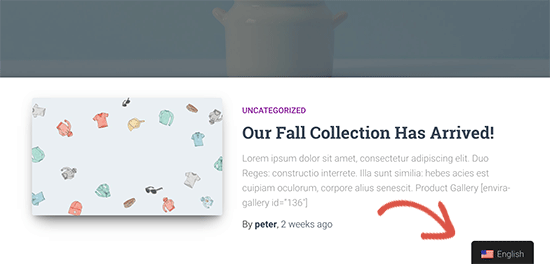
You can now visit your website to see the floating language switcher at the bottom of every page on your website.
We hope this article helped you learn how to translate your WordPress site with TranslatePress. You may also want to see our list of the best WordPress plugins for business websites.
If you liked this article, then please subscribe to our YouTube Channel for WordPress video tutorials. You can also find us on Twitter and Facebook.
The post How to Easily Translate Your WordPress with TranslatePress appeared first on WPBeginner.
from: WPBeginner
via Editorial Staff
Source: How to Easily Translate Your WordPress with TranslatePress Via Business Advice.
Comments
Post a Comment