Do you want to create WooCommerce product galleries and add them to your blog posts or pages? WooCommerce product galleries are an easy way to display your products outside your shop pages. In this article, we will show you how to easily create a WooCommerce product image gallery (step by step).

Why You Should Create WooCommerce Product Galleries?
WooCommerce is the most popular WordPress eCommerce plugin in the market. It allows you to sell products by creating an online store.
Most WordPress themes for WooCommerce come with default templates for shop and shop category pages. These pages simply list your products using the theme’s style.
What if you wanted to create a product gallery and display it inside a blog post or another page on your site? By displaying your products in your popular blog posts and pages, you can increase your sales and conversions.
Let’s take a look at how to easily create WooCommerce product image galleries with Envira Gallery.
Creating WooCommerce Product Galleries with Envira
First thing you need to do is to install and activate the Envira Gallery plugin. For more details, see our step by step guide on how to install a WordPress plugin.
Upon activation, you need to go to the Envira Gallery » Settings page to enter your license key. You can find this information under your account on Envira Gallery website.
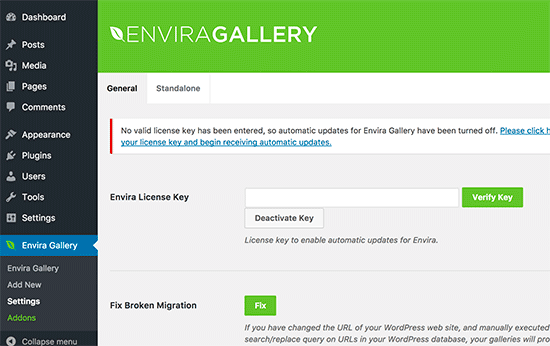
Once the license key is verified, you can go to Envira Gallery » Addons to install and activate the ‘Featured Content’ addon. This addon will allow you to display your WooCommerce products in the Envira galleries.
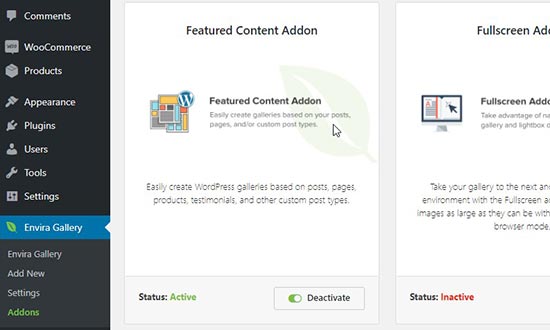
After activating the addon, you need to go to Envira Gallery » Add New page to create your new product gallery.
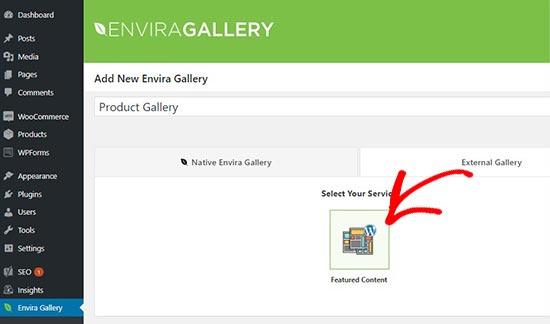
From here, you can start by adding a title for the new gallery. After the title, you need to click on the ‘External Gallery’ tab and select ‘Featured Content’.
Next, scroll down to the ‘Images’ tab. In the ‘Select Your Post Type(s)’ field, you need to select ‘Product’ which is the custom post type for WooCommerce products.
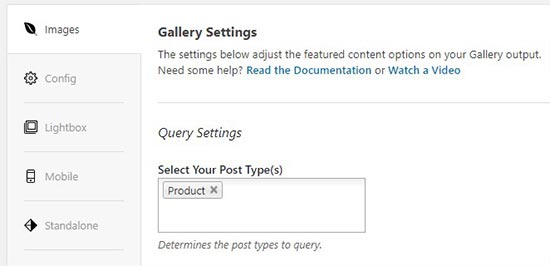
If you have hundreds of products, then you may want to create multiple galleries. You can narrow down the gallery listings by selecting taxonomy terms for specific product tags or categories.
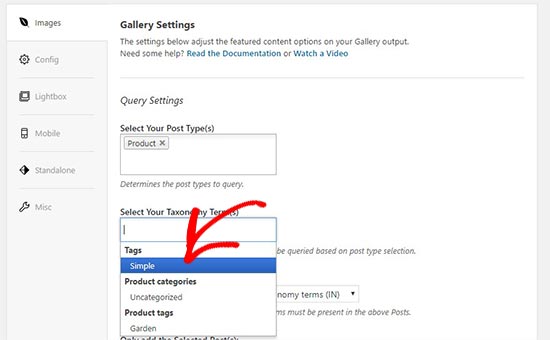
Simply repeat this process with different product tags and categories each time you create a new product gallery. The post type will always be ‘Product’ in all your WooCommerce product galleries.
You can also choose a taxonomy term relation to select and display specific products in your galleries.

For more details, you should check out our guide on how to create an image gallery in WordPress.
Once you are done, you can publish your product gallery which will make it available to be added anywhere on your WordPress site.
Next, you need to head over to the edit post or page where you want to display your product gallery.
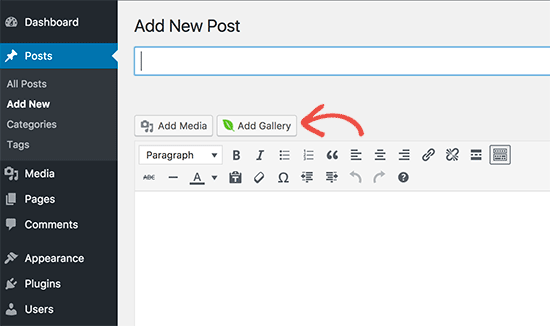
On the post edit screen, you need to click on ‘Add Gallery’ button above the post editor.
It’ll open a popup where you can select the product gallery that you just created and click on the ‘Insert’ button.
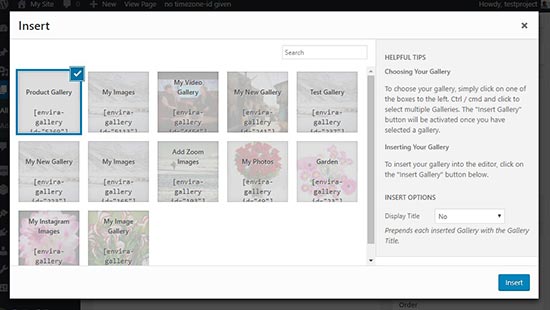
A shortcode will appear for your product gallery in the post editor.
Next, you can save and publish your post. After that visit your website to see the product gallery in action.
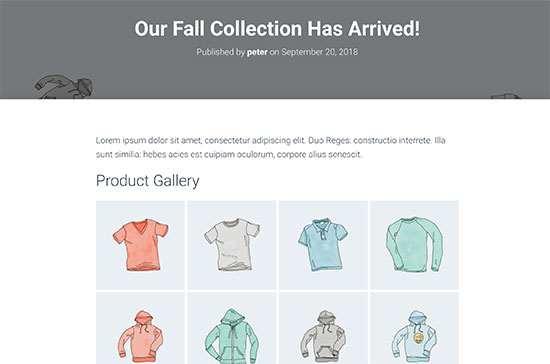
That’s all. We hope this article helped you learn how to create a WooCommerce product image gallery. You may also want to check out our guide on the must have WordPress plugins for business websites.
If you liked this article, then please subscribe to our YouTube Channel for WordPress video tutorials. You can also find us on Twitter and Facebook.
The post How to Create a WooCommerce Product Image Gallery (Step by Step) appeared first on WPBeginner.
from: WPBeginner
via Editorial Staff
Source: How to Create a WooCommerce Product Image Gallery (Step by Step) Via Business Advice.
Comments
Post a Comment