If you’re one of the many beginners who want to customize your WordPress site design without touching CSS, then you’re in luck. CSS Hero plugin for WordPress allows you to make design customization without touching a single line of code. In this updated CSS Hero review, we will show you how to use CSS Hero to customize your website, and why we believe it’s one of the plugins every WordPress beginner should try.
Our CSS Hero Review
CSS Hero is a premium WordPress plugin that allows you to design your own WordPress theme without writing a single line of code (No HTML or CSS required).
You have the ability to undo changes which is extremely helpful for beginners. All changes are saved as an additional stylesheet, which means you can upgrade your WordPress theme without worrying about losing the changes.
If you’re a designer or developer, then you will find CSS Hero equally as good. It works well with all popular WordPress themes and frameworks. You can quickly make changes to a child theme, and then export it to be used on a client’s website.
CSS Hero can save you a lot of time and frustration when it comes to making design customizations.
Usually, we’re very skeptical about point-and-click design customization plugins due to their bloated size. However, CSS Hero truly impressed us from the start.
If you were to ask us for an honest CSS Hero review, then we will give it a 5 out of 5 star.
How to Use CSS Hero to Customize Your WordPress Theme
First you need to install and activate the CSS Hero plugin. For more details, see our step by step guide on how to install a WordPress plugin.
It is a premium WordPress plugin with pricing starting from $29 for a single site (totally worth the investment considering the time and hassle it will save you).
Use the CSS Hero coupon code: WPBeginner to get a special discount of 34% Off. If you are buying the PRO plan, then the same code will get you a whopping 40% discount.
Upon activation, you will be redirected to obtain your CSS Hero License key. Simply follow the on-screen instructions, and you will be redirected back to your site in a few clicks.
The goal of CSS Hero is to provide you a WYSIWG (what you see is what you get) interface for editing your theme. Simply visit your website while logged in, and you will notice the CSS Hero button in the WordPress admin bar.
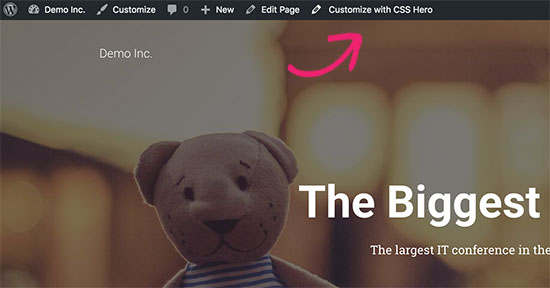
Clicking on the button will convert your site into the live preview. You will now be able to see the CSS Hero toolbar.

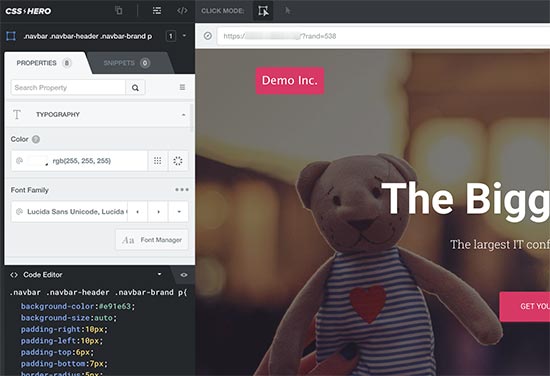
Next, simply click on any element on your website, and CSS Hero will show you the CSS properties used by your theme for that particular element.
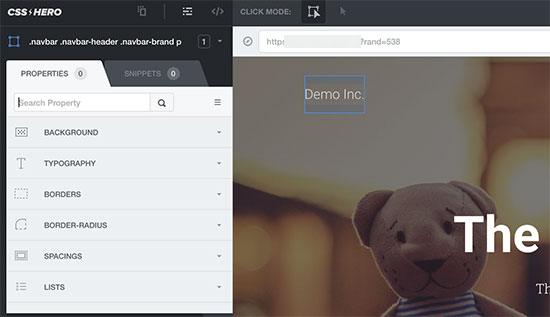
These will include common CSS properties for the selected element like the background, typography, borders, spacing, and more. You can click on any item to expand it and then edit the CSS properties using a simple user interface.
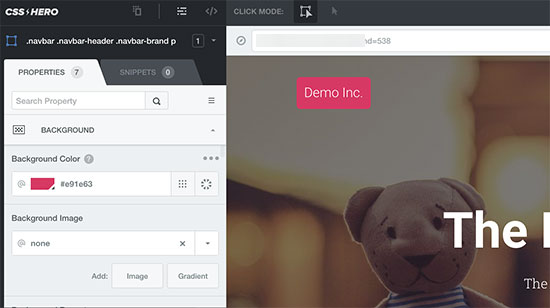
As you make changes, you will notice the custom CSS magically appear below. If you are learning CSS, then you will find it useful to see how different CSS changes are applied with the result in live preview.
Having trouble finding royalty free images for your website? CSS Hero comes with built-in Unsplash integration which allows you to browse, search, and use beautiful photographs in your website’s design.

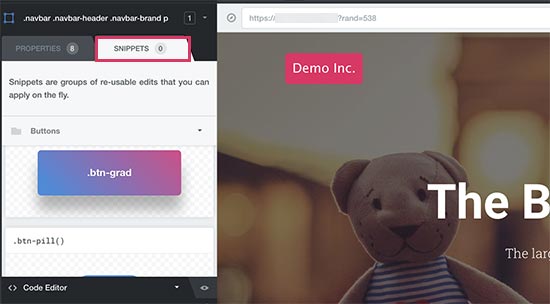
CSS Hero also comes with some ready-made snippets that you can apply to different elements on your website. Simply switch to the Snippets tab in the left column.
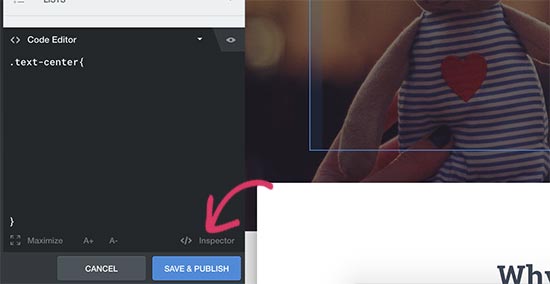
As you make changes to your website, CSS Hero will autosave those changes but not publish them. To apply these changes to your live website, you need to click on the Save and Publish button.
How to Undo Changes in CSS Hero
One of the best features of CSS Hero is the ability to undo any changes you make at any time. CSS Hero keeps a history of all the changes you make to your theme. Simply click on the history button in the CSS Hero toolbar to see the list of changes.
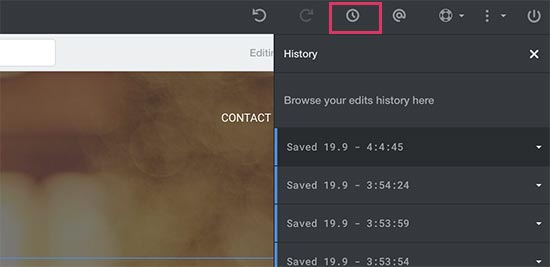
You can click on a date and time to see what your site looked at that point. If you want to revert back to that state, then simply save or resume editing from that point.
This doesn’t mean that changes you made after that point would disappear. They would still be stored, and you can revert back to that time as well. It does not get any simpler than that.
But what if you only wanted to revert changes you made to a particular item?
In that case, you don’t need to use the history tool. Simply click on the element that you want to revert and then click on the reset button.
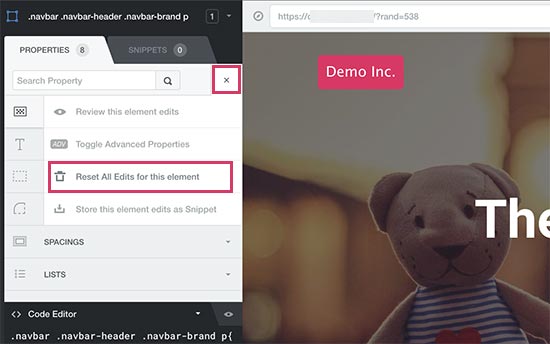
This will change the item back to the default settings defined by your WordPress theme.
Customizing Your Site for Mobile Devices in CSS Hero
The most challenging aspect of web design is device compatibility. You need to make sure that your site looks equally dazzling on all devices and screen sizes. Web designers use a variety of tools to test for browser and device compatibility. Lucky for you, CSS Hero comes with a built-in preview tool.
Simply click on the desktop icon in the CSS Hero toolbar and then click on a device type. You can choose from mobile, tablet, and desktop devices. The Preview area will change into your selected device.
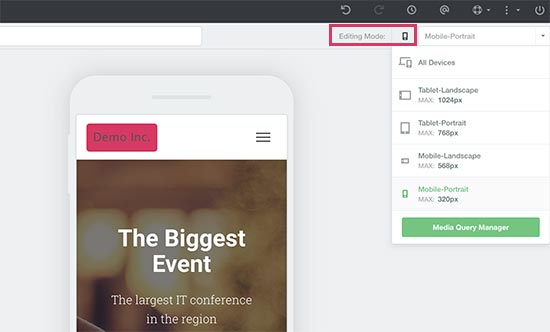
You can now edit your site while previewing it for mobile devices. This tool is particularly useful to tweak your theme’s design for mobile and tablets.
CSS Hero Theme Compatibility
The official CSS Hero website has an ever growing list of compatible themes. This list includes many of the best free WordPress themes. It also has the most popular premium themes from shops like CSSIgniter, Themify, StudioPress, and more.
What About Themes not on Theme Compatibility List?
CSS Hero comes with a feature called Rocket Mode Auto-detection. If you are using a theme not included in theme compatibility list, then CSS Hero will automatically start using rocket mode.
Rocket Mode tries to guess the CSS selectors from your theme on its own. This works out perfectly most of the time. If your theme follows WordPress coding standards, then you would be able to edit almost everything.
You may also want to contact your theme developer and ask them to provide compatibility with CSS Hero.
Which Plugins Are Compatible with CSS Hero?
CSS Hero is regularly tested with top WordPress plugins for compatibility. This includes contact form plugins, popular page builders, WooCommerce, and others.
If you are using a WordPress plugin which generates an output not editable by CSS Hero, then you can request the plugin author to fix that. They really don’t need to do much to provide compatibility with CSS Hero.
We hope that you found our CSS Hero review useful. You may also want to see our ultimate guide on improving WordPress speed and performance for beginners.
If you liked this article, then please subscribe to our YouTube Channel for WordPress video tutorials. You can also find us on Twitter and Facebook.
The post CSS Hero Review: WordPress Design Customization Made Easy appeared first on WPBeginner.
from: WPBeginner
via Editorial Staff
Source: CSS Hero Review: WordPress Design Customization Made Easy Via Business Advice.
Comments
Post a Comment