Do you want to disable Gutenberg and keep the classic WordPress editor on your site? Gutenberg is an upcoming WordPress editor which will replace the classic WordPress editor. While it looks modern, a lot of users are finding it hard to use and would prefer to keep the classic editor. In this article, we will show you how to easily disable Gutenberg and keep the classic editor in WordPress.
What is Gutenberg?
Gutenberg is an upcoming WordPress editor with a goal to modernize the WordPress writing experience.
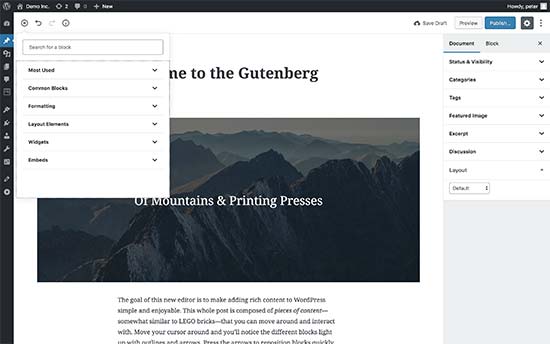
It attempts to work like a page builder plugin and allows you to drag and drop items into a post or page. The goal is to offer more flexibility and enable WordPress users to create unique layouts for their content with rich multimedia content.
Since WordPress 4.9.8, the core WordPress team has added a call to try out Gutenberg in the WordPress dashboard. The purpose of this callout is to get feedback from millions of WordPress users and make Gutenberg ready for its first release.
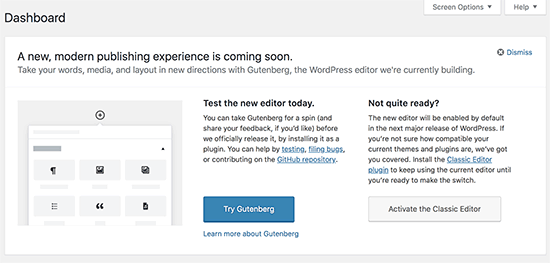
Gutenberg will become the default WordPress editor with the release of WordPress 5.0 which is expected to arrive later this year (2018).
Why Disable the Gutenberg Editor in WordPress?
Many users feel that Gutenberg in it’s current state is not ready for live sites. This is evident by the 2.3 out of 5 rating average on the Gutenberg plugin. At the time of writing this article, there are 676 one-star ratings vs 288 five-star ratings.
Despite the negative reviews, WordPress core team is moving forward with making Gutenberg the default editor in WordPress 5.0.
This is making a lot of users very concerned. They want to have an option to disable Gutenberg and keep the classic editor.
Thankfully, there’s a plugin by the WordPress core team which allows you to do just that.
Let’s take a look at how to easily disable Gutenberg and keep using the classic WordPress editor.
Method 1. Disable Gutenberg with the Classic Editor Plugin
For this method, we will be using the Classic Editor plugin which is developed and maintained by the core WordPress contributors.
First thing you need to do is install and activate the Classic Editor plugin. For more details, see our step by step guide on how to install a WordPress plugin.
The plugin works out of the box, and it will disable the Gutenberg editor upon activation.
This plugin also gives you an option to keep both Gutenberg and the Classic editor at the same time. You can configure this in the plugin’s settings.
Simply go to the Settings » Writing page in your WordPress admin area. You will see the option to do this under “Classic editor settings”.
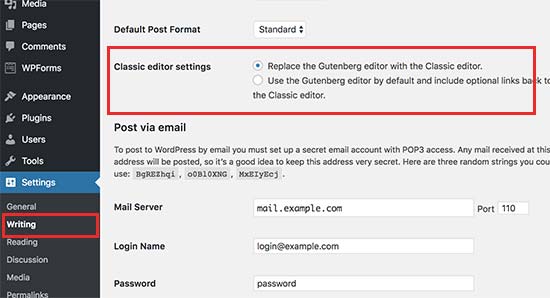
Don’t forget to click on the save changes button to store your settings.
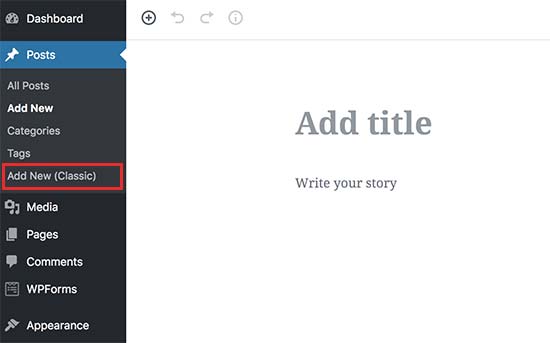
You will now be able to see a new link under the Posts menu to create new posts using the classic editor.
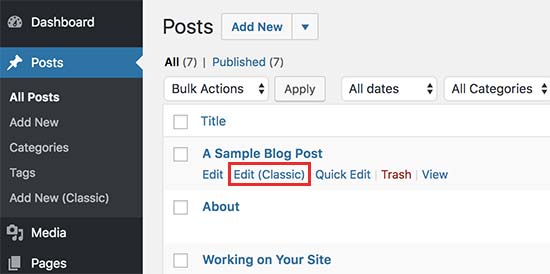
You will also be able to edit older articles using the classic editor. Simply go to Posts » All Posts page and you’ll see a ‘Edit (Classic)’ link below posts.
Method 2. Use Classic Editor with Disable Gutenberg Plugin
If you want to disable Gutenberg for certain user roles and post types, then this method will help you do that.
First, you need to install and activate the Disable Gutenberg plugin. For more details, see our step by step guide on how to install a WordPress plugin.
Upon activation, you need to visit Settings » Disable Gutenberg page to configure plugin settings.
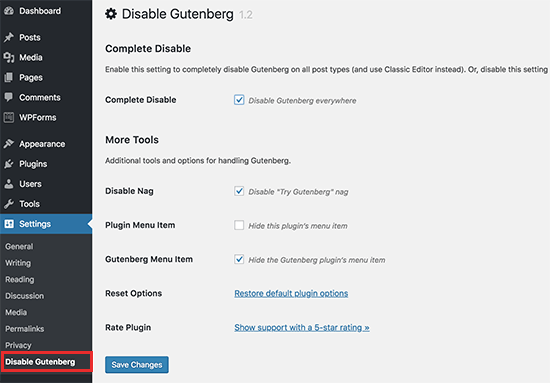
By default, the plugin will disable Gutenberg everywhere for all users on your website. However, if you want to limit it to certain user roles and post types, then you need to uncheck the ‘Complete Disable’ option.
Unchecking it will display more options to selectively disable Gutenberg for certain user roles, post types, theme templates, or individual posts.
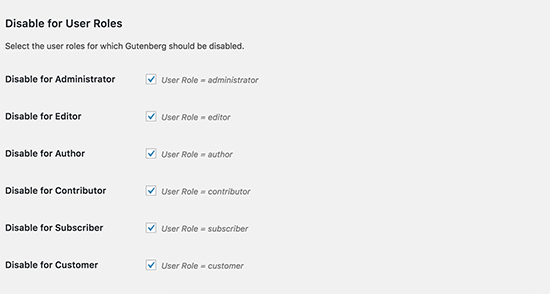
This option is helpful if you are using a WordPress plugin that’s not compatible with Gutenberg, but you want to use Gutenberg for other areas on your site.
WordPress is the world’s most popular website builder powering more than 31% of all websites on the internet.
It has thousands of plugins and themes and powers all kind of websites from eCommerce stores to membership communities.
A lot of these third-party tools rely heavily on the classic WordPress editor. The core team is trying to give developers enough time to make their plugins and themes compatible with Gutenberg. However, it is possible that many of these will not be fully compatible with the Gutenberg editor.
If that’s the case, then these settings could be very helpful for you.
Don’t forget to click on the save changes button to store your settings.
We hope this article helped you disable Gutenberg and keep the classic editor in WordPress. You may also want to see our list of the most wanted WordPress tips, tricks, and hacks.
If you liked this article, then please subscribe to our YouTube Channel for WordPress video tutorials. You can also find us on Twitter and Facebook.
The post How to Disable Gutenberg and Keep the Classic Editor in WordPress appeared first on WPBeginner.
from: WPBeginner
via Editorial Staff
Source: How to Disable Gutenberg and Keep the Classic Editor in WordPress Via Business Advice.
Comments
Post a Comment