Do you want to change the WordPress admin email for your website? By default, WordPress uses the first email address you provide as your website’s admin email. It is also used as the email address of the first admin account. In this article, we will show you how to easily change the WordPress admin email address.
Why and When You Need to Change The WordPress Admin Email?
Normally, beginners use their personal email address when installing WordPress. Also some WordPress hosting companies have auto-installers which automatically use your hosting account’s email address during the installation.
This email address is then used by WordPress as the website’s email address as well as the email for the first admin user account.
Your website’s email address is used by WordPress to send important email notifications. For example, when a new user account is created, an auto update is installed, and for comment moderation notices.
The admin user’s email address is used to recover lost password and notifications about their account.
Most website owners soon realize that they want to use a professional business email address instead of generic free email accounts. They may also want to use a different email address for site administration and the admin user.
Having said that, let’s take a look at how to easily change WordPress admin email address.
Method 1. Changing WordPress Admin Email Address via Admin Area
This method is simpler and recommended for beginners. In most cases you will be using this method to change your WordPress site email, and your WordPress admin user account’s email address.
To change the WordPress website email address, go to Settings » General and change the ‘Email Address’ option.
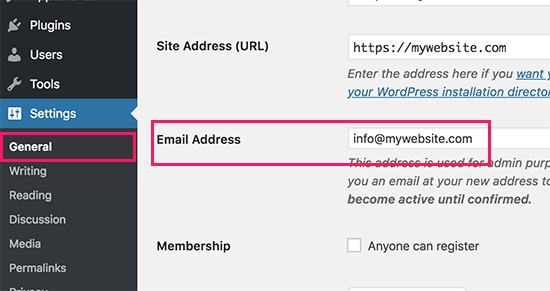
Don’t forget to save your changes.
WordPress will now send important administration related emails to this new email address.
Next, if you want to change the email address of the admin user, then you need to visit Users » All Users page and click on the ‘Edit’ link below the admin user you want to change.
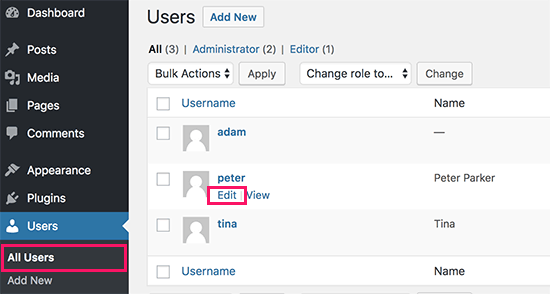
This will open the profile edit page for that particular user account. Simply scroll down to the email option and then change the email address.
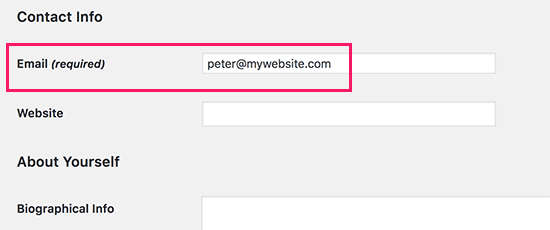
Don’t forget to click on the ‘Update profile’ button to save your changes.
If you are currently logged in to the user account that you are changing, then WordPress will now send an email notification to the new email address. You need to click on the link in the email to confirm the change of your email address.
Method 2. Change WordPress Admin Email via PhpMyAdmin
In this method, we will show you how to change both of these email addresses via phpMyAdmin. This method should only be used when you are unable to access the WordPress admin area.
First, you need to visit the cPanel dashboard on your hosting account. Under the database section, you need to click on the phpMyAdmin icon.
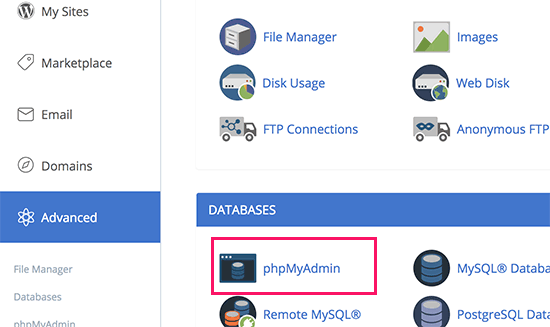
Note: Depending on your hosting company, your cPanel dashboard may look slightly different than the above screenshot. We’re using Bluehost, so that’s the screenshot of our control panel.
This will launch the phpMyAdmin app. It is a database management tool, and we will be using it to directly change the admin email address in the WordPress database.
In the phpMyAdmin window, you will see your database listed in the left column. Clicking on it will show you all the tables inside it. You need to locate the _options table and click to open it.
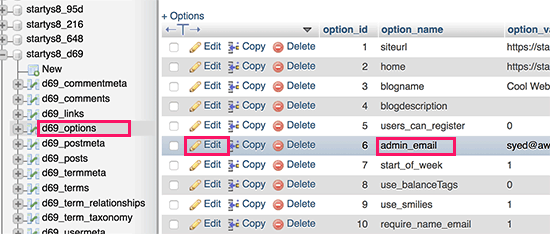
It will now show you the data rows inside the options table. You need to click on the ‘Edit’ button next to the row where option_name is ‘admin_email’.
phpMyAdmin will now open the row in a form where you can just go ahead and change the admin email for your site.
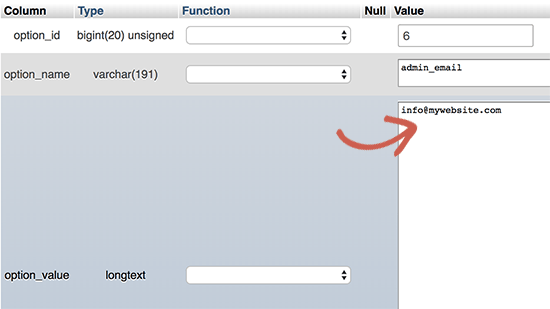
Don’t forget to click on the ‘Go’ button to save your changes.
You have successfully updated the email address for website email notifications. Let’s go ahead and change the email address for the admin user account.
Click to open the _users table in phpMyAdmin window. Next, click on the edit button next to the row where user login matches the user you want to edit.
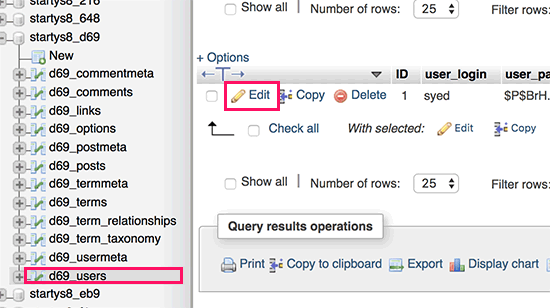
PhpMyAdmin will now open the user row in a form. You can enter the new email address in the user_email field.
Don’t forget to click on the ‘Go’ button to save your changes.
Troubleshooting
Sometimes WordPress email notifications may never reach your inbox. It is a common issue, and you might be unable to receive password reset or user confirmation emails because of this.
If you are unable to receive WordPress email notifications, then please see our guide on how to fix WordPress not sending email issue.
We hope this article helped you learn how to change the WordPress admin email. You may also want to see our ultimate guide on WordPress user role permissions.
If you liked this article, then please subscribe to our YouTube Channel for WordPress video tutorials. You can also find us on Twitter and Facebook.
The post How to Change the WordPress Admin Email (2 Methods) appeared first on WPBeginner.
from: WPBeginner
via Editorial Staff
Source: How to Change the WordPress Admin Email (2 Methods) Via Business Advice.
Comments
Post a Comment