Do you want to verify your WordPress site on Pinterest? Verifying your website on Pinterest will unlock neat features like Pinterest analytics, ads program, stats for your photos, and more. In this article, we will show you how to easily verify your WordPress site on Pinterest.
Video Tutorial
If you don’t like the video or need more instructions, then continue reading.
Why You Should Verify Your WordPress Site on Pinterest?
Pinterest is one of the most popular social media platforms to share your photos, videos, and other visual content. It allows you to create an account and manage your images like Instagram or Flickr.
It also allows other users to collect websites, links, and other visual content by creating boards.
If you are running a photography website or any other type of blog with images and videos, then Pinterest can be an important source of traffic.
Verifying your website on Pinterest will help you learn more about your visitors using Pinterest Analytics. You will also be able to participate in their ad program and plan a strategy to grow your Pinterest traffic.
That being said, let’s take a look at how to easily verify your WordPress site on Pinterest.
Verifying Your WordPress Site on Pinterest
Before we start, you’ll need to upgrade your Pinterest profile to a business account. This will allow you to use all their Pro tools like analytics, ads program, and more. The Pinterest business account is free and easy to set up.
Ready, let’s get started.
Step 1. Upgrade Your Pinterest Account to Business
You need to log into your Pinterest account and click on the three-dots menu at the top right corner of your screen. It will show you an Upgrade Now button.
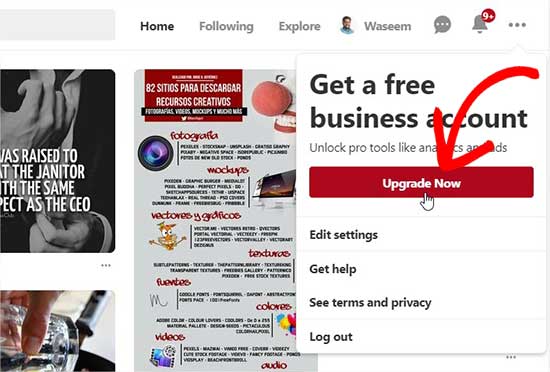
When you click on this button, it will take you to the business account setup page. You need to enter your business name, website URL, and select a business type.
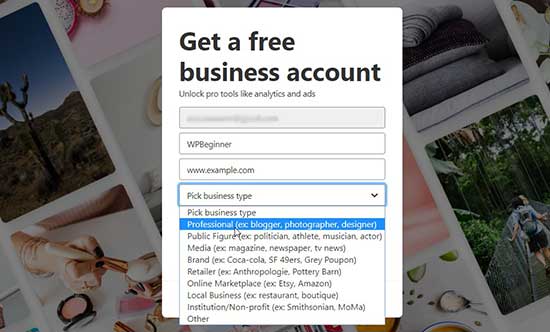
Now that you have entered all the required information, go ahead and click on the Continue button, and your personal account will be upgraded to a Pinterest business account.
Note: If you don’t want to convert your personal account, then go ahead and create a new business account on Pinterest.
Step 2. Claim Your Website on Pinterest
To claim your website, you need to go to the three-dot menu from the top right corner again and click on Settings.
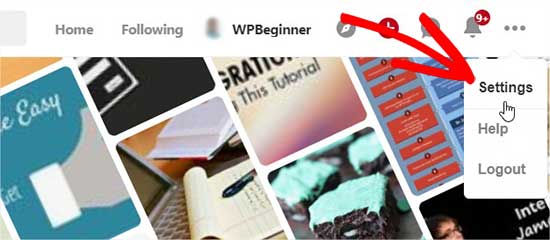
On this page, you need to head over to Claim Website section in the left menu and enter your website URL.
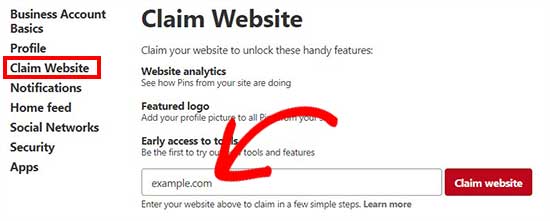
When you click on the Claim website button, it will display two methods that you can use to claim your website (HTML tag or HTML file).
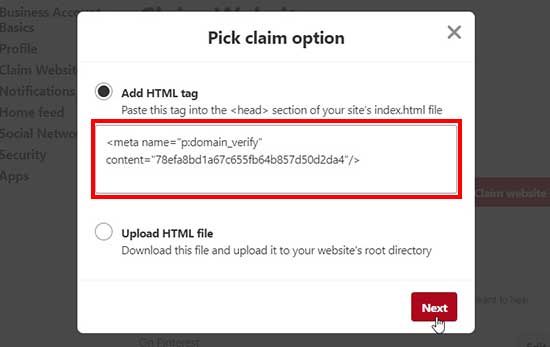
We are choosing the HTML tag option because it is easier. However, you can also download the HTML file and upload it to your website’s root directory using an FTP client.
Step 3. Add HTML Tag in Your WordPress Site
There are multiple ways to add a HTML tag to your website’s header, but we will only cover the two easiest methods.
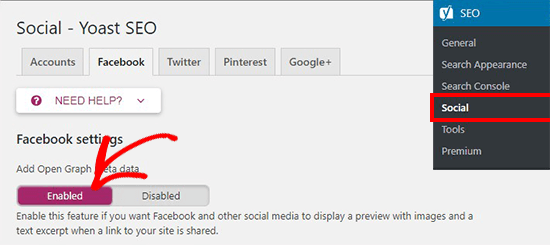
First, if you have the Yoast SEO plugin installed on your WordPress site, then visit SEO » Social page from your WordPress admin area.
Under the Facebook tab, you need to make sure that open graph settings are enabled.
Next, you need to go to the Pinterest tab. In the Pinterest confirmation field, you need to paste HTML tag that you copied previously.
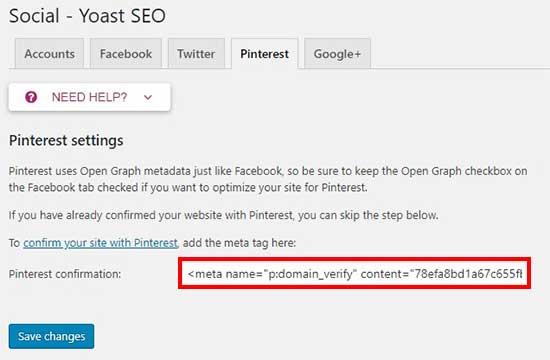
Once you are done, click on the Save Changes button.
If you are not using the Yoast SEO plugin, then you need to install and activate Insert Headers and Footers plugin. For more details, see our step by step guide on how to install a WordPress plugin.
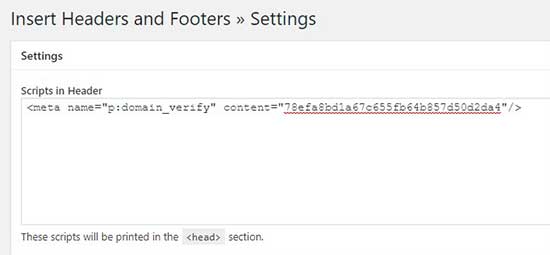
Upon activation, you need to visit Settings » Insert Headers and Footers page in your WordPress admin area. In the Scrips in Header section, you need to paste the HTML tag and click on the Save button.
Once the HTML tag is added in your website’s header section, you need to go back to the Pinterest screen and click on the Next button in the popup. It will now ask for confirmation to send your site to review.
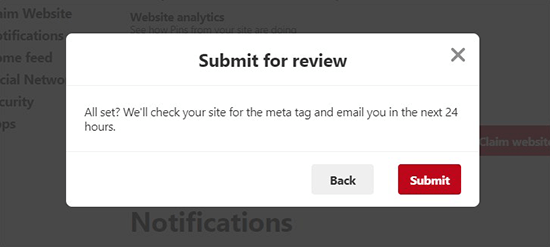
Normally, the process takes 24 hours, and you get an email about the verification of your website. Once it’s done, you’ll also see the confirmation on Claim Website section in Pinterest.
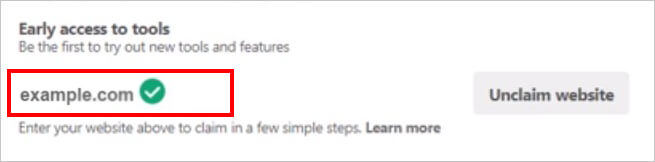
After verification, you can use Pinterest tools like analytics, ads program, image stats, and more. You can also add Pinterest Pin-it button on your blog images, so the visitors can share your photos on this Pinterest boards.
We hope this article helped you learn how to verify your WordPress site on Pinterest. You may also want to see our expert pick of the best social media sharing plugins for WordPress to improve the social presence of your website.
If you liked this article, then please subscribe to our YouTube Channel for WordPress video tutorials. You can also find us on Twitter and Facebook.
The post How to Verify Your WordPress Site on Pinterest (Step by Step) appeared first on WPBeginner.
from: WPBeginner
via Editorial Staff
Source: How to Verify Your WordPress Site on Pinterest (Step by Step) Via Business Advice.
Comments
Post a Comment