Do you want to protect your WordPress site from brute force attacks? These attacks can slow down your website, make it inaccessible, and even crack your passwords to install malware on your website. In this article, we will show you how to protect your WordPress site from brute force attacks.
What is a Brute Force Attack?
Brute Force Attack is a hacking method which utilizes trial and error techniques to break into a website, a network or a computer system.
Hackers use automated software to send a large number of requests to the target system. With each request, these software attempt to guess the information needed to gain access, like passwords or pin codes.
These tools can also disguise themselves by using different IP addresses and locations, which makes it harder for the targeted system to identify and block these suspicious activities.
A successful brute force attack can give hackers access to your website’s admin area. They can install backdoor, malware, steal user information, and delete everything on your site.
Even unsuccessful brute force attacks can wreak havoc by sending too many requests which slows down your WordPress hosting servers and even crash them.
That being said, let’s take a look at how to protect your WordPress site from brute force attacks.
Step 1. Install a WordPress Firewall Plugin
Brute force attacks put a lot of load on your servers. Even the unsuccessful ones can slow down your website or completely crash the server. This is why it’s important to block them before they get to your server.
To do that, you’ll need a website firewall solution. A firewall filters out bad traffic and blocks it from accessing your site.
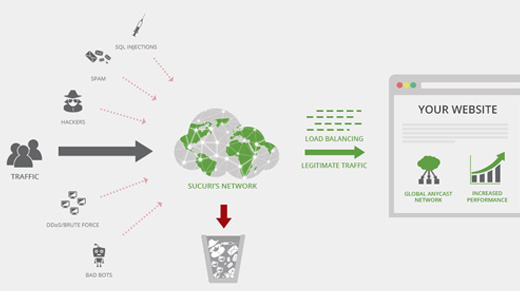
There are two types of website firewalls that you can use.
Application Level Firewall – These firewall plugins examine the traffic once it reaches your server but before loading most WordPress scripts. This method is not as efficient because a brute force attack can still affect your server load.
DNS Level Website Firewall – These firewall route your website traffic through their cloud proxy servers. This allows them to only send genuine traffic to your main web hosting server while giving a boost to your WordPress speed and performance.
We recommend using Sucuri. It is the industry leader in website security and the best WordPress firewall in the market. Since it’s a DNS level website firewall, it means all your website traffic goes through their proxy where bad traffic is filtered out.
We use Sucuri on our website, and you can read our complete Sucuri review to learn more.
Step 2. Install WordPress Updates
Some common brute force attacks actively target known vulnerabilities in older versions of WordPress, popular WordPress plugins, or themes.
WordPress core and most popular WordPress plugins are open source and vulnerabilities are often fixed very quickly with an update. However if you fail to install updates, then you leave your website vulnerable to those old threats.
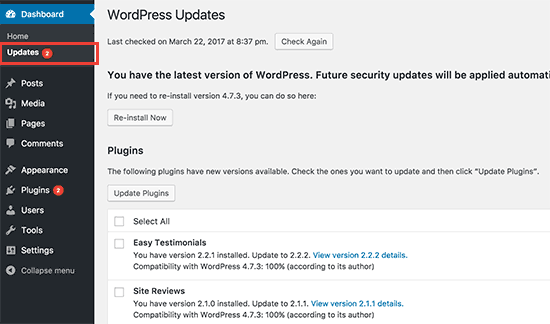
Simply go to Dashboard » Updates page in WordPress admin area to check for available updates. This page will show all updates for your WordPress core, plugins, and themes.
For more details, see our guide on how to properly update WordPress plugins.
Step 3. Protect WordPress Admin Directory
Most brute force attacks on a WordPress site are trying to get access to the WordPress admin area. You can add password protection on your WordPress admin directory on a server level. This would block unauthorized access to your WordPress admin area.
Simply login to your WordPress hosting control panel (cPanel) and click on the ‘Directory Privacy’ icon under Files section.
Note: We’re using Bluehost in our screenshot but similar settings are available on other top hosting companies as well like SiteGround, HostGator, etc.
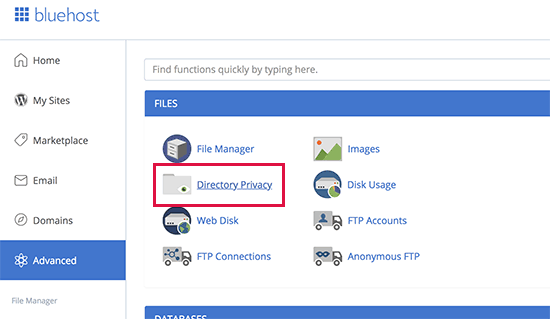
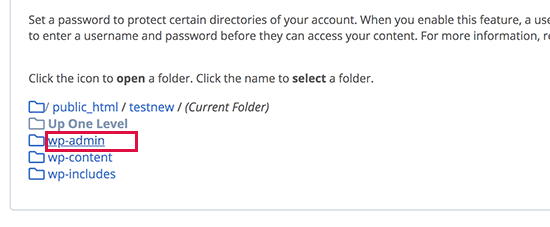
Next, you need to locate the wp-admin folder and click on the folder name.
cPanel will now ask you to provide a name for the restricted folder, username, and password. After entering this information click on the save button to store your settings.
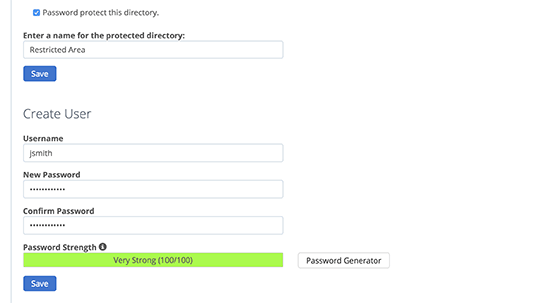
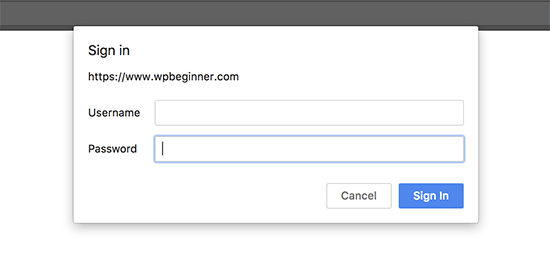
Your WordPress admin directory is now password protected. You will see a new login prompt when you visit your WordPress admin area.
If you run into a 404 error or error too many redirects message, then you need to add the following line to your WordPress .htaccess file.
ErrorDocument 401 default
For more details, see our article on how to password protect WordPress admin directory.
Step 4. Add Two-Factor Authentication in WordPress
Two-Factor authentication adds an additional security layer to your WordPress login screen. Basically, users will need their phones to generate a one-time passcode along with their login credentials to access the WordPress admin area.
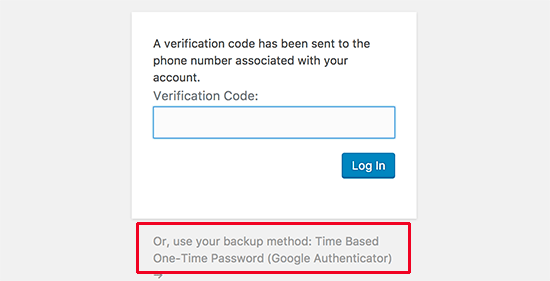
Adding two-factor authentication will make it harder for hackers to gain access even if they are able to crack your WordPress password.
For detailed step by step instructions, see our guide on how to how to add two-factor authentication in WordPress
Step 5. Use Unique Strong Passwords
Passwords are the keys to gain access to your WordPress site. You need to use unique strong passwords for all your accounts. A strong password is a combination of numbers, letters, and special characters.
It’s important that you use strong passwords for not just your WordPress user accounts but also for FTP, web hosting control panel, and your WordPress database.
Most beginners ask us how to remember all these unique passwords? Well, you don’t need to. There are excellent password manager apps available that will securely store your passwords and automatically fill them in for you.
To learn more, see our beginner’s guide on best way to manage passwords for WordPress.
Step 6. Disable Directory Browsing
By default, when your web server does not find an index file (i.e. a file like index.php or index.html), it automatically displays an index page showing the contents of the directory.
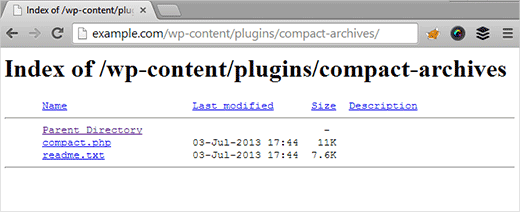
During a brute force attack, hackers can use directory browsing to look for vulnerable files. To fix this, you need to add the following line at the bottom of your WordPress .htaccess file.
Options -Indexes
For more details, see our article on how to disable directory browsing in WordPress.
Step 7. Disable PHP File Execution in Specific WordPress Folders
Hackers may want to install and execute a PHP script in your WordPress folders. WordPress is written mainly in PHP, which means you cannot disable that in all WordPress folders.
However, there are some folders that don’t need any PHP scripts. For example, your WordPress uploads folder located at /wp-content/uploads.
You can safely disable PHP execution in the uploads folder which is a common place hackers use to hide backdoor files.
First, you need to open a text editor like Notepad on your computer and paste the following code:
<Files *.php>
deny from all
</Files>
Now, save this file as .htaccess and upload it to /wp-content/uploads/ folders on your website using an FTP client.
Step 8. Install and Setup a WordPress Backup Plugin

Backups are the most important tool in your WordPress security arsenal. If all else fails, then backups will allow you to easily restore your website.
Most WordPress hosting companies offer limited backup options. However, these backups are not guaranteed, and you are solely responsible for making your own backups.
There are several great WordPress backup plugins, which allow you to schedule automatic backups.
We recommend using UpdraftPlus. It is beginner friendly and allows you to quickly setup automatic backups and store them on remote locations like Google Drive, Dropbox, Amazon S3, and more.
For step by step instructions, see our guide on how to how to backup and restore your WordPress site with UpdraftPlus
All above-mentioned tips will help you protect your WordPress site against brute force attacks. For a more comprehensive security setup, you should follow the instructions in our ultimate WordPress security guide for beginners.
We hope this article helped you learn how to protect your WordPress site from brute force attacks. You may also want to look out for the signs that your WordPress is hacked and how to fix a hacked WordPress site.
If you liked this article, then please subscribe to our YouTube Channel for WordPress video tutorials. You can also find us on Twitter and Facebook.
The post How to Protect Your WordPress Site from Brute Force Attacks (Step by Step) appeared first on WPBeginner.
from: WPBeginner
via Editorial Staff
Source: How to Protect Your WordPress Site from Brute Force Attacks (Step by Step) Via Business Advice.
Comments
Post a Comment