Moving a WordPress site to SSL can sometime result in unexpected issues. If you’re adding SSL to an existing WordPress site and are running into errors, then you’re in luck. In this guide, we will cover how to fix the most common issues with SSL / HTTPs in WordPress.
What is SSL / HTTPS and Why You Should Start Using it Right Away?
SSL / HTTPS is an encryption method that secures the connection between users’ browser and your WordPress hosting server. This makes it harder for hackers to eavesdrop on the connection.
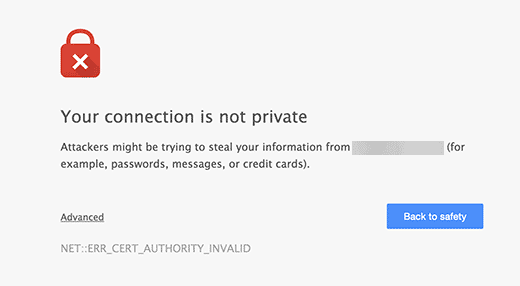
Each SSL / HTTPS enabled site is issued a unique SSL certificate for identification purposes. If a server is pretending to be on HTTPS, and its certificate doesn’t match, then most modern browsers will warn the user from connecting to the website.
Last year, Google announced plans to improve overall web security by encouraging website owners to start using SSL / HTTPS.
As part of this plan, Google’s Chrome web browser now marks all websites without an SSL certificate as “Not Secure”.
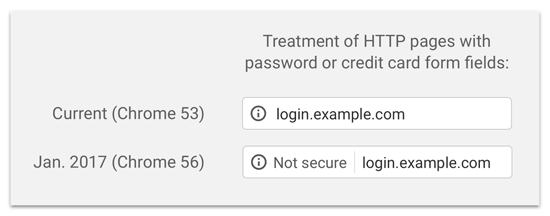
The ‘Not Secure’ label in the browser’s address bar gives a bad impression to your customers about your business.
Aside from that, you also need SSL / HTTPS enabled if you want to make an online store or want to use payment services like PayPal, Stripe, Authorize.net, etc.
Considering the pros and cons, all websites need to switch to SSL / HTTPS. If you haven’t already done that, then head over to our guide on how to properly move WordPress from HTTP to HTTPs for step by step instructions.
That being said, let’s take a look at some of the common issues with SSL/HTTPS in WordPress and how to fix them.
1. Fix NET::ERR_CERT_INVALID Error
This error message appears in Google Chrome. Other browsers display this error with a slightly different message, but it basically warn users that their connection to your website is insecure.
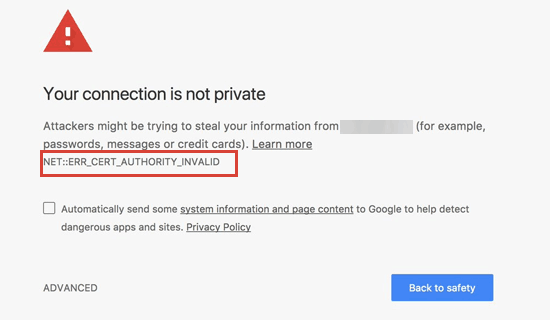
This error message indicates that users’ browser didn’t accept the certificate presented by the website. This could happen due to a number of reasons:
- The SSL certificate is issued to a different domain name or subdomain.
- The certificate has expired.
- Your browser doesn’t recognize certificate issuing authority.
If you purchased an SSL certificate and asked your WordPress hosting provider to install it for you, then you can contact them to fix it for you.
If you manually installed SSL certificate, then try reinstalling it or contact your SSL certificate provider for support.
2. Fix Mixed Content Errors After Moving WordPress to SSL / HTTPS
Mixed content errors are caused by sources (images, scripts, or stylesheets) that are still loading using the insecure HTTP protocol in the URLs.
If that is the case, then you will not be able to see a secure padlock icon in your website’s address bar.
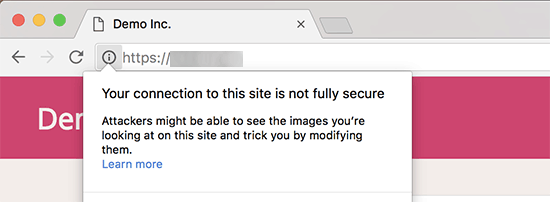
There are two ways to fix SSL / HTTPS mixed content errors in WordPress. We will show you both of them and then you can pick one that works best for you.
1. Fixed mixed content errors in WordPress using a Plugin
This method is easier and is recommended for beginners.
Simply install and activate the Really Simple SSL plugin. For more details, see our step by step guide on how to install a WordPress plugin.
Upon activation, you need to visit Settings » SSL page to review plugin settings. Really Simple SSL works out of the box and will automatically take care of SSL / HTTPS settings and fix mixed content errors.
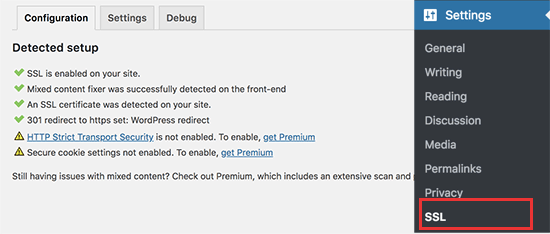
Note: The plugin attempts to fix mixed content errors by using output buffering technique. This can have a negative performance impact on your site. However, if you are using a caching plugin, then it will only impact the first page load.
2. Manually Fixed Mixed Content Errors in WordPress
This method requires manual troubleshooting, but it is more effective and better for performance.
First, you need to make sure that you are using HTTPS in WordPress settings. Go to Settings » General page and make sure that WordPress Address and Site Address options have HTTPS URLs.
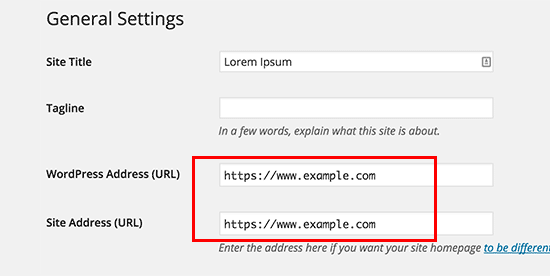
If you see URLs starting with HTTP, then you need to go ahead and change them to HTTPS. Don’t forget to click on the save changes button to store your settings.
Next, you need to find old HTTP URLs in your WordPress database and replace them with the new HTTPS URLs.
You can easily do that by installing and activating the Better Search Replace plugin. For more details, see our step by step guide on how to install a WordPress plugin.
Upon activation, you need to visit Tools » Better Search Replace page. In the ‘Search’ field, you need to add your website URL with HTTP. After that, add your website URL with https in the ‘Replace’ field.
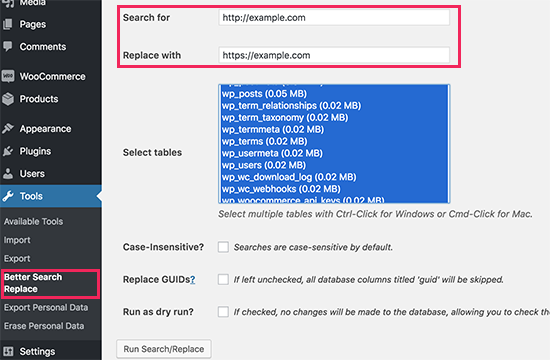
The plugin will now update URLs in your WordPress database.
If you are still seeing mixed content errors, then the next step is to troubleshoot URLs in your WordPress theme and plugins.
Using your browser’s Inspect tool, you will need to locate the resources causing the errors and where they are loading from.
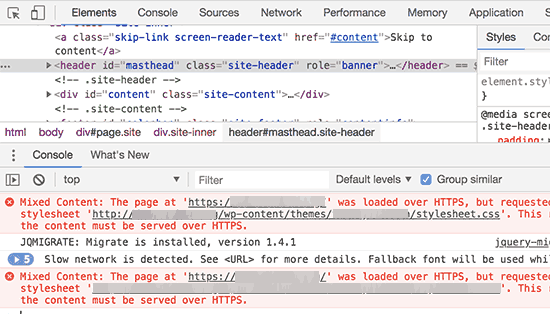
For theme resources, you will need to find them in your WordPress theme and replace HTTP with HTTPS.
This part can be a bit difficult for beginners as they will have to look for the URLs in all theme files.
If you are unable to find them yourself, then you can also reach out to theme developer and request them to update their theme. They will need to use WordPress best practices to load files, which will fix the HTTP/HTTPS issue.
Same goes for the mixed content loaded by a WordPress plugin. We don’t recommend editing plugin files yourself to change the URLs. You should notify the plugin developer and request them for an update. Meanwhile, you can disable the plugin on your site or find an alternative plugin.
3. Fix Too Many Redirects Errors After Moving to SSL / HTTPS
WordPress allows you to enforce SSL / HTTPS for the admin area by entering the following line into your wp-config.php file.
define('FORCE_SSL_ADMIN', true);
However, in some scenarios this setting alone would cause ‘Too many redirects‘ error. To fix this, you will need to add the following code to your wp-config.php file just before the line that says ‘That’s all, stop editing! Happy blogging.’.
define('FORCE_SSL_ADMIN', true);
// in some setups HTTP_X_FORWARDED_PROTO might contain
// a comma-separated list e.g. http,https
// so check for https existence
if (strpos($_SERVER['HTTP_X_FORWARDED_PROTO'], 'https') !== false)
       $_SERVER['HTTPS']='on';
4. Fix WordPress HTTP to HTTPS Redirect
WordPress will not automatically redirect HTTP requests to HTTPS unless you tell it to do so. If you are using a plugin like Really Simple SSL, then it would take care of redirects. Otherwise, you will have to manually set up redirects.
To set up HTTP to HTTPS redirect, you need to add the following code to your .htaccess file.
<IfModule mod_rewrite.c>
RewriteEngine On
RewriteCond %{HTTPS} off
RewriteRule ^(.*)$ https://%{HTTP_HOST}%{REQUEST_URI} [L,R=301]
</IfModule>
We hope this article helped you fix some common issues with SSL / HTTPS in WordPress. If you run into an issue that’s not covered in this article, then please leave a comment to let us know. We will update the article with the solution. You may also want to see our ultimate WordPress security guide with step by step instructions for beginners to secure their WordPress websites.
If you liked this article, then please subscribe to our YouTube Channel for WordPress video tutorials. You can also find us on Twitter and Facebook.
The post How to Fix Common SSL Issues in WordPress (Beginner’s Guide) appeared first on WPBeginner.
from: WPBeginner
via Editorial Staff
Source: How to Fix Common SSL Issues in WordPress (Beginner’s Guide) Via Business Advice.
Comments
Post a Comment