Have you ever gotten a 504 gateway timeout error on your WordPress site? This error can make your website inaccessible to users. What’s worst is that it can disappear and reappear on its own if the underlying issue is not fixed. In this article, we will show you how to fix the 504 gateway timeout error in WordPress.
What Causes 504 Gateway Timeout Error?
The 504 gateway timeout error is usually caused when a server is unable to connect to an upstream server to complete a request.
For example, if you are using a website firewall like Sucuri, and it is unable to connect to your WordPress server, then you will see a 504 gateway timeout error.
The error page’s appearance and the message may be displayed differently depending on your WordPress hosting company, the proxy server, or the browser you are using. Following are some of the most common 504 gateway timeout error messages.
- 504 Gateway Timeout
- HTTP 504
- 504 ERROR
- Gateway Timeout (504)
- HTTP Error 504 – Gateway Timeout
- Gateway Timeout Error
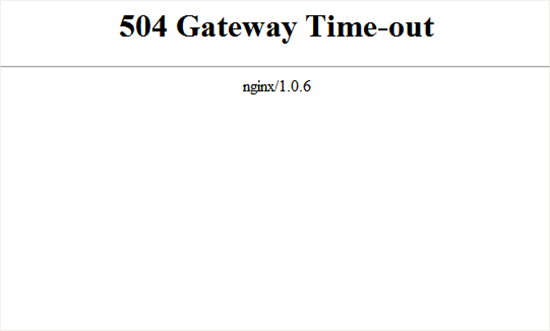
While the most common reason for the error is a proxy server unable to reach the upstream server, it can also be triggered by other hosting configuration issues.
That being said, let’s see how to easily troubleshoot and fix the 504 gateway timeout error in WordPress.
1. Wait and Reload
Sometimes the 504 gateway timeout error may simply be caused by a temporary glitch on your WordPress hosting servers. Give it a few minutes and then try reloading your website.
If the issue disappears, then you don’t need to take any further steps. However, if the error persists or reappears after a while, then continue reading to troubleshoot and fix the problem.
2. Turn off VPN
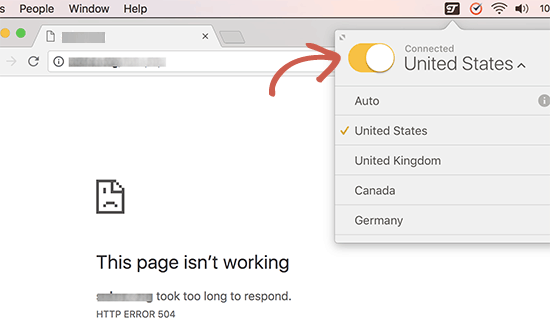
If you are using a VPN service to browse the web, then try disabling it. Sometimes your VPN server may not be able to get a response from your managed WordPress hosting server, and this will result in 504 gateway timeout error.
If your website reappears, then this means that the VPN server was the culprit. Now if using the VPN is important for you, then you can try switching to a different VPN server. If you are seeing the error even after changing servers, then you would want to contact your VPN service provider for support.
3. Turn off Website Firewall
If you are using a DNS level website firewall like Sucuri or Cloudflare, then try to temporarily disable the firewall. This will allow you to connect to your WordPress hosting server directly.
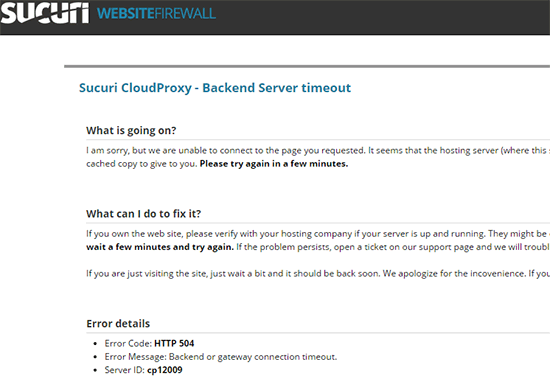
If that fixes the issue, then it’s likely that your hosting server is blocking the firewall IP addresses which can cause this issue. You will need to contact your firewall service provider to get their list of IP addresses, and then contact your web host to whitelist those IPs.
Sometimes disabling the firewall might show you the actual server error notice. In that case, you should refer to our list of common WordPress errors to fix the specific issue.
4. Disable Your Network Proxy
If you are connected to the internet through a proxy server, then that server may be unable to get a response from your WordPress website.
Try accessing your website using a different internet connection or use online services to see if your website is down just for you or everyone.
If it is down just for you, then you need to change your network settings. You can contact your internet service provider or a network admin to troubleshoot the issue for you.
5. Change Your DNS Servers
Your internet connection uses something called DNS servers. These servers help your computer connect to the different servers on the internet.
If the DNS servers you are using are down or unable to connect to your website, then you could see a 504 gateway timeout error. The easiest way to check this is by changing the DNS servers your device is using.
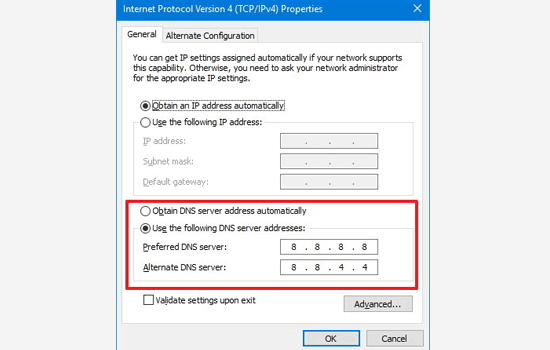
On Windows computers, you can find them under Control Panel » Network and Sharing Center screen.
On Mac computers, you can find them under Settings » Network. Click on the Advanced button, and then select the DNS tab.
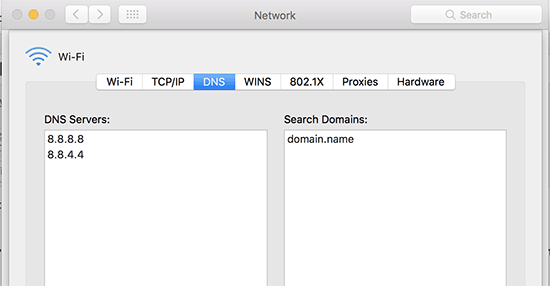
You can change your DNS server address to 8.8.8.8 and 8.8.4.4 and apply changes.
Try visiting your website now. If this solved your error, then you are all done. The problem was with your internet connection, and it is now fixed.
6. Clean up your WordPress Database
A corrupt WordPress database may also trigger a 504 gateway timeout error. Don’t worry, your WordPress data is most likely safe. However, your database may need a little a bit of spring cleaning.
This can be easily done by optimizing your WordPress database using phpMyAdmin or using a plugin like WP-Sweep. Make sure you backup the WordPress database before performing any action.
7. Deactivate WordPress Plugins and Switch to Default Theme
WordPress plugins and themes are less likely to cause a 504 gateway timeout error. However, if a plugin or theme is making too many requests to the server, then it is likely that some of these requests may drop off and trigger a 504 gateway timeout error.
To test this, you need to deactivate all WordPress plugins via FTP.
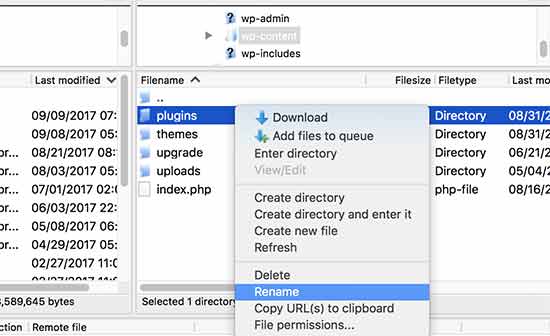
After that, visit your website to see if the error has resolved.
If it is, then one of your plugins was causing the issue. You now need to activate all plugins one by one until you can reproduce the error. This will help you locate the plugin responsible for the error.
If deactivating plugins didn’t solve your issue, then you would want to check your WordPress theme. You will need to switch WordPress theme via phpMyAdmin.
After switching your theme to the default WordPress theme, visit your website to see if it’s working.
8. More Troubleshooting
If all else fails, and you are still unable to solve the 504 gateway timeout error, then follow the steps in our ultimate WordPress troubleshooting guide for beginners.
Finally, as a last resort, you need to reach out to your hosting provider for support. They may be able to fix the issue or point you in the right direction.
We hope this article helped you learn how to fix 504 gateway timeout error in WordPress. You may also want to see our guide on how to protect WordPress against brute force attacks.
If you liked this article, then please subscribe to our YouTube Channel for WordPress video tutorials. You can also find us on Twitter and Facebook.
The post How to Fix the 504 Gateway Timeout Error in WordPress appeared first on WPBeginner.
from: WPBeginner
via Editorial Staff
Source: How to Fix the 504 Gateway Timeout Error in WordPress Via Business Advice.
Comments
Post a Comment