When starting a blog, often beginners don’t know that they can check for security updates on their WordPress site. Security updates can help protect your website against malware attacks, hacks, and other common security threats. In this article, we will show you how to check for WordPress security updates.
Why You Should Check for WordPress Security Updates?
Security should be a top priority for every website owner. This is why we recommend that you always keep your website up-to-date to stay protected from hackers, malware, DDoS attacks, etc.
WordPress shows you updates for the core software, themes, and plugins in your dashboard. These 3 things are interconnected, so you need to update them regularly to avoid any compatibility issue between the old and latest versions.
Security updates will also protect your website from all new threats and malware attacks. For more details, you should check out our complete guide on WordPress security.
That being said, let’s take a look on how to check for WordPress security updates step by step.
Checking for WordPress Security Updates
WordPress has a dedicated page for the updates that you can access from your admin area. Simply login to your WordPress admin account and go to Dashboard » Updates page.
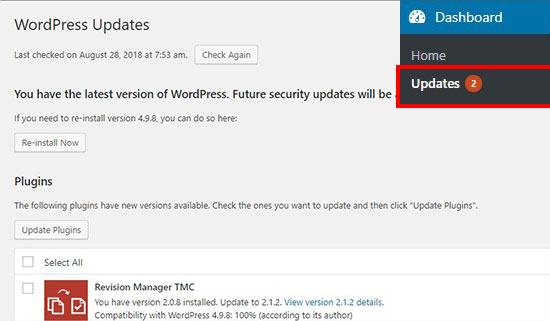
On this page, you’ll see the timestamp when your WordPress site last checked for updates. WordPress automatically checks for updates on a regular basis, however you can also click the “Check Again” button to manually check for updates.
Next, you’ll see a “Re-install Now” button which allows you to reinstall the current version of WordPress. Most users can safely ignore this button. This is only helpful for those who’re restoring their website from a backup, and they may need to re-install the latest version of WordPress core software.
After WordPress core, you’ll find the plugins section where it’ll display the latest available updates for your installed plugins. If you are looking for a specific plugin update, and you don’t find it on this page, then you can also force WordPress to check for plugin updates.
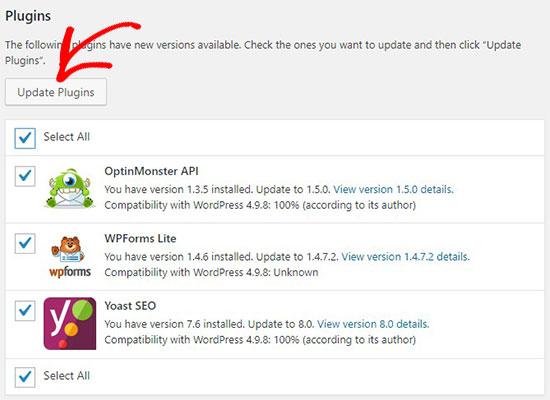
You can either update the plugins individually or select all plugins at once, and then click on the Update Plugins button.
Once the plugins are updated, you’ll find the WordPress theme updates section below. If there’s a latest version available for your installed themes, then you can update it from here. Similar to plugins, you can either update the themes individually or select all themes to update them in 1-click.
When you update a WordPress theme, it will update all the theme files and change the settings to default. This could mean that you’ll lose the customization that you made previously on your theme. Simply follow our guide on how to update a WordPress theme without losing your customization.
Note: Before performing any updates, we strongly recommend that you create a complete backup of your WordPress site.
Backups allow you to easily restore your WordPress site should anything go wrong. Although unlikely sometimes an update can cause compatibility issues, and this gives you a safety net.
That’s all. We hope this article helped you learn how to check for WordPress security updates. You may also want to see our guide on how to protect WordPress against brute force attacks.
If you liked this article, then please subscribe to our YouTube Channel for WordPress video tutorials. You can also find us on Twitter and Facebook.
The post How to Check for WordPress Security Updates (Beginners Guide) appeared first on WPBeginner.
from: WPBeginner
via Editorial Staff
Source: How to Check for WordPress Security Updates (Beginners Guide) Via Business Advice.
Comments
Post a Comment