Recently one of our readers asked if it’s possible to get Google to recrawl specific URLs? If your website is new, then Google will take some time to crawl and display new pages or changes in search results. In this article, we will show you how to ask Google to recrawl URLs of your WordPress site.
When and Why Do You Need to Ask Google to Recrawl URLs?
When you add pages and posts in your WordPress site, Google will take its due time to crawl these new links. The same time is required by Google to crawl the updated URLs of your WordPress site.
When you manually ask Google to recrawl your URLs, then it will put your new link in the queue to get indexed on Google. A Google search bot will start recrawling your links one by one and display them in search results.
Some of the common reasons for asking Google to recrawl URLs are:
- When you add a new post or page
- When you make changes to an existing post or page
- If you think a page should be indexed in Google, but you can’t find it
For the first two options mentioned above, you can automate this process using XML sitemaps. Google is pretty good at indexing website because that’s their business.
However we have seen specific pages go missing from Google (for no reason). Sometimes just asking Google to recrawl will make the page appear right away.
That being said, let’s take a look on how to ask Google to recrawl URLs of your WordPress site and display them in the search results.
Asking Google to Recrawl URLs of Your WordPress Site
First you need to get your site listed on Google and then Google will automatically start crawling your URLs. However, you can also request Google to recrawl your new links for any cases that we discussed above.
You can follow the steps below to ask Google to recrawl URLs of your WordPress site.
Step 1: Using the URL Inspection Tool to Recrawl URLs
URL inspection tool is available in the new and updated Google search console (formerly known as Google webmaster tools). This tool helps you identify the issues related to your URLs and offer solutions to index your links in Google.
It will also help you troubleshoot the common WordPress errors for your URLs and other URL indexing issues.
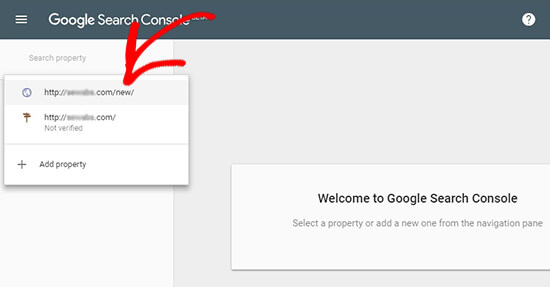
In the new Google search console, you need to select your property or website to check the URL index status.
Note: If you don’t have a website listed on Google webmasters tool, then first you need to add it as a new property to continue with the URL inspection tool.
After selecting the property, you need to go to the URL Inspection tool on the left menu and add your URL in search field that you want to inspect.
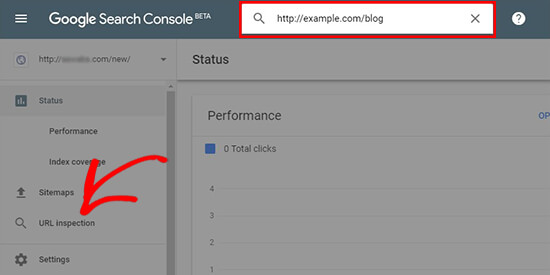
It will get the data about your URL and display it in the Google search console dashboard.
If your URL is on Google, then you’ll see a success message with the useful information about your link. You can expand the findings and see if there are any other issues to be solved. If not, then you’ll see the submission request from Google to recrawl and index your URL.
However, if the link isn’t on Google, then it’ll show you the errors and a possible solution to get your URL indexed on Google.
You can solve the issues and inspect the URL again until you get the success message. After that, a request is initiated to recrawl your URL. Simply repeat the same for all your URLs that you want Google to recrawl.
Step 2: Submitting XML Sitemap to Recrawl URL
If you’re still not sure about the indexing of your URLs on Google, then you can simply submit an updated XML sitemap with your new URLs to Google webmaster tools. Sitemaps are the quickest way to get your new URLs indexed on Google.
For this step, we recommend using Yoast SEO plugin which includes flexible options to properly set up your XML sitemaps in WordPress.
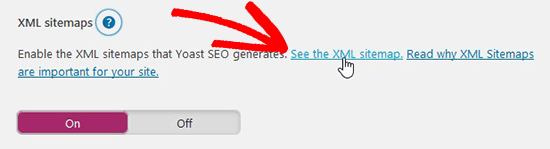
In your WordPress admin area, you need to go to SEO » General page. Under the Features section, you need to turn on the XML sitemaps setting.
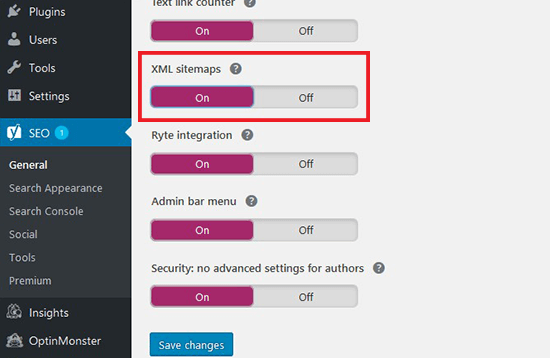
Don’t forget to click on the Save Changes button.
Next, you can view the updated sitemap by clicking on the question mark icon next to the XML sitemaps heading. If your new links are visible in this sitemap file, then you can go ahead and submit it to Google webmasters tool.
To submit the XML sitemaps, you need to visit the new Google Search Console and go to Sitemaps on the left menu. Simply add your XML sitemap link and click on the Submit button.
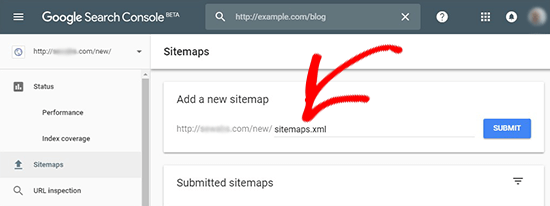
This updated sitemap will ask Google bots to quickly recrawl your new URLs and display them in the search results.
Note: you only have to upload the sitemap once. Google recrawls your sitemap regularly, and it will add updated posts quickly once your sitemaps are added.
We hope this article helped you learn how to ask Google to recrawl URLs of your WordPress site. You may also want to see our ultimate guide on how to improve WordPress SEO.
If you liked this article, then please subscribe to our YouTube Channel for WordPress video tutorials. You can also find us on Twitter and Facebook.
The post How to Ask Google to Recrawl URLs of Your WordPress Site appeared first on WPBeginner.
from: WPBeginner
via Editorial Staff
Source: How to Ask Google to Recrawl URLs of Your WordPress Site Via Business Advice.
Comments
Post a Comment