Recently one of our users asked if they can allow authors to revise and edit published posts in WordPress. Revisions can help in improve quality of the post, and it gives the authors a feeling of ownership on your blog. In this article, we will share how to allow authors to revise published posts in WordPress.
When and Why You Should Allow Authors to Revise Published Posts?
WordPress comes with a powerful user role and permissions system, which allows you to add new authors and users to your website.
If you are running a multi-author or membership website in WordPress, then you may want to allow contributors to make changes in published articles.
WordPress allows you to let contributors edit their published posts and update them without getting an approval from an editor or administrator. However, we do not recommend giving such permissions to contributors. An administrator should review the post and publish the changes, so the editorial quality is always up to par.
Luckily there is a solution that allows contributors to make changes and submit for editorial review. Once approved, the editor can easily merge the changes to the live post.
Let’s take a look on how to easily allow authors to revise published posts in WordPress.
Allowing Authors to Revise Published Posts in WordPress
First thing you need to do is install and activate the Revision Manager plugin. For more details, see our step by step guide on how to install a WordPress plugin.
Upon activation, you need to visit Settings » Revision Manager TMC page in your WordPress admin area.
In the general settings, you need to select edit_posts under ‘Copy creation capability’ dropdown and published_posts in ‘Acceptation capability’ dropdown. This will allow users with the contributor user role to create a duplicate copy of a published post.
The role for notification should be assigned to an Administrator or Editor who will review the changes and publish the post.
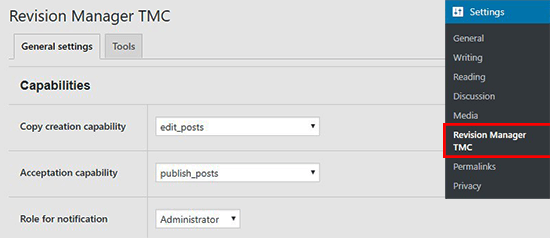
After adding the capabilities, you need to scroll down and select the post types where you want to allow authors to submit revisions.

Next, you can edit notification settings to get notified when a contributor submits a post revision. You can select a template and customize it to meet your requirements.

Once you are done, click on the Update settings button to store your changes.
Now that you are done with the revision settings, you need to login from a contributor account in WordPress.
Once logged in, visit Posts » All Posts page and take your mouse to any published post. You will now see an option to ‘Create revision draft’ below each post.
Hint: you can instantly switch between user accounts while testing the settings for post revisions.
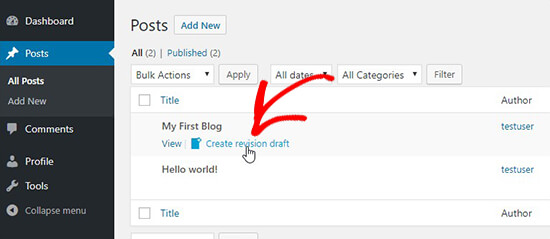
Once a contributor click on the Create revision draft link, the plugin will create a duplicate version of the published post and open it for editing. An author can revise the post, make changes, and submit it for review.
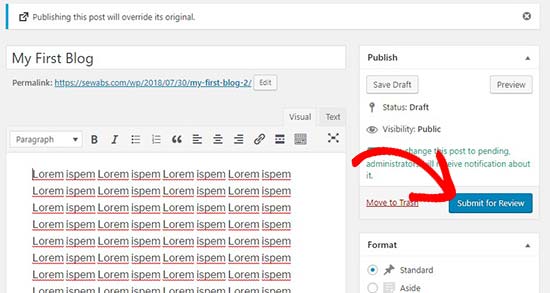
Upon submission, the administrator will receive a notification to review and publish the post.
You can now switch to the Administrator account in WordPress and go to Posts » All Posts page. Here, you’ll see the duplicate post with a message that a revision is waiting for acceptance.
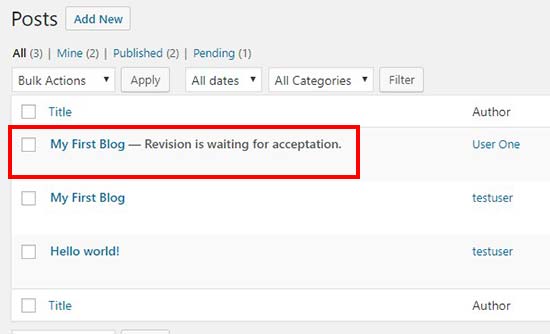
You can click on this revision post and review the changes. After reviewing, click on the Publish button.
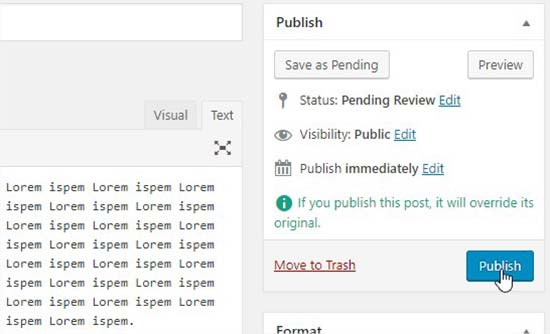
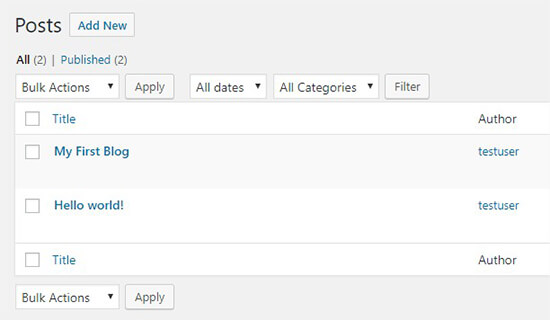
Once published, it will override the original post content and delete the duplicate revision post automatically. Now, you can go back to Posts » All Posts page in WordPress, and it will only show the original post.
Keeping your old content up to date is a great way to add value to your users, and it also helps boost WordPress SEO rankings.
We hope this article helped you learn how to allow authors to revise published posts in WordPress. You may also want to see our guide on how to prevent authors from deleting posts in WordPress.
If you liked this article, then please subscribe to our YouTube Channel for WordPress video tutorials. You can also find us on Twitter and Facebook.
The post How To Allow Authors To Revise Published Posts in WordPress appeared first on WPBeginner.
from: WPBeginner
via Editorial Staff
Source: How To Allow Authors To Revise Published Posts in WordPress Via Business Advice.
Comments
Post a Comment