Do you want to fix the 502 bad gateway error on your site? This error is quite annoying because it can be caused by a lot of different things. This means troubleshooting the 502 bad gateway error can take some time. In this article, we will show you how to easily fix the 502 bad gateway error in WordPress.
What is a 502 Bad Gateway Error?
A 502 bad gateway error is triggered when your WordPress hosting server gets an invalid response for the requested page.
Bad gateway error is one of the common WordPress errors that you may encounter on your site. It can be caused by a number of reasons and depending on your server the error message may also differ in looks slightly.
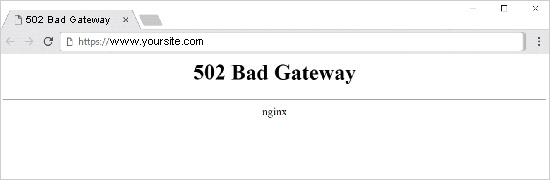
When you visit a website your browser sends a request to the hosting server. The hosting server then finds the page and sends it back to your browser with the status code.
Normally, you wouldn’t see this status code. However, in case of an error the status code is displayed with an error message. Examples of such errors include 404 not found, 503 service unavailable, 403 forbidden error, and more.
The most common reason for a 502 bad gateway error is when your request takes too long for the server to respond. This delay can be a temporary glitch caused by high traffic. It could also be a glitch caused by a poorly coded WordPress theme or plugin. Last but not least, it can also happen due to a server misconfiguration.
That being said, let’s take a look at how to easily fix the 502 bad gateway error in WordPress.
Fixing the 502 Bad Gateway Error
This error is usually caused when your server is unable to find the cause of the invalid response. This means that we will try different troubleshooting steps until we find the problem.
Ready, let’s get started.
Step 1: Reload Your Website
Sometimes your server may take longer to respond due to increased traffic or low server resources. In that case, the problem may automatically disappear in a few minutes. You should try reloading the web page that you are viewing to see if this was the cause.
If this fixed your problem, then you do not need to read any further. However, if you see this error frequently, then you need to continue reading as there may be something else that needs fixing.
Step 2: Clear Browser Cache
Your browser may be showing you the error page from the cache. Even after the issue is fixed, you would see the 502 error because the browser is loading your website from cache.
To fix this, users with Windows/Linux operating systems can press Ctrl + F5 buttons and Mac OS users can press CMD + Shift + R buttons on their keyboards to refresh the page. You can also remove the cache manually from your browser settings.
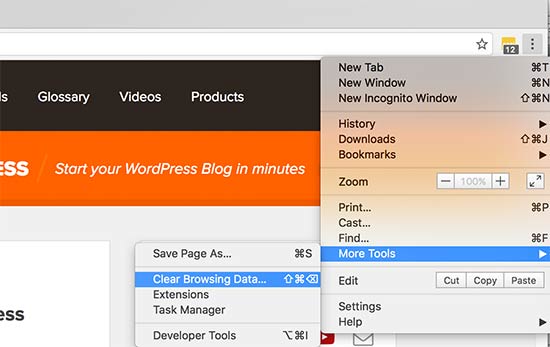
Once you clear your WordPress cache, try loading the website again.
You can use a different browser to troubleshoot if the problem is occurring because of browser cache. If you see the error on all browsers, then continue reading.
Step 3: Disable the CDN or Firewall
If you are using a CDN service or website firewall on your website, then it is possible that their servers are acting up. To check this, you will need to temporarily disable CDN.
Once disabled, it will remove the additional layer that has been created between your browser and the hosting server. Your website will now load entirely from your server and if the issue was caused by the CDN / firewall service, then it will get resolved now.
You can then contact your CDN service provider for support. Once the issue is resolved, you can go ahead and enable the CDN again.
Step 4: Update WordPress Themes and Plugins
If the error is still there, then the next step is to check your theme or plugins.
First, you will need to deactivate all WordPress plugins via FTP. After that, visit your website to see if the error has resolved.
If it is, then one of your plugins was causing the issue. You now need to activate all plugins one by one until you can reproduce the error. This will help you locate the plugin responsible for the error.
You can find an alternative plugin or contact the plugin author for support.
If deactivating plugins didn’t solve your issue, then you would want to check your WordPress theme. You will need to switch WordPress theme via phpMyAdmin.
After switching your theme to the default WordPress theme, visit your website to see if it’s working. If you are still seeing the error, then continue reading.
Step 5: Check the Hosting Server
If all above-mentioned troubleshooting steps failed, then it is likely an issue with your hosting server.
You need to contact your hosting provider’s support team and let them know the issue. You can also mention all the troubleshooting steps you have taken.
All good WordPress hosting companies will be able to quickly fix the issue if it is caused by a server misconfiguration.
That’s all. We hope this article helped you learn how to fix the 502 bad gateway error in WordPress. You may also want to see our complete WordPress troubleshooting guide for step by step instructions on fixing your WordPress issues.
If you liked this article, then please subscribe to our YouTube Channel for WordPress video tutorials. You can also find us on Twitter and Facebook.
The post How to Fix the 502 Bad Gateway Error in WordPress appeared first on WPBeginner.
from: WPBeginner
via Editorial Staff
Source: How to Fix the 502 Bad Gateway Error in WordPress Via Business Advice.
Comments
Post a Comment