Do you want to add a currency converter on your blog? A currency converter allows your website visitors to quickly calculate exchange rate of different currencies without leaving your website. In this article, we will show you how to easily add a currency converter in WordPress.

What Type of Websites Need a Currency Converter?
Whether you have an online store, small business website, or a WordPress blog, as long as you have an international audience, and you’re selling something, then you can use a currency converter.
Here are a few examples of the websites that may need a currency calculator for WordPress:
- Ecommerce stores: If you are running an ecommerce store with WordPress and selling products internationally, then a currency converter can help your users quickly calculate costs in their local currency.
- Travel blogs: If you own a travel blog, then a currency calculator can help your users calculate travel costs in different currencies.
- Business websites: A business website may also want their users to see exchange rates of different currencies. Particularly, businesses with presence in different countries.
- Finance and banking websites: Websites in finance and banking industries can add currency calculators for their visitors to calculate conversion rates without leaving their website.
- Coin and forex exchange sites: There are many websites that blog or deal with crypto-currencies, forex trading, and similar niches. These websites need a currency converter so that their users can quickly calculate conversion rates.
There can be many other websites that may need a currency converter. That being said, let’s take a look at how to easily add a currency converter in WordPress.
Adding a Currency Converter in WordPress
First thing you need to do is to install and activate the Currency Converter plugin. For more details, see our step by step guide on how to install a WordPress plugin.
Upon activation, you need to go to Settings » Currency Converter page in your WordPress admin area. From here you can manage general settings and add an API key that you can claim by following the instructions on the page.
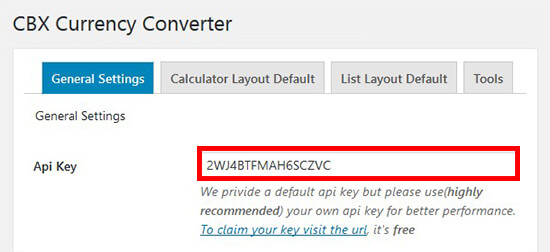
After adding the API key, you can select a layout for the currency converter. There are 4 layouts to choose from. You can display currency calculator, exchange rate list, or both using these layouts. You can also define the decimal point position.
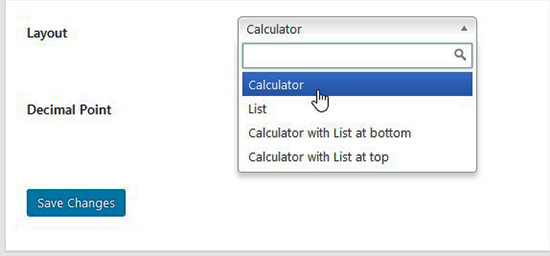
Make sure to click on the Save Changes button before moving ahead.
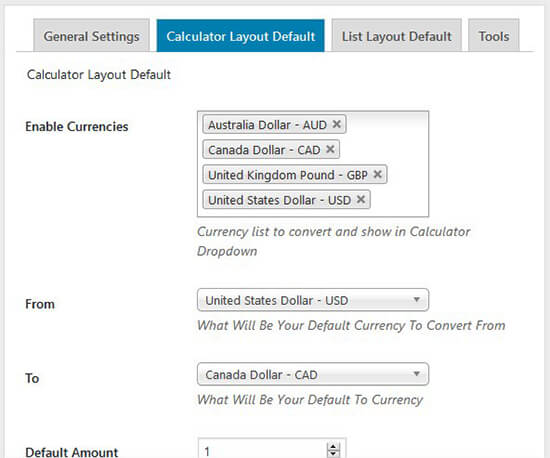
On the next tab, you can set the default values for currency calculator. It allows you to enable currencies, set default option for currencies, default amount for the main currency, and add a title to show above the calculator.
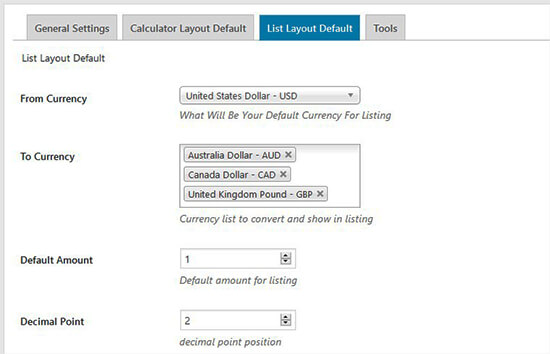
After the calculator layout, you can go to List Layout Default tab for currency rate list default settings. You can select the primary currency and then add a list of other currencies to display in the rate list.
Like the calculator default settings, you can also display the default amount and add the title for exchange rate list.
The Tools tab of the plugin allows you to reset all data to default values given by the plugin.
Note: Once you are done with the settings, you need to click on the Save Changes button. Make sure to perform this step every time you change any settings in the above tabs.
Displaying the Currency Converter on Your Site
To display the currency converter on your site, you can go to the Apperance » Widgets to drag and drop the Currency Converter widget in your widget areas.
Alternatively, you can add the following shortcode on any post or page in WordPress:
[cbcurrencyconverter]
Once you are done, simply visit your website to see the currency converter in the sidebar widget or WordPress page.
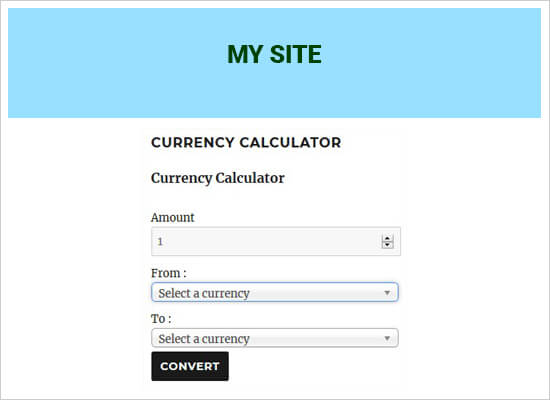
You can also integrate currency converter in your WooCommerce or any other WordPress ecommerce site. For this, you will need the Currency Converter Pro plugin.
Once activated, simply visit the Settings » Currency Converter page and go to the Integration tab. You need to check Enable option next to each setting that you want to integrate within your online store.
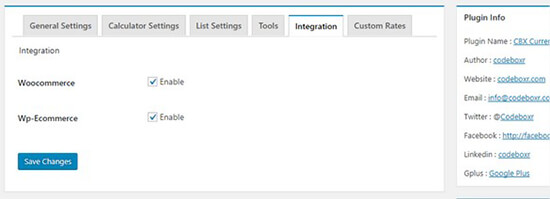
To display the currency converter on your WordPress e-commerce site, you can use the shortcode on the products pages, and it will calculate the currency rates.
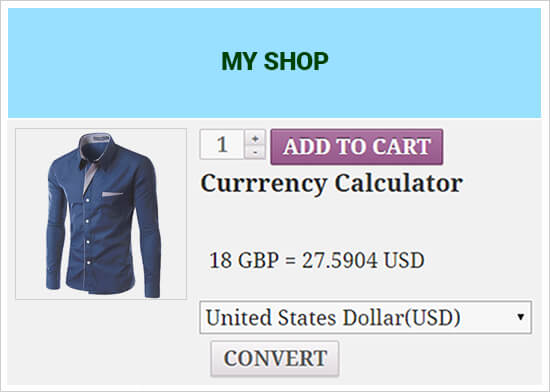
You can also define custom currency rates, style your currency converter widget and shortcodes, and add Bitcoin exchange rates to your website.
We hope this article helped you learn how to add a currency converter in WordPress. You may also want to see our expert pick of the best calculator plugins for your WordPress site.
If you liked this article, then please subscribe to our YouTube Channel for WordPress video tutorials. You can also find us on Twitter and Facebook.
The post How to Add a Currency Converter in WordPress appeared first on WPBeginner.
from: WPBeginner
via Editorial Staff
Source: How to Add a Currency Converter in WordPress Via Business Advice.
Comments
Post a Comment