Do you want to greet each user with a custom welcome message in WordPress? Greeting users with a welcome message can help boost engagement on your website. It can also be used to generate leads and increase sales. In this article, we will show you how to greet each user with a custom welcome message in WordPress.
Why and When You Should Greet Users with Welcome Message in WordPress?
Not all websites need to greet users with a custom welcome message. However, if you are running an online store, trying to generate leads, or boost user engagement, then a custom welcome message can be very useful.
There are different types of welcome messages that you can use. The goal here is to offer users a lot of value with each message. For example, you can offer them discounts, live help, encourage them to ask questions, and more.
You can use integrations to connect welcome messages with your email service provider, live chat service, or contact form plugin.
That being said, let’s see how to easily greet each user with a custom welcome message in WordPress.
Method 1. Greet Users with a Custom Welcome Message using OptinMonster
For this method, we will be using OptinMonster. It is the most popular lead generation software in the world that helps you convert website visitors into subscribers and customers.
First, you need to sign up for an OptinMonster account. It is a paid service, but they also offer a limited free-forever plan.
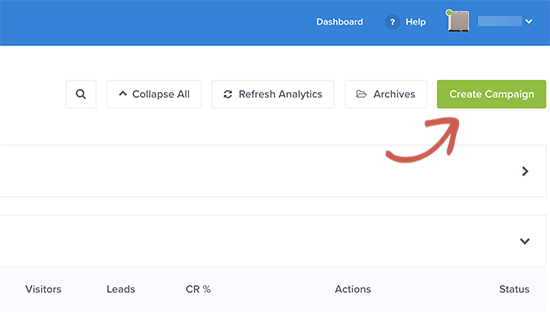
Once signed up, you will be taken to your OptinMonster dashboard where you need to click on the ‘Create Campaign’ button.
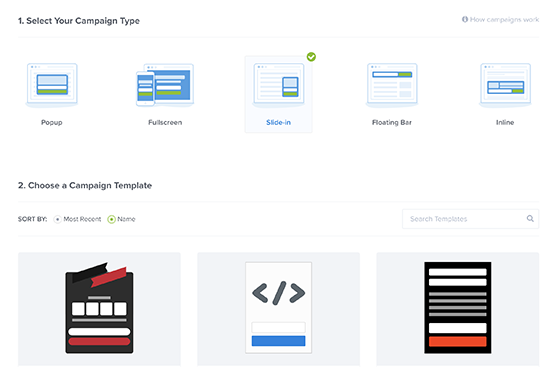
Next, you need to choose a campaign type and a template. OptinMonster comes with different campaign types, and you can use any of them to greet users with a welcome message in WordPress.
For the sake of this article, we will be using the slide-in campaign type with Flatland template.
Next, you will be asked to give your campaign a name and select a website where you want to run this campaign. Click on select website field and then click on ‘Add website’ to add a new website.
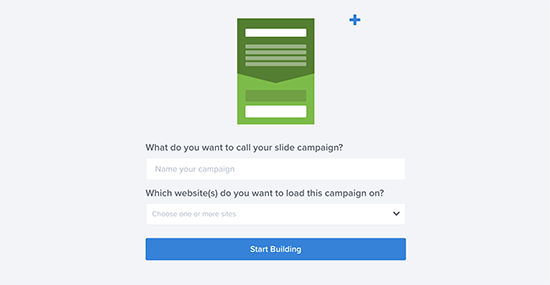
After that, click on the ‘Start Building’ button to continue.
OptinMonster will now launch the drag and drop editor where you can simply point and click on any element to edit it. You can add blocks, columns, and elements with text, video, buttons, sign up fields, and more.
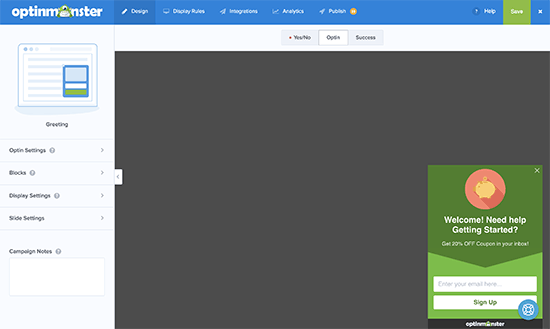
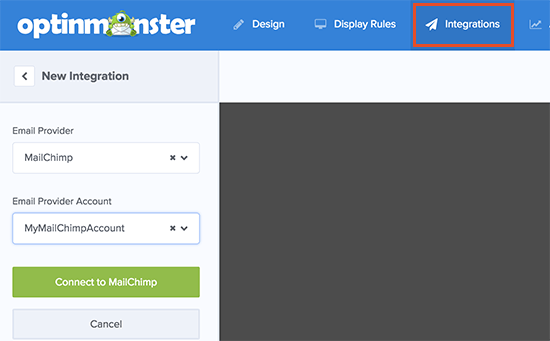
Simply click on the text fields to add your own welcome message to greet new users. You can also integrate it with your email service provider by clicking on the ‘Integrations’ tab on the top.
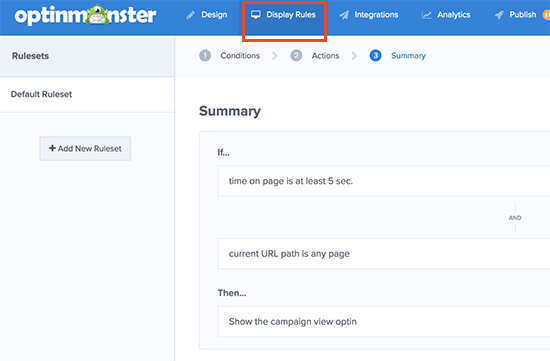
Next, you need to switch to the ‘Display Rules’ tab to select when you want to display the greeting. OptinMonster comes with a bunch of options that you can use to create less intrusive and highly engaging messages.
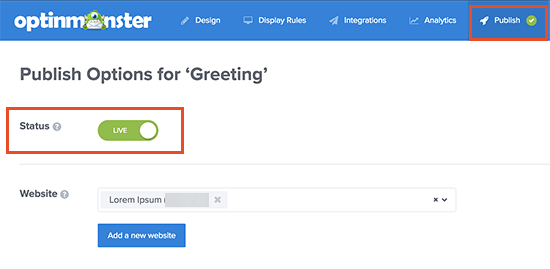
Once you are finished designing your custom welcome message, click on the Publish button at the top and toggle the ‘Status’ option to live.
You are now ready to add this custom welcome message campaign to your website.
Switch to your WordPress admin area to install and activate the OptinMonster plugin. For more details, see our step by step guide on how to install a WordPress plugin.
Upon activation, the plugin will add a new menu item labeled ‘OptinMonster’ to your WordPress admin sidebar. Clicking on it will take you to plugin’s settings page.
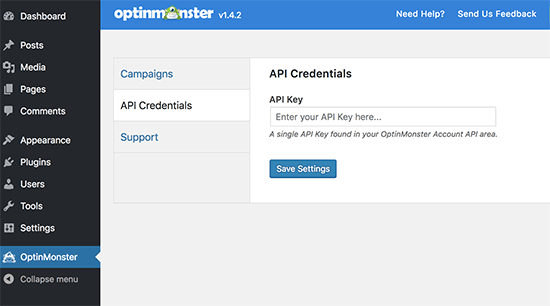
You will be asked to enter your API key. You can find this information under your account on the OptinMonster website.
Don’t forget to click on the save settings button after entering your API key.
Next, you need to click on the ‘Campaigns’ tab. If you cannot see your campaign listed there then click on the refresh campaigns button.
After that, click on the ‘Go Live’ link next to the campaign you just created.
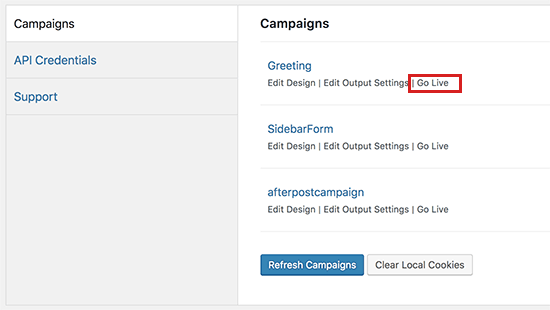
You can now visit your website to see your custom welcome message in action.

You can use OptinMonster to greet users with different welcome messages based on visits, time spent, logged in status, referral source, or use page level targeting for your landing pages.
Method 2. Greet Users with a Custom Welcome Message using LiveChat
LiveChat Inc is the best live chat support software for WordPress websites. It allows you to create beautifully designed live chat buttons, eye-catchers, and live chat support to your WordPress site.
You can customize the greeting message, display your own buttons, upload your logo, show agent profiles, and more.
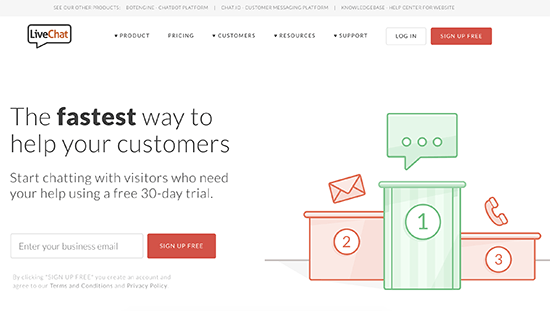
LiveChat is a paid solution (starting from $16.99 per agent). They also offer a free 30-day trial allowing you to check out the features and see if its a good fit for your business.
First, you need to visit the LiveChat website and sign up for an account.
After creating your account, you will be taken to your LiveChat dashboard. Next, you need to click on the settings tab to customize the appearance of the LiveChat button.
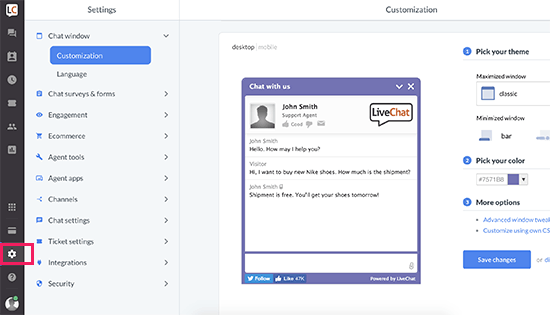
From here, you can choose the chat window colors and theme. After that click on ‘Advanced window tweaks’ link to upload your own logo and add your social media profiles.
Next, you need to switch to the Engagement » Greetings section. By default, LiveChat enables a few greetings displayed based on few simple rules like time spent on site, pages viewed, returning visitor, and more.
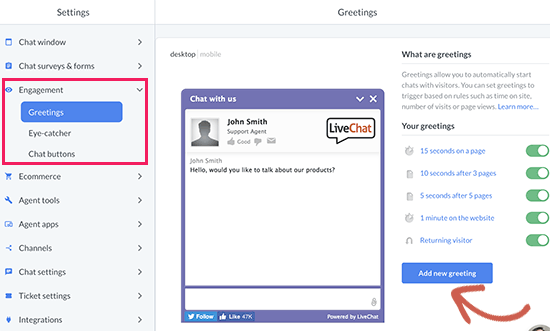
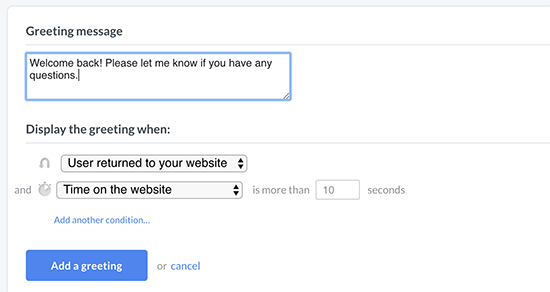
You can click on these greetings to edit them and add your own custom welcome message. You can also delete them or click on the ‘Add new greeting’ button to create a new custom greeting.
You will be able to select when to display a greeting by using display rules. You can also combine different rules to match and create highly dynamic custom greetings.
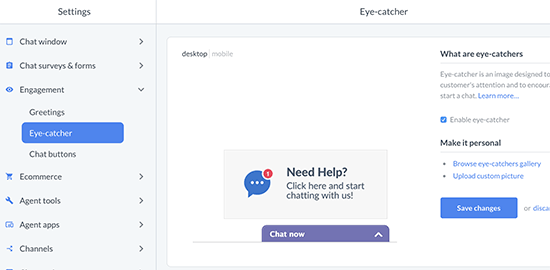
Next, you need to select an eye-catcher. These eye-catchers are images that are displayed when the LiveChat window is minimized.
LiveChat comes with several ready-made eye-catchers that you can use. You can also upload your images to use as eye-catchers.
Once you are satisfied with the design and appearance of your LiveChat window and custom greetings, you are ready to add them to your WordPress website.
Switch back to your WordPress admin area to install and activate the LiveChat plugin. For more details, see our step by step guide on how to install a WordPress plugin.
Upon activation, the plugin will add a new menu item labeled LiveChat to your WordPress admin sidebar. Clicking on it will take you to plugin’s settings page.
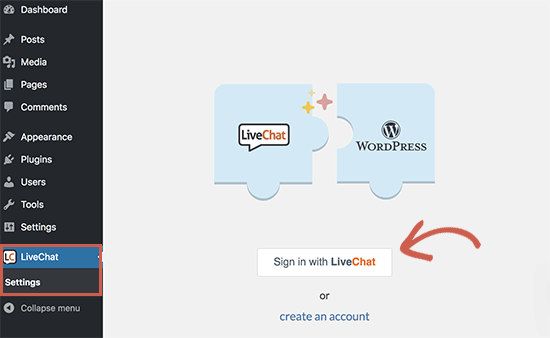
Go ahead and click on the ‘Sign in with LiveChat’ button to connect your WordPress site to your LiveChat account.
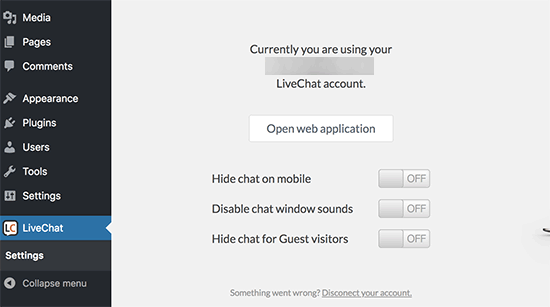
Once connected, you will see some very basic display settings. You can turn off LiveChat on mobile, turn off sounds, or hide it for users who are not logged in. If you are unsure, then we recommend leaving these options as they are.
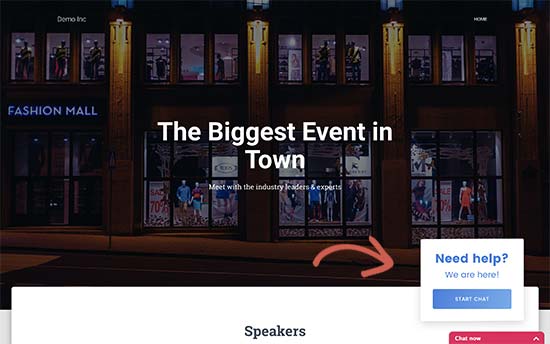
You can now visit your website in a new browser tab to see the LiveChat button in action. It will greet users with the eye-catcher you selected and display a custom welcome greeting based on the rules you choose in settings.
We hope this article helped you learn how to greet each user with a custom welcome message in WordPress. You may also want to see our article on how to track user engagement in WordPress using Google Analytics.
If you liked this article, then please subscribe to our YouTube Channel for WordPress video tutorials. You can also find us on Twitter and Facebook.
The post How to Greet Each User With a Custom Welcome Message in WordPress appeared first on WPBeginner.
from: WPBeginner
via Editorial Staff
Source: How to Greet Each User With a Custom Welcome Message in WordPress Via Business Advice.
Comments
Post a Comment