Do you want to exclude specific pages, authors, and more from WordPress search? By default, WordPress search includes all posts and pages in the search results. In this article, we will show you how to easily exclude specific pages, posts, authors, categories, and more from WordPress search results.

Why Exclude Items from WordPress Search?
The default WordPress search feature shows results from all WordPress posts, pages, and custom post types. This is acceptable for most websites and does not affect WordPress SEO or performance.
However if you are running an online store, then there are some pages that you may not want to appear in search results. For example, the checkout page, my account page, or a thank you page after successful downloads.
Similarly, if you are running a WordPress membership website, or a LMS plugin, then there would be pages and custom post types on your website that you may want to exclude from search results.
Some website owners may want to hide a category or taxonomy, while others may want to hide posts from specific authors. Optimizing your site-search by excluding unnecessary items offers a better user experience and improves your website’s usability.
That being said, let’s take a look at how to easily exclude items from WordPress search.
1. Exclude Specific Posts, Pages, and Custom Post Types from Search
The first thing you need to do is install and activate the Search Exclude plugin. For more details, see our step by step guide on how to install a WordPress plugin.
Upon activation, edit the post, page, or custom post type that you want to exclude from the search result. On the edit screen, you will see a search exclude box.
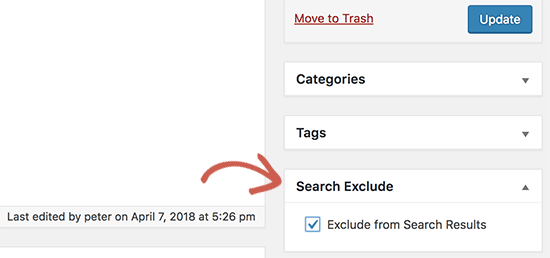
Simply check ‘Exclude from Search Results’ checkbox and don’t forget to save your post/page. This particular post/page will not appear in WordPress search results anymore.
To view all the items that you have excluded from search, go to Settings » Search Exclude page. Here you will see a list of items you have excluded from WordPress search results.
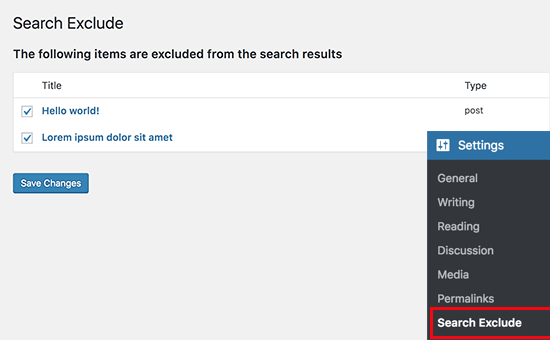
If you want to remove the restriction, simply uncheck the box next to the item you want to add back and click on the save changes button.
2. Exclude Specific Category, Tag, Custom Taxonomy From WordPress Search
This method requires you to add code to your WordPress website. If you haven’t done this before, then check out our guide on how to copy and paste code snippets in WordPress.
First, you need to find the category ID that you want to exclude.
Next, you need to add the following code to your theme’s functions.php file or a site-specific plugin.
function wpb_search_filter( $query ) {
        if ( $query->is_search && !is_admin() )
                $query->set( 'cat','-7' );
        return $query;
}
add_filter( 'pre_get_posts', 'wpb_search_filter' );
Don’t forget to replace 7 with the ID of category you want to exclude.
Now, let’s suppose you want to exclude more than one category. This is how you will modify the code to exclude multiple categories.
function wpb_search_filter( $query ) {
        if ( $query->is_search && !is_admin() )
                $query->set( 'cat','-7, -10, -21' );
        return $query;
}
add_filter( 'pre_get_posts', 'wpb_search_filter' );
We have simply added the category IDs that we want to exclude separated by commas.
Exclude Specific Tags from WordPress Search
If you want to exclude posts filed under specific tag, then you can use the following code.
if ( $query->is_search && !is_admin() )
                $query->set( 'tag','-19' );
        return $query;
}
add_filter( 'pre_get_posts', 'wpb_search_filter' );
Don’t forget to replace 19 with the ID of tag you want to exclude.
Similarly, you can modify the code to exclude multiple tags as well.
if ( $query->is_search && !is_admin() )
                $query->set( 'tag','-19, -27, -56' );
        return $query;
}
add_filter( 'pre_get_posts', 'wpb_search_filter' );
Excluding Specific Terms in a Custom Taxonomy From WordPress Search
If you want to exclude a term in a custom taxonomy from WordPress search results, then you will need to add the following code.
function wpb_modify_search_query( $query ) {
        global $wp_the_query;
        if( $query === $wp_the_query && $query->is_search() ) {
                $tax_query = array(
                        array(
                                'taxonomy' => 'genre',
                                'field' => 'slug',
                                'terms' => 'action',
                                'operator' => 'NOT IN',
                        )
                );
                $query->set( 'tax_query', $tax_query );
        }
}
add_action( 'pre_get_posts', 'wpb_modify_search_query' );
Don’t forget to replace ‘genre’ with the custom taxonomy and ‘action’ with the term you want to exclude.
3. Exclude Specific Author From WordPress Search
If you want to exclude posts created by a specific author from WordPress search result, then there are two ways to do that.
If the author has just a few posts, and you are sure they will not be adding any more posts, then you can just use the first method in this article to exclude their posts from WordPress search.
However if there are a lot of posts written by an author, then you can use the following code to exclude all of them from WordPress search results.
function wpb_search_filter( $query ) {
        if ( $query->is_search && !is_admin() )
                $query->set( 'author','-24' );
        return $query;
}
add_filter( 'pre_get_posts', 'wpb_search_filter' );
Don’t forget to replace 24 with the user ID of the author you want to exclude.
You can also use the same code to exclude multiple authors by adding their user IDs separated by comma.
function wpb_search_filter( $query ) {
        if ( $query->is_search && !is_admin() )
                $query->set( 'author','-24, -12, -19' );
        return $query;
}
add_filter( 'pre_get_posts', 'wpb_search_filter' );
We hope this article helped you learn how to explude specific pages, authors, and more from WordPress search. You may also want to see our list of the best WordPress search plugins to improve your site search.
If you liked this article, then please subscribe to our YouTube Channel for WordPress video tutorials. You can also find us on Twitter and Facebook.
The post How to Exclude Specific Pages, Authors, and More from WordPress Search appeared first on WPBeginner.
from: WPBeginner
via Editorial Staff
Source: How to Exclude Specific Pages, Authors, and More from WordPress Search Via Business Advice.
Comments
Post a Comment