Do you want to display Yelp reviews on your site? Yelp reviews are user reviews about the restaurants, brands, services, lifestyle products, hospitals, doctors and more. In this article, we will show you how to display Yelp reviews on your WordPress site for users to read general public reviews.
Why You Should Display Yelp Reviews on Your Site?
Yelp is a public-based reviews website. It has reviews and ratings on local businesses from experienced users. These reviews and ratings are helpful for the new visitors to get a word from someone who already used the particular product or service.
Don’t have a Yelp Business page yet? Click here to Claim Your Yelp Business Page.
Like the Facebook page reviews for your business, Yelp reviews also reassure stability of your brand or service to the new visitors. However, the difference is that Facebook reviews are limited to those who follow your brand page on the social media platform whereas Yelp reviews can be from anyone who uses your brand or service.
If you own a business listing blog or membership site, then you can also display Yelp reviews for different local businesses from your town and increase organic traffic on your website.
That being said, let’s take a look at how to display Yelp reviews in WordPress.
Showing Yelp Reviews on Your WordPress Site
First thing you need to do is to install and activate the Yelp Reviews Widget plugin. For more details, see our step by step guide on how to install a WordPress plugin.
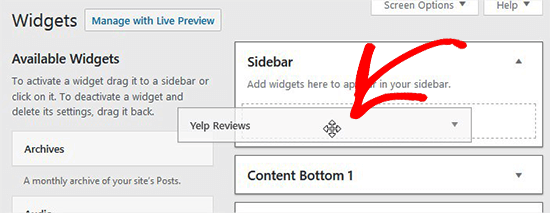
Upon activation, you need to go to Appearance » Widgets page in your WordPress admin area. You need to drag and drop Yelp Reviews Widget in the Sidebar widget area.
Next, you need to create a new app from Yelp developers page and get an API key to launch Yelp business reviews in this widget.
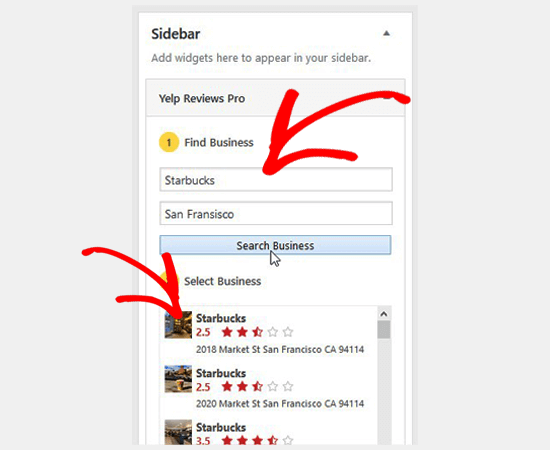
Once the API key is added, you can search for the brand or service in Yelp reviews widget by adding the name and location of the business. A list of businesses will be displayed, and you can select your business to show reviews in the sidebar widget area of your site.
After selecting your business from the list, you can click on the Save Business and Reviews button. You need to add the title for this widget too. It allows you to change business photo for your brand or service.
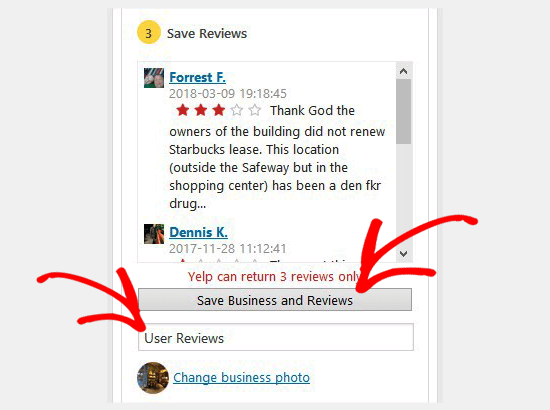
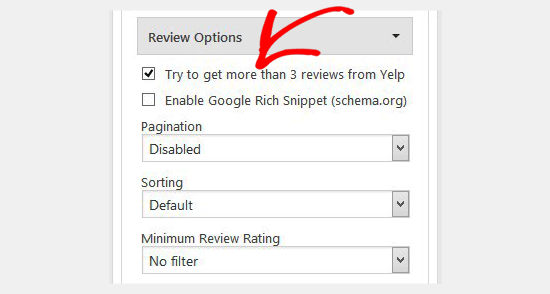
You can expand the settings one by one to display Yelp reviews on your site. By default, Yelp can only return 3 reviews, but you can check the setting to try and get more than 3 reviews. It also allows you to enable Google rich snippets, pagination, sorting and more.
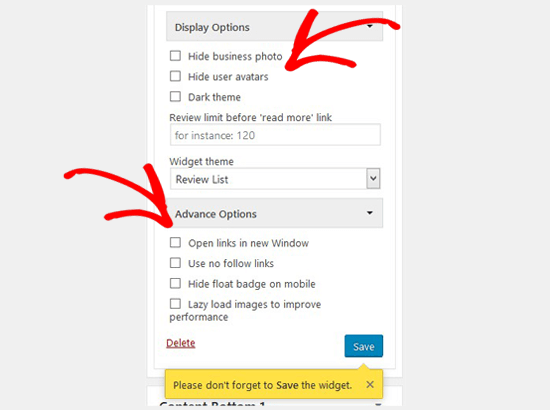
In display settings, you can hide business photo and user avatars, change theme to dark, add character limit to reviews and manage the widget theme.
The advance options allow you to open links in new window, use no follow links in reviews, lazy load images, and more.
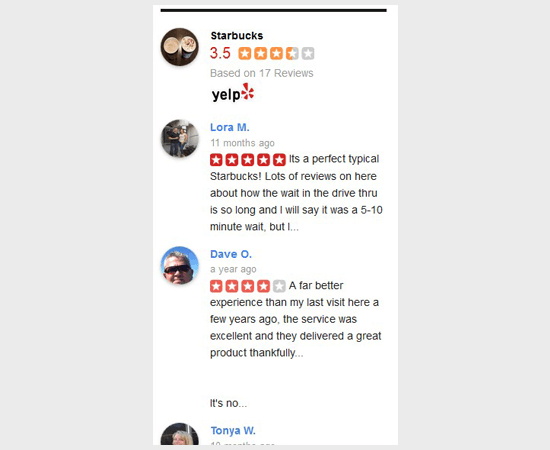
Once you are done, make sure to save the widget settings and go to your website to see your Yelp business reviews in the sidebar.
The plugin also allows you to create shortcodes for Yelp reviews and display them anywhere on your site. For this, you need the Yelp Reviews Pro plugin.
Once activated, simply go to the Settings » Yelp Reviews Pro page and go to the Shortcode Builder tab. Like the Yelp reviews widget, you can search the for a brand or service with its name and location.
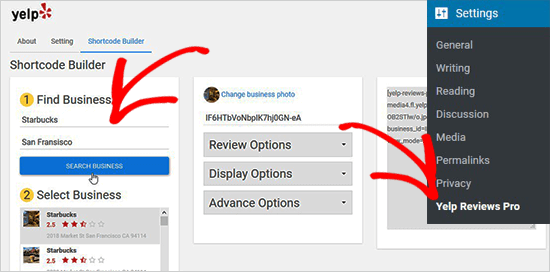
You need to select your business from the list and save the reviews. The other 3 sections to manage Yelp reviews are similar to the settings in the Yelp reviews widget.
After you save these reviews, it will automatically update the shortcode box on the right side of the screen.
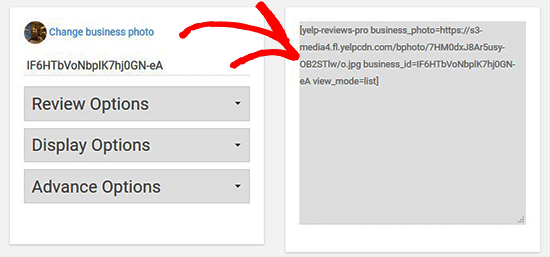
Next, you need to go ahead and paste this shortcode in WordPress blog post or page. After that head over to your site to see the Yelp reviews in action.
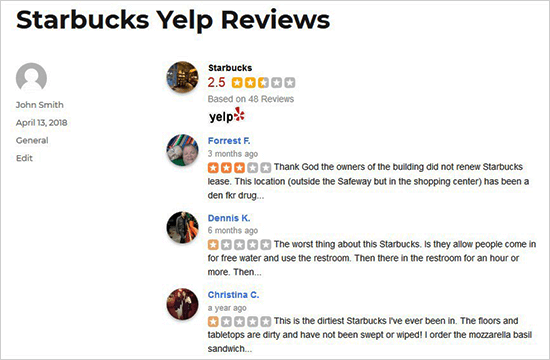
We hope this article helped you learn how to display Yelp reviews on your WordPress site. You may also want to see our expert pick of the best product review plugins for WordPress.
If you liked this article, then please subscribe to our YouTube Channel for WordPress video tutorials. You can also find us on Twitter and Facebook.
The post How to Display Yelp Reviews on your WordPress Site appeared first on WPBeginner.
from: WPBeginner
via Editorial Staff
Source: How to Display Yelp Reviews on your WordPress Site Via Business Advice.
Comments
Post a Comment