Recently one of our readers asked if it was possible to allow contributors to edit their approved posts? WordPress user roles allow you to set different permissions for each user on your site. By default, a WordPress user with a contributor role can’t modify their published posts. In this article, we will show you how to let contributors edit their posts after being approved.
Let Contributors Edit Their Posts After Being Approved
Contributors or guest authors with contributor user role write posts and send them to review in WordPress. A user with the administrator or editor user role can review and publish it. Once published, the contributors are unable to edit their own posts. This is a generalized hierarchy in WordPress that distribute user role and status.
However, you can add or remove capabilities to user roles in WordPress. Let’s take a look at how to let contributors edit their published posts.
Method 1: Allow Contributors to Edit Their Posts (Plugin)
This method is easier and recommended for most users. This method also allows you to edit other user roles and permissions right away.
First thing you need to do is install and activate the Capability Manager Enhanced plugin. For more details, see our step by step guide on how to install a plugin in WordPress.
Upon activation, you need to visit Users » Capabilities in your WordPress admin area to edit capabilities of contributor user role.
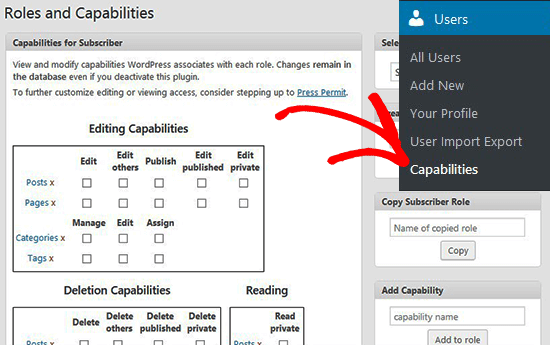
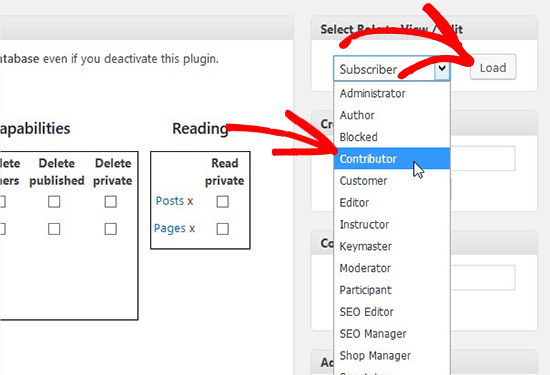
On this page, you need to select Contributor role on the right side, so you can change their permission level.
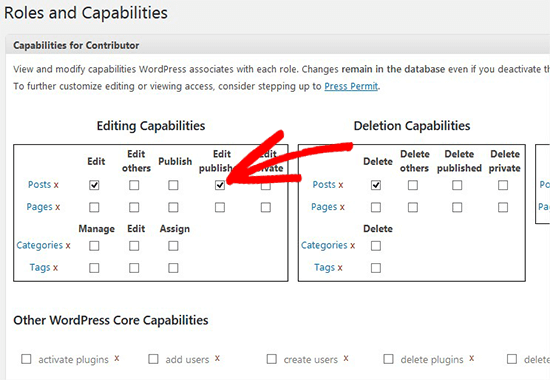
Once selected, you’ll see a lot of options in this section. In the Editing Capabilities area, you need to select Edit Published option and scroll to the bottom to click on Save Changes button.
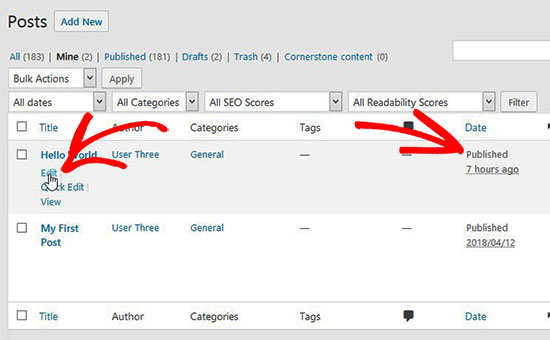
After that you can test the permissions by switching to a contributor role in WordPress and going to the Posts page. You will now see the option to edit published posts. Hint: you can instantly switch between user accounts while testing roles and permissions in WordPress.
Method 2: Manually Allowing Contributor to Edit Their Posts
This method requires you to add code to your WordPress files. If you haven’t done this before, then please take a look at our guide on how to copy and paste code in WordPress.
You’ll need to add the following code to your WordPress theme’s functions.php file or site-specific plugin.
// get the "contributor" role object
$obj_existing_role = get_role( 'contributor' );

// add the "Edit published posts" capability
$obj_existing_role->add_cap( 'edit_published_posts' );
This code snippet needs to run only once which means you can save it and then delete it. It will allow contributors to edit their published posts in WordPress.
Even though we have shown you how to allow contributors to edit their published posts, we believe it is not a good practice to let contributors or authors edit their published content.
If there’s a need for any change or correction in the content, then the writer should ask an administrator or editor to update it. This allows you to maintain editorial integrity.
Before publishing a post, an editor checks multiple necessary elements like keywords, images, meta description, URL, and more. These things are important to get better rankings in search results. A user with a contributor user role may not be fully aware of your editorial best practices and can make mistakes that would go unnoticed if not reviewed by an editor or administrator.
One way to deal with this is by sharing a blog post checklist with your contributors and authors. This checklist will help them cover all the tasks before submitting a post to review. It will also help an editor to quickly review a post.
We hope this article helped you learn how to let contributors edit their posts after being approved. You may also want to see our guide on how to allow users to submit posts in WordPress without even accessing the WordPress admin area.
If you liked this article, then please subscribe to our YouTube Channel for WordPress video tutorials. You can also find us on Twitter and Facebook.
The post How to Let Contributors Edit Their WordPress Posts After Being Approved appeared first on WPBeginner.
from: WPBeginner
via Editorial Staff
Source: How to Let Contributors Edit Their WordPress Posts After Being Approved Via Business Advice.
Comments
Post a Comment