Are you seeing the ‘failed to open stream’ error in WordPress? This error usually points out the location of the scripts where the error has occurred. However, it is quite difficult for beginner users to understand it. In this article, we will show you how to easily fix the WordPress failed to open stream error.
Why Failed to Open Stream Error Occurs?
Before we try to fix the error, it would be helpful to understand what causes the ‘Failed to open stream’ error in WordPress.
This error occurs when WordPress is unable to load the file mentioned in website code. When this error occurs, sometimes WordPress will continue loading the site and only show a warning message, while other times WordPress will show a fatal error and will not load anything else.
The message phrasing will be different depending on where the error occurs in the code and the reason for failure. It will also give you clues about what needs to be fixed.
Typically, this message would look something like this:
Warning: require(/home/website/wp-includes/load.php): failed to open stream: No such file or directory in /home/website/wp-settings.php on line 19

Fatal error: require(): Failed opening required ‘/home/website/wp-includes/load.php’ (include_path=’.:/usr/share/php/:/usr/share/php5/’) in /home/website/wp-settings.php on line 19
Here is another example:
Last Error: 2018-04-04 14:52:13: (2) HTTP Error: Unable to connect: ‘fopen(compress.zlib://https://www.googleapis.com/analytics/v3/management/accounts/~all/webproperties/~all/profiles?start-index=1): failed to open stream: operation failed’
Having said that, let’s take a look at how to troubleshoot and fix ‘failed to open stream’ error in WordPress.
Fixing Failed to Open Stream Error in WordPress
As we mentioned earlier, the error can be caused by a variety of reasons and the error message will be different depending on the cause and location of the file that’s causing the error.
In each instance, failed to open stream phrase would be followed by a reason. For example, permission denied, no such file or directory, operation failed, and more.
Now if your error message contains ‘no such file or directory’, then you need to look in the code to figure out which file is mentioned at that particular line.
If it is a plugin or theme file, then this means that the plugin or theme files were either deleted or not installed correctly. Simply deactivate and reinstall the theme / plugin in question to fix the error.
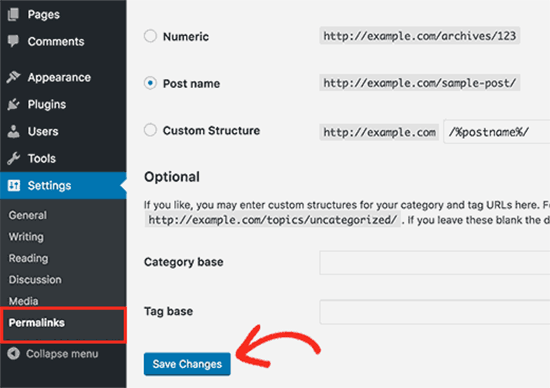
However, it is also possible that WordPress is unable to locate the files because of a missing .htaccess file in your root folder. In that case, you need to go to Settings » Permalinks page in your WordPress admin and just click on the ‘Save changes’ button to regenerate the .htaccess file.
If the error message is followed by ‘Permission denied’, then this means that WordPress does not have the right permission to access the file or directory referenced in the code.
To fix this, you need to check WordPress files and directory permissions and correct them if needed.
Lastly, some WordPress plugins load scripts from third-party sources like Google Analytics, Facebook APIs, Google Maps, and other third-party APIs.
Some of these APIs may require authentication or may have changed the way developers can access them. A failure to authenticate or incorrect access method will result in WordPress failing to open the required files.
To fix this, you will need to contact the plugin author for support. They will be able to help you fix the error.
If none of these tips help you resolve the issue, then follow the steps mentioned in our WordPress troubleshooting guide. This step by step guide will help you pinpoint the issue, so you can easily find the solution.
We hope this article helped you fix the WordPress ‘failed to open stream’ error. You may also want to bookmark our list of the most common WordPress errors and how to fix them.
If you liked this article, then please subscribe to our YouTube Channel for WordPress video tutorials. You can also find us on Twitter and Facebook.
The post How to Fix the WordPress Failed to Open Stream Error appeared first on WPBeginner.
from: WPBeginner
via Editorial Staff
Source: How to Fix the WordPress Failed to Open Stream Error Via Business Advice.
Comments
Post a Comment