Do you want to create a product catalog in WordPress without adding a full-blown shopping cart? Sometimes businesses want to take order by phone while still displaying their product catalog on the website. In this article, we will show you how to easily create a product catalog in WordPress without a shopping cart.
Why Add a Product Catalog without Shopping Cart>
Some businesses have products that they can’t sell online because they have an undetermined price. This makes it impossible for them to use a shopping cart plugin, but they still want to make a website, so they can showcase those products and attract potential customers.
Normally, people associate eCommerce platforms with online shopping. However, you can still use them to display products without using shopping cart feature.
That being said, let’s take a look at how to easily create a product catalog in WordPress without using the shopping cart feature.
Getting Started with Your Product Catalog in WordPress
The best way to create a product catalog in WordPress is by using WooCommerce. Don’t worry, you will not be using any of its shopping cart features.
If you already have a WordPress website, then you can go ahead and install and activate the WooCommerce plugin. For more details, see our step by step guide on how to install a WordPress plugin.
If you don’t have a WordPress site setup, then see our guide on how to create an online store to quickly set up WordPress with WooCommerce.
Once you have installed WooCommerce, you can move on to creating your product catalog in WordPress.
Creating Product Catalog in WordPress without Shopping Cart
By default, WooCommerce displays an add to cart or buy button next to all your products. This makes it difficult to create a product catalog without the shopping cart feature.
Luckily, there’s an easy solution that fixes this problem.
First, you need to install and activate the YITH WooCommerce Catalog Mode plugin. For more details, see our step by step guide on how to install a WordPress plugin.
Upon activation, you need to visit YITH Plugins » Catalog Mode page to configure the plugin settings.
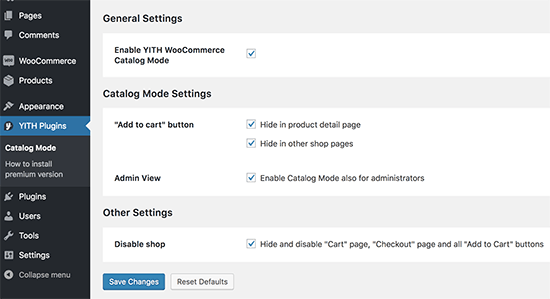
First, you need to check the box next to ‘Enable YITH WooCommerce Catalog Mode’ option to enable the plugin. After that, you need to choose where you want to hide the ‘Add to cart’ button.
You can choose to hide it on the shop pages or product details pages.
But in this case, you should go with the last option which allows you to disable shop feature everywhere by disabling the checkout page, cart page, and removing all add to cart button everywhere.
Don’t forget to click on the ‘Save Changes’ button to store your settings.
Adding Products to Your WordPress Product Catalog
You can now go ahead and start adding products to your site. Simply visit Products » Add New page to enter your product information.
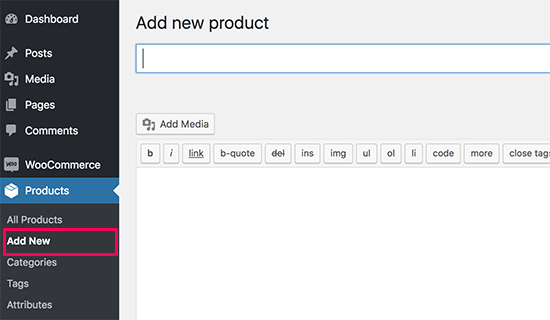
On the products screen, you can provide product title, description, short description, product image, and product gallery. Under the ‘Product’ data section, you will find the price options. You can leave them blank if you don’t want to display product pricing.
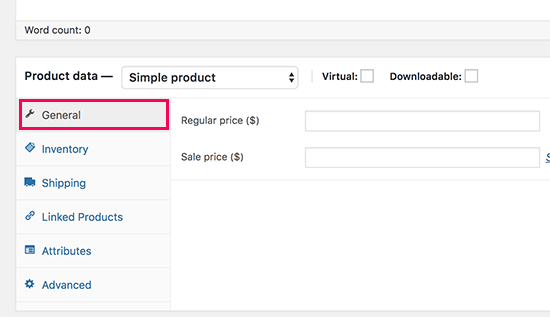
Once you are finished, go ahead and publish your product. Repeat the process to add as many products as needed to build up your catalog.
Viewing Your WordPress Product Catalog
You can visit your WooCommerce shop page to view your default catalog in action. Your shop page is usually located at a URL like this:
http://example.com/shop/
Replace example.com with your own URL to view your WooCommerce shop page in the catalog mode.
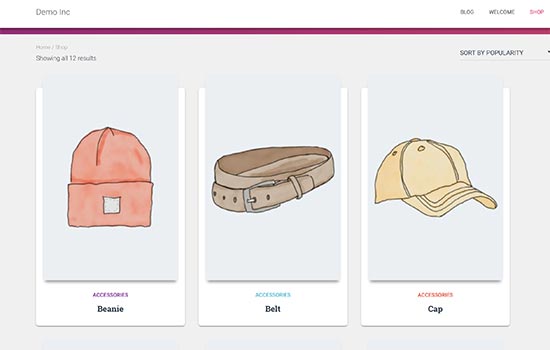
If you don’t want to use the shop page, then you can also display your products on any WordPress page and use it as your product catalog.
All you have to do is create a new WordPress page or edit an existing one, and add the following shortcode in the content area:
[products columns="4" limit="8" paginate="true"]
Feel free to change the number of columns and the items per page limit to your own requirements. Once you have adjusted the shortcode, go ahead and save or publish your page to preview it.

You will notice that the product pages will not show any add to cart or buy buttons. You can click on any individual product to see the product details page.
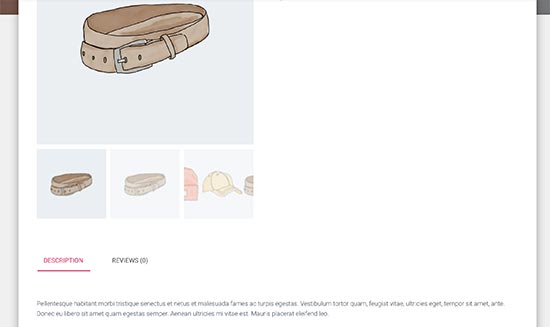
It will show all the product information images, description, gallery, without an add to cart or buy button.
We hope this article helped you learn how to easily create a product catalog in WordPress without the shopping cart feature. You may also want to see our list of the best WooCommerce themes that you can use for your product catalog website.
If you liked this article, then please subscribe to our YouTube Channel for WordPress video tutorials. You can also find us on Twitter and Facebook.
The post How to Create a Product Catalog in WordPress (without a Shopping Cart) appeared first on WPBeginner.
from: WPBeginner
via Editorial Staff
Source: How to Create a Product Catalog in WordPress (without a Shopping Cart) Via Business Advice.
Comments
Post a Comment