Do you want to create GDPR compliant forms in WordPress? European Union’s new GDPR law requires explicit user consent to store personal information, so users can have more personal control on their data stored on websites. In this article, we will show you how to easily create GDPR compliant forms in WordPress.

What is GDPR?
The General Data Protection Regulation (GDPR) is a European Union (EU) law that became effective on May 25th, 2018. The purpose of this new law is to give EU citizens control over their personal data and change how companies and businesses handle data privacy around the world.
For more details, see our ultimate guide to WordPress and GDPR compliance which will answer all your GDPR related questions in plain English.
A typical WordPress site may collect user’s personal information in a number of ways. One of which is by adding forms to the site. Most forms collect personal information, and you may want to make sure that your WordPress forms are in compliance with the GDPR.
What is Required to Make a Form GDPR Compliant
In order to make your WordPress forms GDPR compliant, you will need to add the following features:
- Ask users to give explicit consent for storing and using their personal information.
- Allow users to request access to their own personal information stored on your website.
- Allow users to request deletion of their data from your website.
Having said that, let’s take a look at how to easily create GDPR compliant WordPress forms.
How to Make a GDPR Compliant Form in WordPress
We recommend using WPForms to make GDPR compliant WordPress forms. It is the best contact form plugin for WordPress and comes with built-in GDPR enhancement features including:
- 1-click GDPR Agreement field for your forms
- GDPR compliant data retention best practices
- Easy entry management system to quickly find, export, or delete user data upon request
Here is how you can easily create a GDPR compliant form in WordPress using WPForms.
First, you need to install and activate the WPForms plugin. For more details, see our step by step guide on how to install a WordPress plugin.
Upon activation, you need to visit WPForms » Settings page and scroll down to the GDPR section. There, you need to check the box next to GDPR Enhancements option.
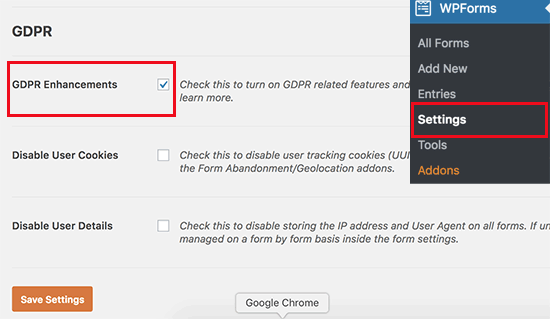
Enabling GDPR Enhancements option will reveal two more GDPR related settings.
The first one, ‘Disable User Cookies’ will stop WPForms from storing user sessions. This cookie contains a random unique identifier that helps WPForms add features like related entries, form abandonment, and geolocation. Disabling it will also disable those features.
The second option ‘Disable User Details’ will stop WPForms from storing user IP addresses and browser information.
Both of these settings are optional, and you can check them if you feel that you don’t need these features.
Don’t forget to click on the ‘Save Settings’ button store your changes.
WPForms is now ready to create a GDPR compliant forms in WordPress. You can now go to WPForms » Add New page to create a new form.
You will be asked to enter a title for your form and select a template. These templates are ready-made forms that you can use as a starting point. In this example, we are creating a simple contact form.

This will launch the WPForms builder interface. You will see your form preview in the right column, and on the left you will see all the fields that you can add to your form.
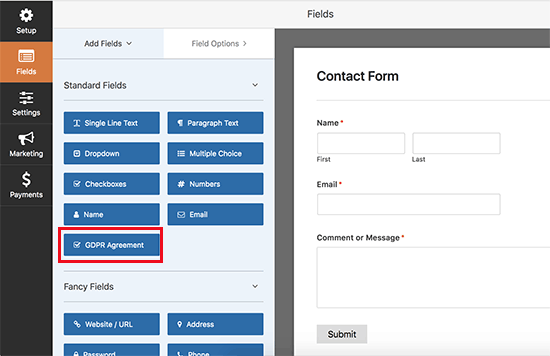
Click on the ‘GDPR Agreement’ field to add it to your form. You will now see it appear at the bottom of your form. You can click on it to change its settings.
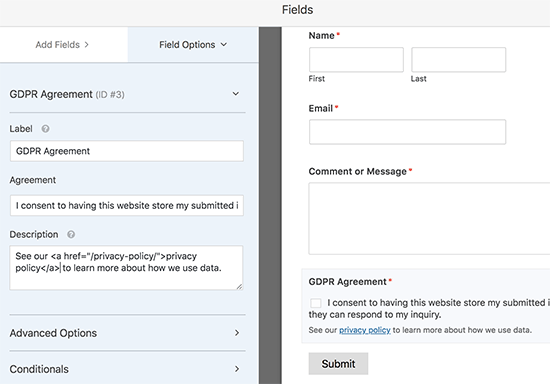
You can change the title of the form field, agreement text, and use the description box to add details like a link to your privacy policy or terms and conditions pages.
Note: The GDPR Agreement field is always a required field, and it cannot be pre-checked to comply with the GDPR law. You can only add one GDPR agreement field to each form.
Once you are satisfied with the form, click on the save button on top to store your changes. You can now close the form builder.
Adding your GDPR compliant form to WordPress posts and pages
WPForms allows you to easily add forms anywhere on your website. Simply create a new page / post or edit an existing one. On the post edit screen, you will notice the new ‘Add Form’ button.
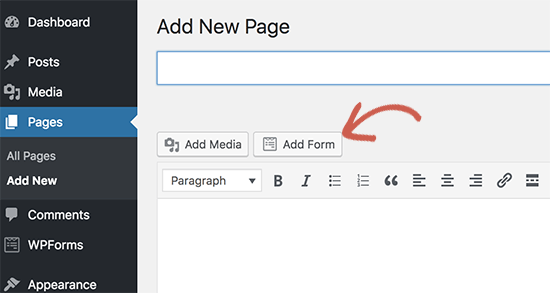
Clicking on it will bring up a popup where you can select the form you created earlier. Simply click on the ‘Add form’ button again, and you will now see the contact form shortcode in your post editor.

You can now save or publish your post/page and click on the preview button to see your GDPR ready WordPress form in action.

Managing Data Access and Deletion Requirements with WPForms
One of the requirements for GDPR compliance is to give users access and allowing them to request deletion of their data.
To do that, you can create a ‘Data access/delete form’ and add it to your privacy policy page. Users who wish to access their stored data or want it to be deleted can use that form to send you a request.
WPForms comes with an excellent entry management system that allows you to quickly find any data submitted via your forms.
You can access all form entries by visiting WPForms » Entries page and selecting the form you wish to view from the top left corner of the screen.
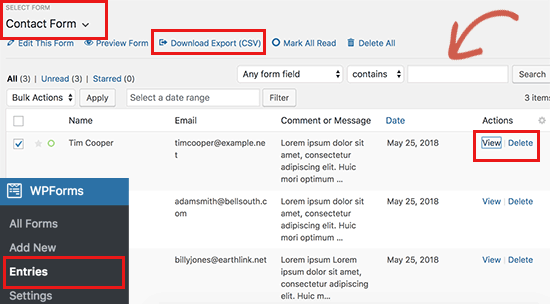
WPForms will show you all entries submitted using that form. You can search for a form entry by entering a name, email, ip address, or keyword.
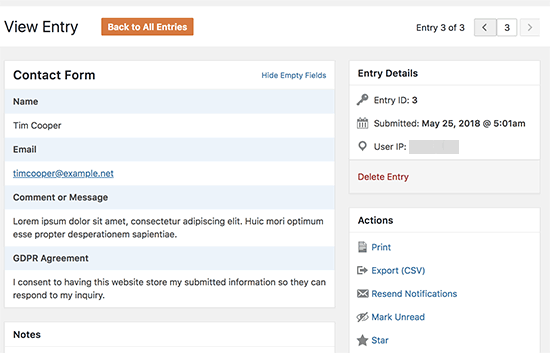
You can also delete individual entries or click on the view button to see all data stored for that entry. On the single entry page, you can even export that single entry as a CSV file.
We hope this article helped you learn how to easily create GDPR compliant forms in WordPress. You may also want to see our article on how to track user engagement in WordPress using Google Analytics.
If you liked this article, then please subscribe to our YouTube Channel for WordPress video tutorials. You can also find us on Twitter and Facebook.
The post How to Create GDPR Compliant Forms in WordPress appeared first on WPBeginner.
from: WPBeginner
via Editorial Staff
Source: How to Create GDPR Compliant Forms in WordPress Via Business Advice.
Comments
Post a Comment