Do you want to add an Amazon like magnifying zoom for images in WordPress? Zooming images allow users to see details that they would not see in a normal sized image. In this article, we will show you how to easily add magnifying zoom for images in WordPress.
Adding Magnifying Zoom for WordPress Images
First thing you need to do is install and activate the WP Image Zoom plugin. For more details, see our step by step guide on how to install a WordPress plugin.
Upon activation, you need to visit WP Image Zoom page in your WordPress admin. From here, you can manage the zoom settings for your images.
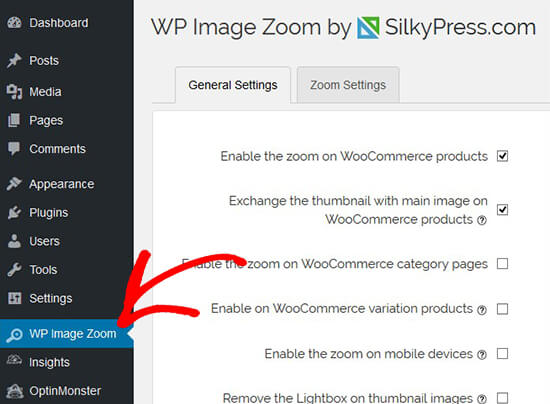
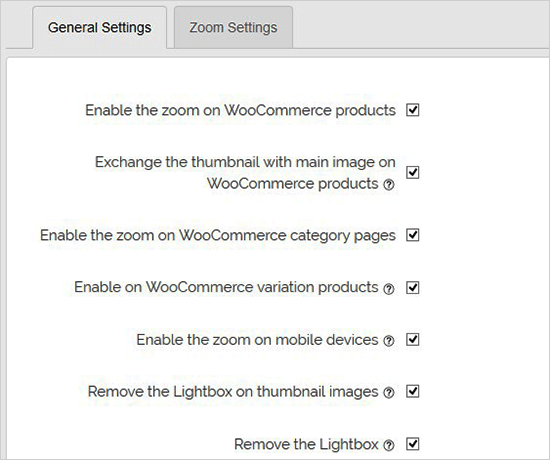
In the General Settings tab, you can enable features like zoom on WooCommerce product images, thumbnails, mobile devices, attachment pages, category pages, and more. It also allows you to remove the lightbox, so your users can smoothly zoom images.
If you are not removing lightbox for images, then you can scroll down for further settings like enabling zoom inside a lightbox.
Note: You can see supported lightboxes to make sure that the zoom works fine inside a lightbox.
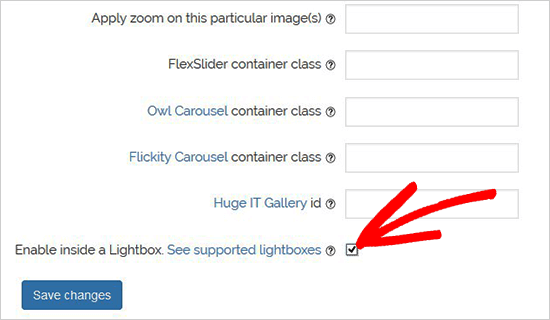
Once you are done adjusting the settings on this page, don’t forget to click on the Save Changes button.
Next, you need to visit the Zoom Settings tab. It has 4 easy steps to add magnifying zoom for your images.
First, you need to select the shape of the lens to zoom images. You can choose from circle, square, and zoom window lens shape.
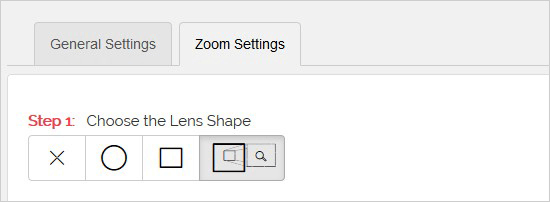
After choosing your lens, go to the next step and preview an image with the selected lens to see how it works. The plugin has a preview image that you can use to test your changes.
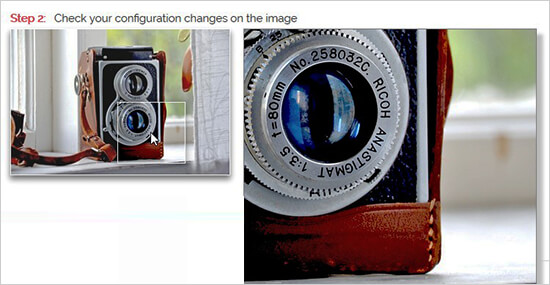
You can come back and live preview this image after making any changes to the configuration below.
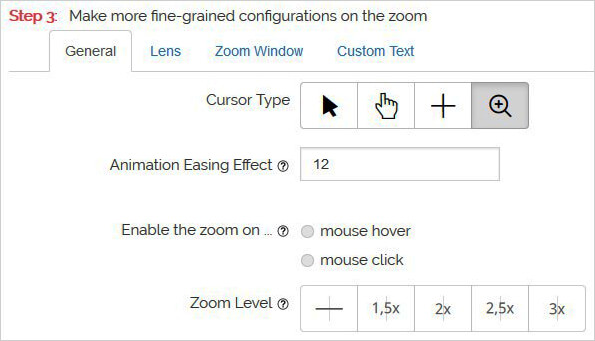
In the next step, you can select cursor type, set animation easing effect, enable the zoom on mouse hover or mouse click, and define a zoom level. Some of these features are only available for the pro version of the plugin.
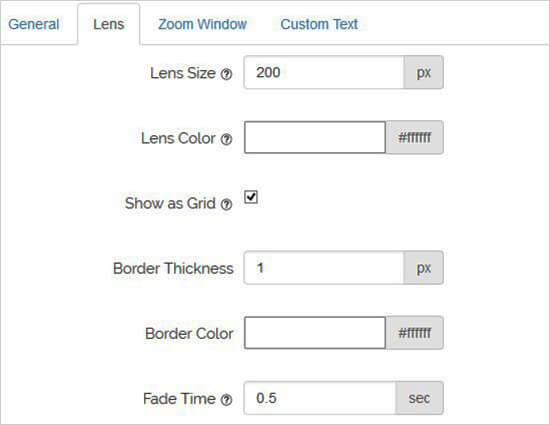
Now you can go to the Lens configuration tab for settings like lens size, lens color, lens border options, and more. These settings are effective only if you selected the circle or square lens in Step 1.
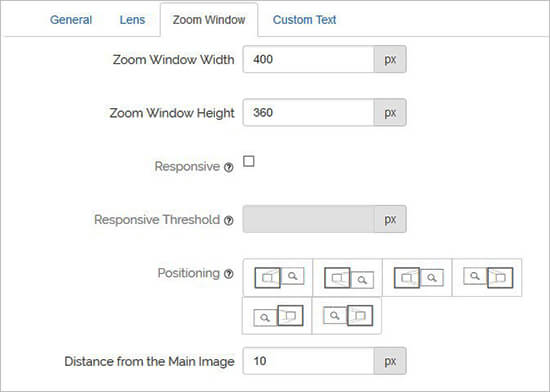
Next, you can visit the Zoom Window configuration tab. This tab is enabled only if you selected the Zoom Window Lens in Step 1.
From here, you can change the width and height of zoom window, positioning, distance from the main image, borders, and more.
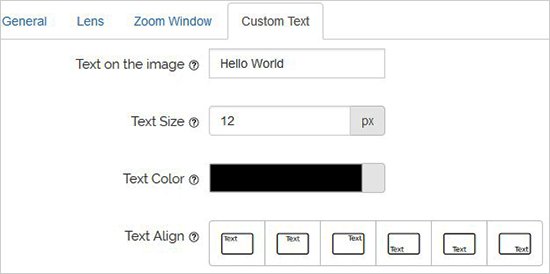
Lastly, you can add custom text to the image and choose text size, color, and alignment.
Don’t forget to click on the Save Changes button to store your settings. You can always look at the preview image to see how the magnifier will work on your blog images with these settings.

The above settings will enable magnifying zoom on your WooCommerce product images. To enable zoom for your images on WordPress posts and pages, you need to follow the steps below.
Enabling Magnifying Zoom for Images on Posts and Pages
By default, the magnifying zoom is not enabled for images on your posts and pages. You need to do it manually after adding an image to your content.
Once you add the image to your post or page, simply click to select it and then click on the magnifying icon in the toolbar. This icon will apply the zoom settings on your image.
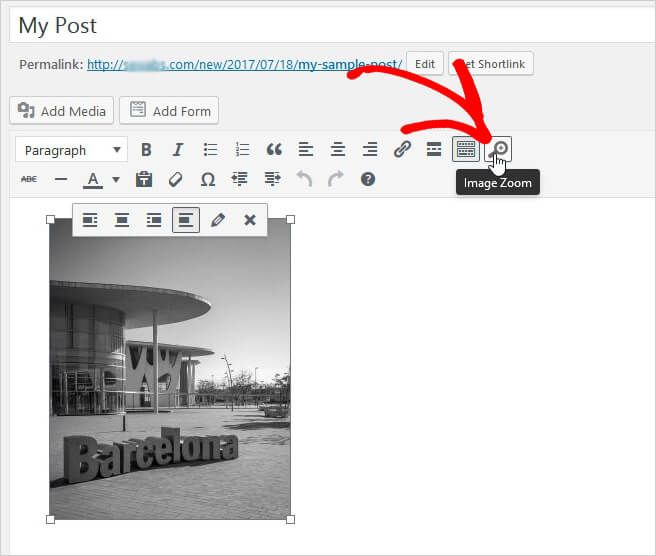
After that, head over to the post to see magnifying zoom feature enabled for the selected image. You need to repeat this step each time you want to add the zoom effect to an image.

We recommend using high-quality images for the zoom feature to look great. High-quality images are normally larger in file size and take longer to load which will affect your website speed and performance. To solve this issue, you need to optimize your images for the web before uploading them to WordPress.
We hope this article helped you learn how to add magnifying zoom for images in WordPress. You may also want to see our article on how to fix common image issues in WordPress.
If you liked this article, then please subscribe to our YouTube Channel for WordPress video tutorials. You can also find us on Twitter and Facebook.
The post How to Add Magnifying Zoom for Images in WordPress appeared first on WPBeginner.
from: WPBeginner
via Editorial Staff
Source: How to Add Magnifying Zoom for Images in WordPress Via Business Advice.
Comments
Post a Comment