Do you want to add FOMO widgets to your WordPress site and increase conversions? FOMO, short for fear of missing out, is a marketing technique that uses a psychological principle to create anticipation for a product or service. In this article, we will show you how to properly add FOMO to your WordPress website and boost conversions.
What is FOMO and How it Helps with Conversions?
FOMO or ‘fear of missing out’ is a psychological term used to describe anxiety about missing out on something exciting and trendy.
As a website owner, you can take advantage of this human behavior with your marketing strategy and improve your conversions.
FOMO is nothing new, marketers have been using it way before the arrival of the internet. Now with online marketing, FOMO has become far easier to implement and much more effective.
For example, if you run an online store, then you can create anticipation about an upcoming sale, limited time offers, and by adding social proof to your landing pages.
You can also use it to build your email list, run affiliate marketing campaigns, boost downloads for your apps, and more.
That being said, let’s take a look at how to easily add FOMO to your WordPress site. We will show you two techniques that we have successfully used on our own sites with incredible results.
1. Adding FOMO with Social Proof by Using Proven
One way to ignite FOMO is by adding social proof to your website. It helps you instantly win user’s trust by showing them that other users are already buying your product.
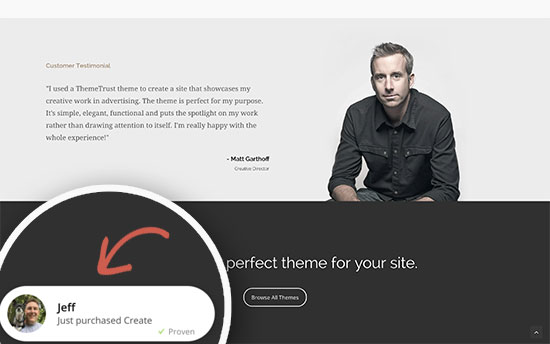
First, you need to install and activate the Proven plugin. For more details, see our step by step guide on how to install a WordPress plugin.
Proven is a social proof plugin that integrates with your eCommerce platform or MailChimp email lists and displays recent purchases and sign ups.
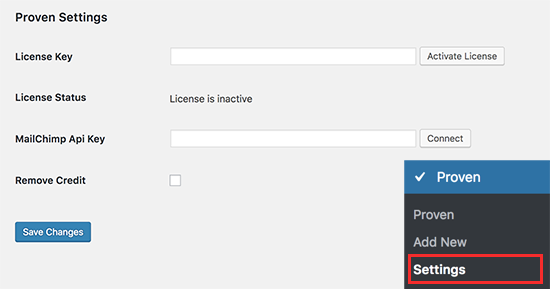
Upon activation, you need to head over to Proven » Settings page to enter your license key. You can find this information from your account on the plugin website.
Next, let’s head on over to the Proven » Add New page to create your first social proof notification.
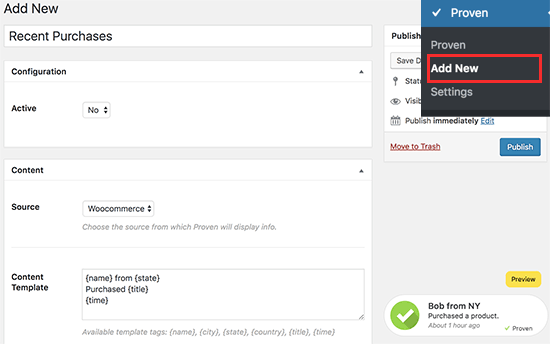
First, you need to enter a title for this notification campaign. After that, you need to choose whether you want this configuration to be active or not. You can keep it inactive while you configure your settings, but don’t forget to change this setting to make your notifications live once you are done.
Next, you will come to the content section where you will be asked to select the source for your notifications.
Proven integrates with WooCommerce, MailChimp, and Easy Digital Downloads. When you integrate with one of these three, the social notification will automatically display the recent purchase and subscriber notifications.
You can also enter the source manually, which will allow you to manually create entries that will be displayed in the notification. This is particularly helpful when you are not using a shopping cart plugin on your website.
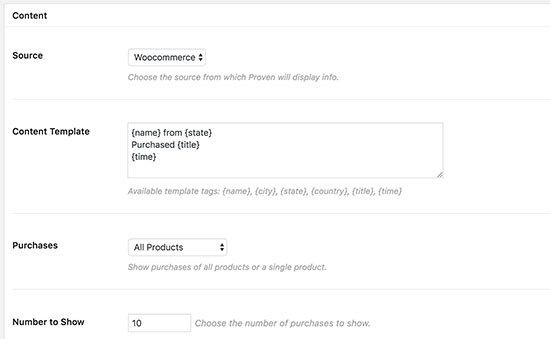
After that, you can change the content template using the available template tags displayed below the field.
For the purchases field, you need to select which product purchases are displayed in the notification. If you are integrating it with MailChimp, then you can choose which mailing list will trigger the notification.
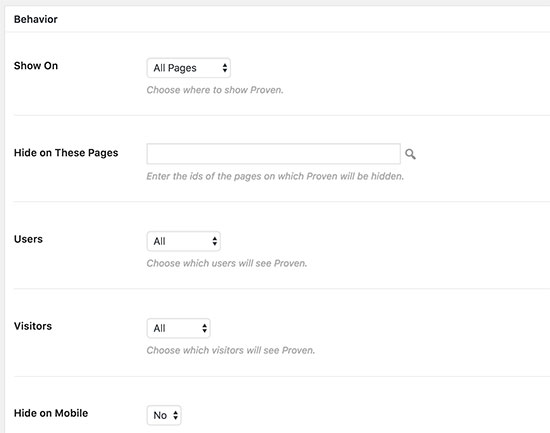
Next, you can select when you want notifications to be displayed in the Behavior settings. You can select pages where you want the notification to appear, you can also select users, mobile view, the delay between notifications, and more.
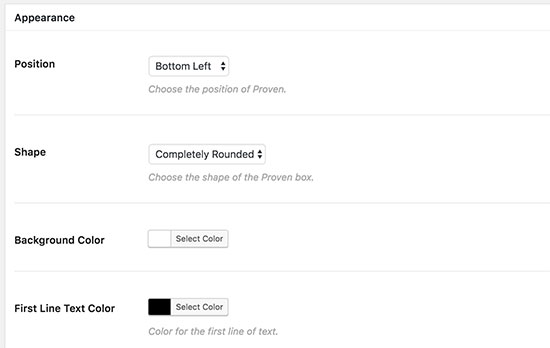
Lastly, you will reach the ‘Appearance’ section. From here you can select colors, shape, and position of your notification banner.
Once you are satisfied with the settings, don’t forget to click on the ‘Publish’ button to make it live.
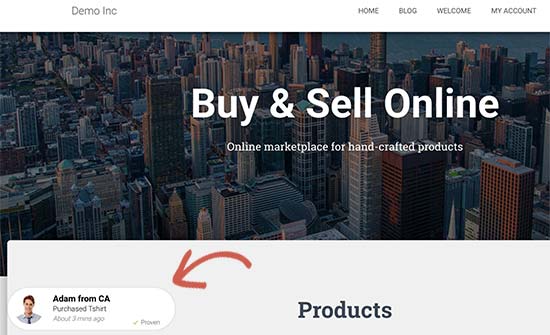
You can now visit your website to see the FOMO social proof notification in action.
Method 2: Adding FOMO Countdown Timers with OptinMonster
We have all seen marketers using ‘Urgency’ to get customer’s attention. Whether it is your local grocery store or a big name brand website, it is one of the oldest marketing techniques, which works just as effectively online.
Basically, you show users an offer with a sense of urgency, which triggers the fear of missing out a valuable deal and helps users make a purchasing decision.
Urgency hacks can be used with limited time offer, seasonal sale campaigns, one-time discounts, coupons, and more. To learn more, see this article on using urgency to hack conversion rates with proven methods.
Now, the thing is how do you use urgency with FOMO to create a powerful conversion magnet?
This is where OptinMonster comes in. It is the best conversion optimization software that helps businesses turn abandoning website visitors into subscribers & customers.
First, you will need to sign up for an OptinMonster account. It is a paid tool and you will need at least the ‘Plus’ plan to use their Floating bar campaigns.
Next, switch to your WordPress site to install and activate the OptinMonster plugin. For more details, see our step by step guide on how to install a WordPress plugin.
This plugin is a connector between your WordPress site and the OptinMonster app.
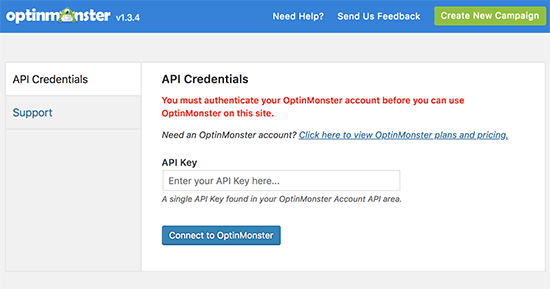
Upon activation, click on the OptinMonster menu in your admin sidebar and enter your API key. You can find this information under your account on OptinMonster website.
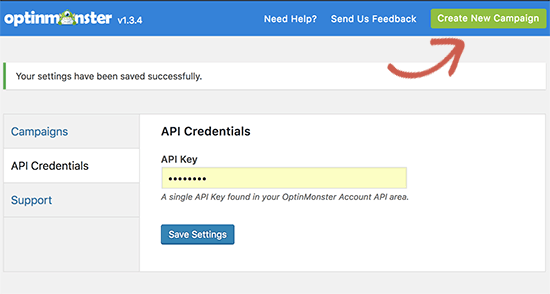
After entering your API Key, you will need to click on the ‘Create New Campaign’ button to continue.
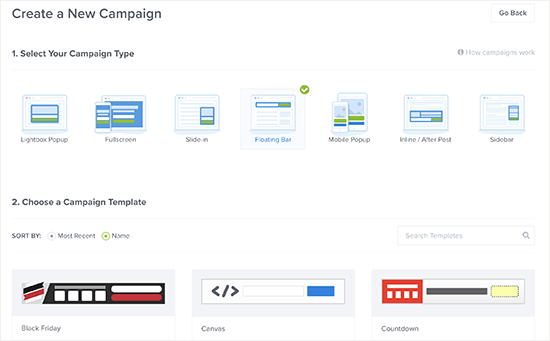
First, you need to select an optin type and then select a theme. We will be using a ‘Floating bar’ campaign with the ‘Countdown’ theme.
Next, you will be asked to choose a name for your theme and the website where you will run it. Filling this information will launch the OptinMonster Builder interface.
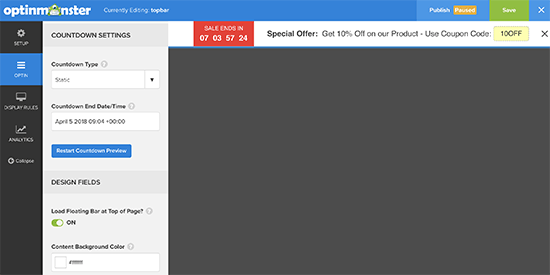
You need to click on the ‘Optin’ tab and select your countdown type and end date. There are two types of countdown timers you can use ‘Static’ and ‘Dynamic’.
The static timer remains the same for all your users, while the Dynamic timer changes based on user behavior on your website.
For this tutorial, we will be using the static timer. Since we are using floating bar with countdown theme, we can move the optin bar to the bottom or the top.
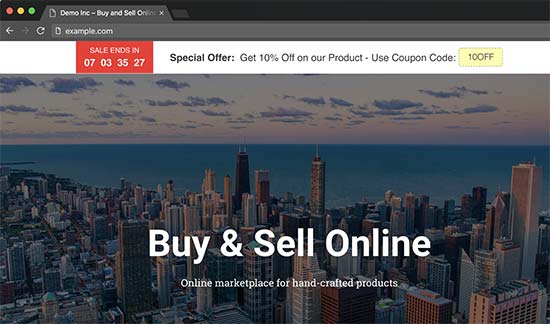
You can also just point and click to edit text in the floating bar. You can add a coupon code, add links to special offers, and style it any way you want.
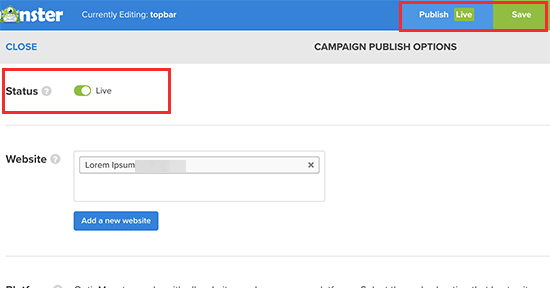
Once you are satisfied, don’t forget to click on the ‘Publish’ button at the top. This will show you the optin status page where you need to toggle the switch next to Status to make your optin live.
Now, go back to your WordPress website and click on the ‘Campaigns’ tab on the OptinMonster page. You will see your recently created campaign listed there (Click on refresh campaigns button if you don’t see it).
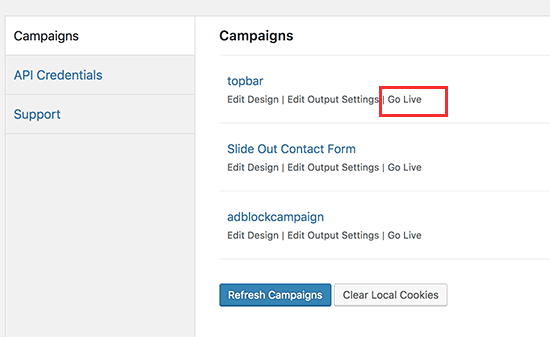
By default your campaign will be disabled, and you just have to click on the ‘Go Live’ link to enable it.
You can now visit your website to see your countdown timer FOMO campaign in action.
Tracking Your Conversions in WordPress
FOMO techniques work really well for conversions, but how do you keep track of their performance? Without tracking you wouldn’t know how many sales or leads were generated due to these campaigns.
All expert marketers use Google Analytics. It not only helps you see where your users are coming from, it also allows you to track user engagement on your website.
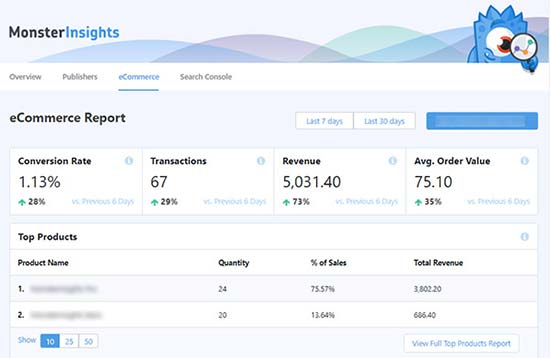
The easiest way to use Google Analytics in WordPress is through MonsterInsights. It is the best Google Analytics plugin for WordPress and has an eCommerce addon for WooCommerce and EDD, which helps you track your eCommerce performance without leaving WordPress.
We hope this article helped you learn how to add FOMO to your WordPress website and boost conversions. You may also want to see our list of must-have WordPress plugins for business websites.
If you liked this article, then please subscribe to our YouTube Channel for WordPress video tutorials. You can also find us on Twitter and Facebook.
The post How to Use FOMO on Your WordPress Site to Increase Conversions appeared first on WPBeginner.
from: WPBeginner
via Editorial Staff
Source: How to Use FOMO on Your WordPress Site to Increase Conversions Via Business Advice.
Comments
Post a Comment