Do you want to create an interactive image for your WordPress blog? An interactive image allows you to highlight, link, and animate certain areas of your image. In this article, we will show you how to create interactive images in WordPress.

What is an Interactive Image?
An interactive image has hotspot areas, highlights, links, colors, and more. It’s different from a simple image that you upload in WordPress. Interactive images are eye-catching and attract users to see details of the image. You can add description on different parts of an image, add links to pages, highlight sections, and more.
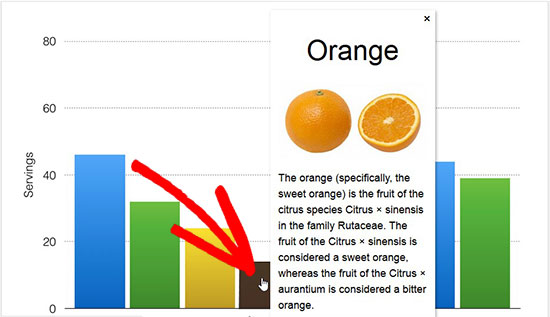
In this image, you can see the description of fruits on mouse over to different bars. You can use these interactive images to boost user engagement and time spent on site.
Let’s take a look on how you can draw attention of your visitors with interactive images.
Creating Interactive Images in WordPress
First thing you need to do is install and activate the Draw Attention plugin. For more details, see our step by step guide on how to install a WordPress plugin.
Upon activation, you’ll see a new custom post type in your WordPress admin area. You need to go to the Draw Attention » Add New page to create an interactive image.
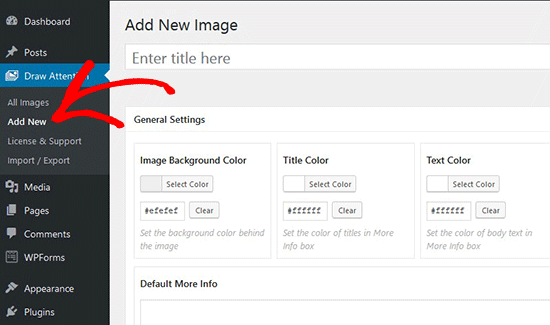
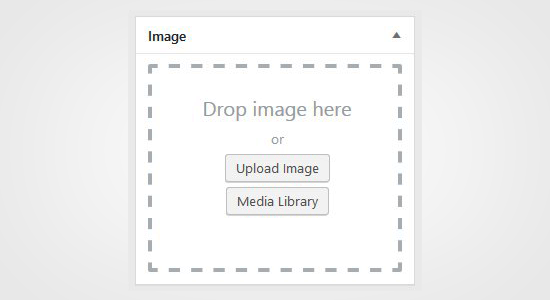
Start by adding a title for this new interactive image, so you can easily remember it. On this page, you can create interactive design on new or previously uploaded images. You can add a new image by clicking on the upload image icon, or you can select an image from your WordPress media library.
Next, you need to click on Publish button.
After publishing, the plugin allows you to edit the image and highlight specific areas, add colors, links, draw hotspot areas, and more. You can scroll down to the Hotspot Areas section and expand the clickable area to preview image.
Simply move your mouse and draw clickable areas on the image. You can easily select the hotspot areas and expand them to create a selection.
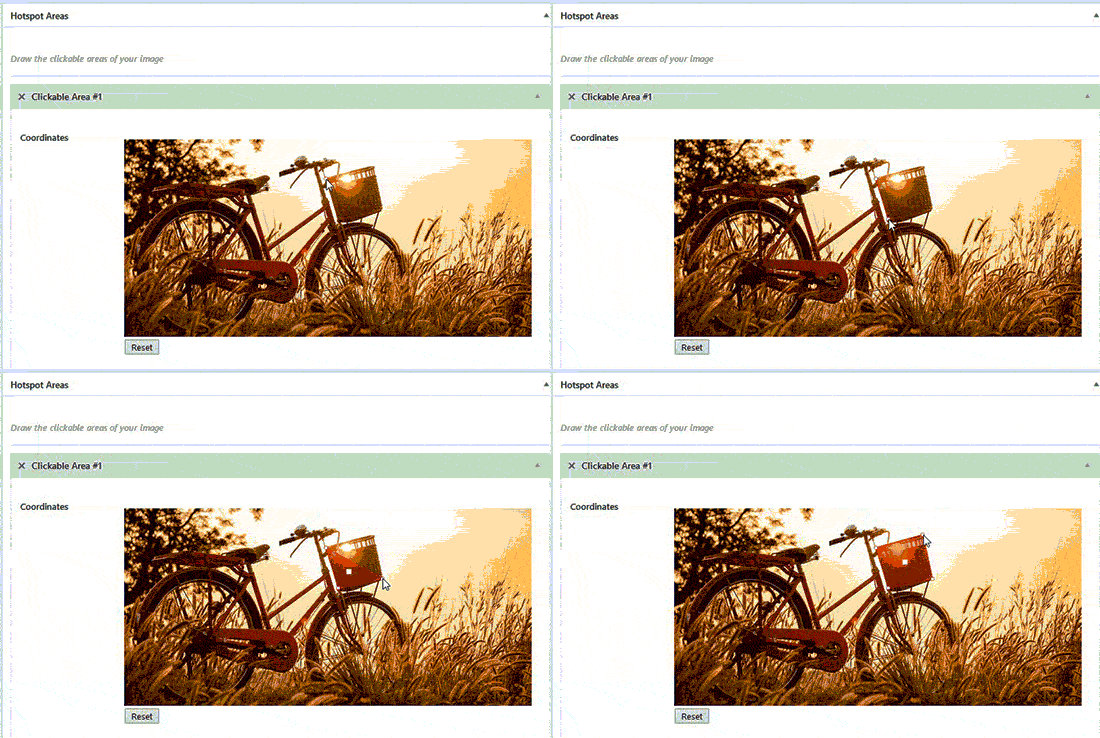
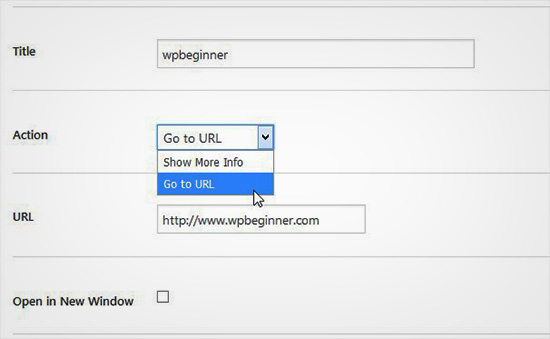
After drawing the hotspot area, you need to scroll down to the Action dropdown and select an action for the selected area on image. If you choose Show More Info, then you can simply add a description to explain the hotspot area on the image. You can also add a link on the selected area by using the ‘Go to URL’ option.
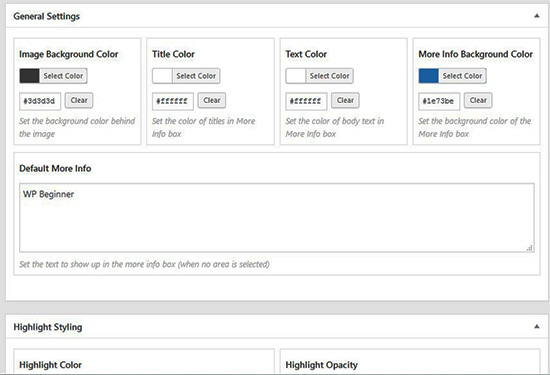
You can also manage general settings and highlight styling for action link, action text, info background and more. These settings can help in making your image more interactive.
Next you need to click on the Update button and copy the shortcode to add it in your WordPress post or page.

The plugin allows you to create as many interactive images as you need using your previously uploaded or new images.

Import and Export Interactive Images
If you are working on multiple sites and want to import / export interactive images, then it requires the same Draw Attention plugin on both sites.
On the first site, you need to visit Draw Attention » Import / Export page and check mark the images that you want to export. Next, click on the Generate Export Code button and copy the code.
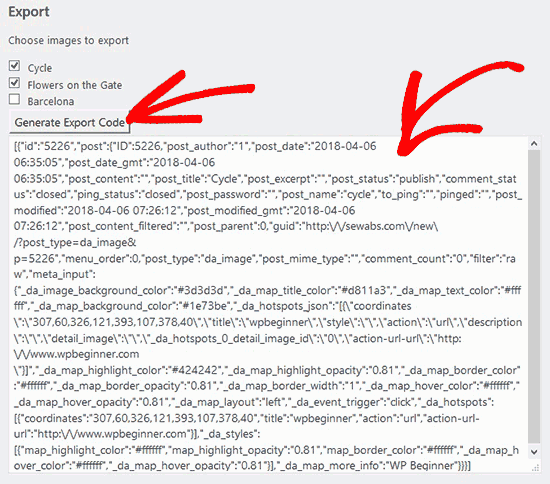
After that you need to go to the next website and make sure that you have Draw Attention plugin activated. Next, you need to go to Draw Attention » Import / Export page from WordPress admin and paste the code in import field.
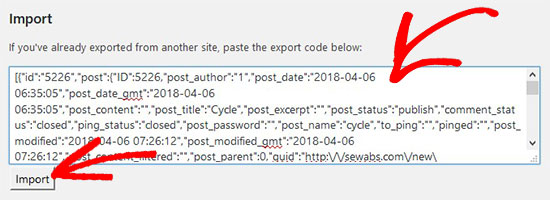
Go ahead and click on the Import button and your images will be imported will all the interactive details that you added previously.
These interactive images are good for WordPress SEO and attract more visitors on your site. However, it’s recommended to compress images before you upload them to improve site performance.
We hope this article helped you learn how to create interactive images in WordPress. You may also want to check our guide on how to lazy load images in WordPress.
If you liked this article, then please subscribe to our YouTube Channel for WordPress video tutorials. You can also find us on Twitter and Facebook.
The post How to Create Interactive Images in WordPress appeared first on WPBeginner.
from: WPBeginner
via Editorial Staff
Source: How to Create Interactive Images in WordPress Via Business Advice.
Comments
Post a Comment