Do you want to learn how to use cookies on your WordPress site? Cookies are a useful tool to store temporary information in user’s browser and then use this information to enhance user experience through personalization and behavioral targeting. In this ultimate guide, we will show you how to set, get, and delete WordPress cookies like a pro.
Note: This is an advanced tutorial. It requires you to have proficient understanding of HTML, CSS, WordPress site, and PHP.
What Are Cookies?
Cookies are plain text files that are created and stored in users browser when they visit a website. Cookies are used to add different features on a website.
Following are some of the common usage of cookies on various websites.
- Store and manage user’s login information
- Store temporary session information during a users visit
- Ecommerce stores use cookies to remember cart items during a user’s visit
- Track user activity on a site to offer personalized user experience
- and more
As you can see, cookies are highly useful tool for website owners, but they can also be a bit invasive. Recent trends in email marketing, growth hacking, and online marketing as a whole allow websites to set cookies that act as a beacon and can be used to store and even share user activity across websites.
This is why European Union enacted the EU Cookie Law, which requires website owners to declare that they use cookies to store information.
How Cookies are Used in a Typical WordPress Website
By default, WordPress uses cookies to manage logged-in user sessions and authentication. It also uses cookies to remember a user’s name and email address if they fill out a comment form.
However, many WordPress plugins on your website may also set their own cookies. For example, OptinMonster allows you to show different email optin forms to new vs returning visitors, and it does that by using cookies.
If you are using third party services on your website like Google Analytics or Google AdSense, then they may also set cookies on your website.
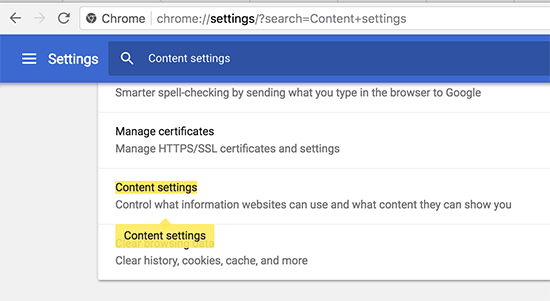
You can view all website cookies in your browser’s settings. For example, in Google Chrome you need to go to settings and search for ‘content settings’.
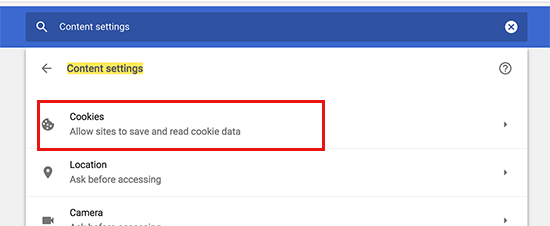
Under content settings, you will need to click on ‘Cookies’ to open the cookies settings page.
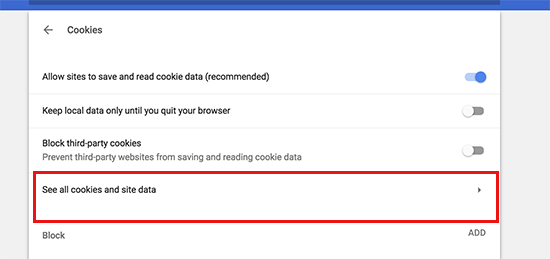
Next, you need to click on the ‘All cookies and site data’ option.
On the next page, you will see a list of all cookies and site data stored on your browser by all websites you visited.
You can type a website address in the search box, and it will show you the data stored by that website.
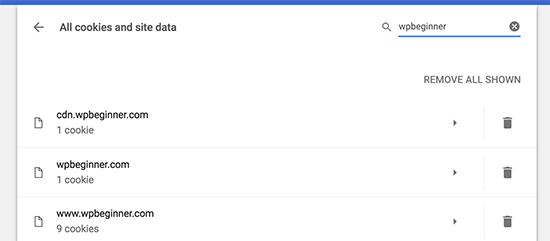
Clicking on a single item will show you more details about individual cookies and their contents.
How to Set a Cookie in WordPress
To follow this tutorial, you will need to add code to your theme’s functions.php file or a site-specific plugin. If you haven’t done this before, then please take a look at our guide on how to copy and paste code snippets in WordPress.
First we will use the setcookie() function in PHP. This function accepts the following parameters.
- Cookie name
- Cookie value
- Expire (Optional: sets a time period after which cookie expires)
- Path (Optional, by default it will use the site’s root)
- Domain (Optional, by default uses your website’s domain)
- Secure (Optional, If true then only transfers cookie data via HTTPS)
- httponly (Optional, when set true the cookie is only accessible via HTTP and cannot be used by scripts)
Now let’s add a code snippet to your WordPress site. This code stores the exact timestamp when a user visited your website in a cookie.
function wpb_cookies_tutorial1() {

$visit_time = date('F j, Y  g:i a');

if(!isset($_COOKIE[$wpb_visit_time])) {

// set a cookie for 1 year
setcookie('wpb_visit_time', $current_time, time()+31556926);

}

}
You can now visit your website and then check your browser cookies. You will find a cookie with the name wpb_visit_time.
How to Get a Cookie and Use it in WordPress
Now that we have created this cookie that’s stored in user’s browser for 1 year, let’s take a look at how can we use this information on our website.
If you know the name of a cookie, then you can easily call it anywhere in PHP using the $_COOKIE[] variable. Let’s add some code that not only sets the cookie but also uses it to do something on your website.
function wpb_cookies_tutorial2() {
// Time of user's visit
$visit_time = date('F j, Y g:i a');

// Check if cookie is already set
if(isset($_COOKIE['wpb_visit_time'])) {

// Do this if cookie is set
function visitor_greeting() {

// Use information stored in the cookie
$lastvisit = $_COOKIE['wpb_visit_time'];

$string .= 'You last visited our website '. $lastvisit .'. Check out whats new';

return $string;
}

} else {

// Do this if the cookie doesn't exist
function visitor_greeting() {
$string .= 'New here? Check out these resources...' ;
return $string;
}

// Set the cookie
setcookie('wpb_visit_time',  $visit_time, time()+31556926);
}

// Add a shortcode
add_shortcode('greet_me', 'visitor_greeting');

}
add_action('init', 'wpb_cookies_tutorial2');
We have commented the code to show you what each part does. This code uses the information stored in the cookie and outputs it using the shortcode. You can now add shortcode [greet_me] anywhere on your website, and it will show when a user last visited.
Feel free to modify the code to make it more useful for your website. For example, you can show recent posts to returning users and popular posts to new users.
Deleting a Cookie in WordPress
So far we have learned how to set a cookie and use it later in your website. Now let’s take a look at how to delete a cookie.
To delete a cookie, you need to add the following line to your code.
unset($_COOKIE['wpb_visit_time']);
Don’t forget to replace wpb_visit_time with the name of the cookie you are trying to delete.
Let’s put this code in some context using the same sample code we used above. This time we will delete a cookie and set it again with new information.
function wpb_cookies_tutorial2() {
// Time of user's visit
$visit_time = date('F j, Y g:i a');

// Check if cookie is already set
if(isset($_COOKIE['wpb_visit_time'])) {

// Do this if cookie is set
function visitor_greeting() {

// Use information stored in the cookie
$lastvisit = $_COOKIE['wpb_visit_time'];

$string .= 'You last visited our website '. $lastvisit .'. Check out whats new';

// Delete the old cookie so that we can set it again with updated time
unset($_COOKIE['wpb_visit_time']);

return $string;
}

} else {
// Do this if the cookie doesn't exist
function visitor_greeting() {
$string .= 'New here? Check out these resources...' ;
return $string;
}
}
add_shortcode('greet_me', 'visitor_greeting');

// Set or Reset the cookie
setcookie('wpb_visit_time',  $visit_time, time()+31556926);
}
add_action('init', 'wpb_cookies_tutorial2');
As you can see, this code deletes the cookie once we have used the information stored inside. Later we set the cookie again with the updated time information.
We hope this article helped you learn how to easily set, get, and delete WordPress cookies. You may also want to see our list of other extremely useful tricks for the WordPress functions file.
If you liked this article, then please subscribe to our YouTube Channel for WordPress video tutorials. You can also find us on Twitter and Facebook.
The post How to Set, Get, and Delete WordPress Cookies (like a Pro) appeared first on WPBeginner.
from: WPBeginner
via Editorial Staff
Source: How to Set, Get, and Delete WordPress Cookies (like a Pro) Via Business Advice.
Comments
Post a Comment