Are you seeing the HTTP error while uploading media in WordPress? This error usually occurs when you are uploading an image or other files to WordPress using the built-in media uploader. In this article, we will show you how to easily fix the HTTP image upload error in WordPress.
What Causes HTTP Error During Media Upload in WordPress?
There are a number of things that could lead to a HTTP error when you are trying to upload files using the WordPress media uploader. Basically, WordPress is unable to figure out the cause and that’s why it displays the generic ‘HTTP error’ message.
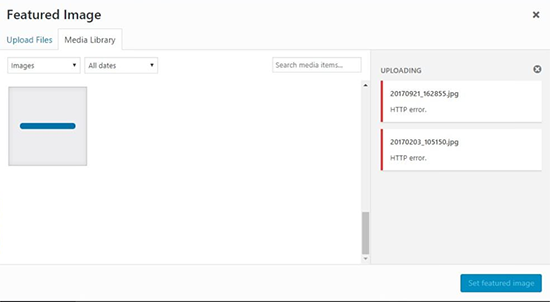
The frustrating part is that this error message doesn’t give you any clue as to what may have caused it. This means that you will have to try different solutions to find the cause and fix the error.
That being said, let’s take a look at how to troubleshoot and fix the HTTP error during media upload in WordPress.
1. Make Sure The HTTP Error is Not Temporary
First, you should wait a few minutes and then try uploading your image file again. This error is sometimes caused by unusual traffic and low server resources, which are automatically fixed on most WordPress hosting servers.
If that doesn’t work, then you may want to try uploading a different image file. If the other file uploads successfully, then try saving your original image file to a smaller size and retry uploading.
Lastly, you may want to try saving the file to a different format. For example, change jpeg to png using an image editing software. After that, retry uploading the file.
If all these steps result in the HTTP error, then this means that the error is not caused by a temporary glitch and definitely needs your immediate attention.
2. Increase WordPress Memory Limit
The most common cause of this error is lack of memory available for WordPress to use. To fix this, you need to increase the amount of memory PHP can use on your server.
You can do this by adding the following code to your wp-config.php file.
define( 'WP_MEMORY_LIMIT', '256M' );
This code increases the WordPress memory limit to 256MB, which would be enough to fix any memory limit issues.
3. Change Image Editor Library Used by WordPress
WordPress runs on PHP which uses two modules to handle images. These modules are called GD Library and Imagick. WordPress may use either one of them depending on which one is available.
However, Imagick is known to often run into memory issues causing the http error during image uploads. To fix this, you can make the GD Library your default image editor.
You can do this by simply adding this code to your theme’s functions.php file or a site-specific plugin.
function wpb_image_editor_default_to_gd( $editors ) {
        $gd_editor = 'WP_Image_Editor_GD';
        $editors = array_diff( $editors, array( $gd_editor ) );
        array_unshift( $editors, $gd_editor );
        return $editors;
}
add_filter( 'wp_image_editors', 'wpb_image_editor_default_to_gd' );
After adding this code, you can retry uploading files using the media uploader. If this doesn’t solve the issue, then you can remove this code and try other methods described in this article.
4. Using The .htaccess Method
This method allows you to control how Imagick uses server resources. Many shared hosting providers limit Imagick’s ability to use multiple threads for faster image processing. However, this would result in you seeing the http error when uploading images.
An easy fix is be to add the following code in your .htaccess file:
SetEnv MAGICK_THREAD_LIMIT 1
This code simply limits Imagick to use a single thread to process images.
We hope this article helped you fix the HTTP error during media upload in WordPress. You may also want to see our WordPress troubleshooting guide as well as the ultimate list of most common WordPress errors and how to fix them.
If you liked this article, then please subscribe to our YouTube Channel for WordPress video tutorials. You can also find us on Twitter and Facebook.
The post How to Fix the HTTP Image Upload Error in WordPress appeared first on WPBeginner.
from: WPBeginner
via Editorial Staff
Source: How to Fix the HTTP Image Upload Error in WordPress Via Business Advice.
Comments
Post a Comment