Do you want to embed a Facebook video in WordPress? With the recent popularity of Facebook Live and Facebook videos platform, several of our users asked if it was possible to embed Facebook videos in WordPress. In this article, we will show you how to easily embed a Facebook video and Facebook live video in WordPress.

Why Add Facebook Videos in WordPress?
We tell our users that they should never upload videos to WordPress. Instead, we recommend using a video sharing site like YouTube.
While YouTube is currently the world’s largest video hosting platform, Facebook is the biggest social network, and their videos are growing fast.
Recently, Facebook introduced auto-play and Facebook live video features. Marketers all over the world are raving about these features because they increase user engagement and overall reach.
You can also use Facebook videos to increase likes on your Facebook page. For a more immersive social experience, you can add Facebook page plugin, install Facebook comments, and add Facebook like button on your WordPress site.
Having said that, let’s take a look at how to embed Facebook videos on a WordPress site.
Embedding Facebook Videos in WordPress
First, you need to locate the video that you want to embed on your WordPress site.
Next, you need to right click on the video name or date, and then select copy link address.
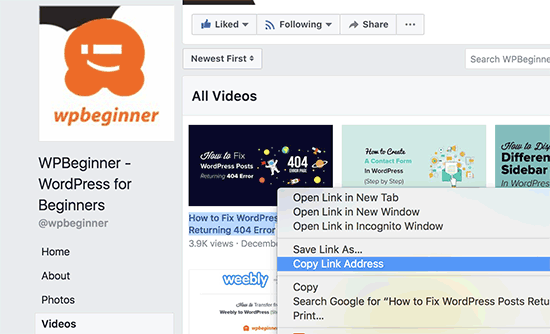
After that, you need to visit the Facebook embedded video player website and scroll down to the code generator section.
You will need to paste the URL you copied earlier in the ‘URL of video’ field.
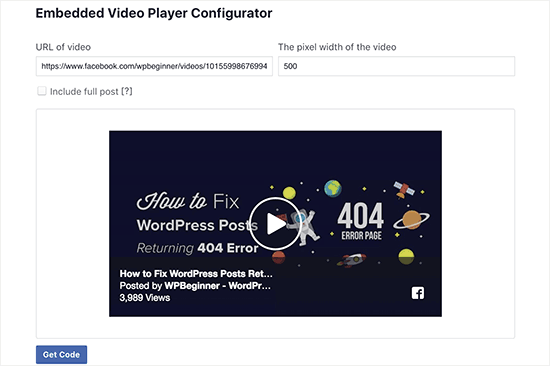
Next, you need to click on the get code button which will bring up a popup showing you two boxes of code.
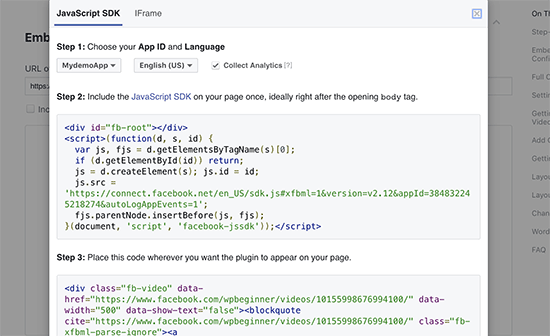
The first part of the code needs to go in your website’s header section. There are multiple ways to add this code to your website.
If you are comfortable editing theme files, then you can add it to your theme or a child theme by simply editing the header.php file and paste it right after the <body> tag.
Alternatively, you can install and activate the Insert Headers and Footers plugin. For more details, see our step by step guide on how to install a WordPress plugin.
Upon activation, you need to go to the Settings » Insert Headers and Footers page in your WordPress admin and paste the code into the footer box. Click on the save button to store your changes.
Important: You only need to add the first part of the code once. Next time you add a Facebook video, you will only need to copy and paste the second part of the code.
Now return to the Facebook video embedder page and copy the second part of the code.
You can add this code in your WordPress posts, pages, or even a sidebar widget. When adding the code to your posts and pages, you need to make sure to switch to the Text editor, otherwise WordPress visual editor will mess up the code.
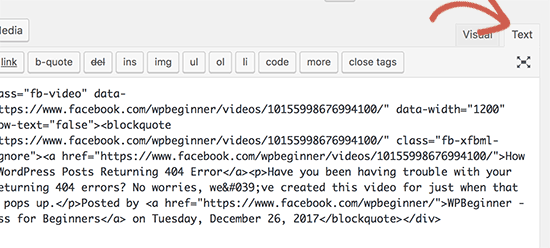
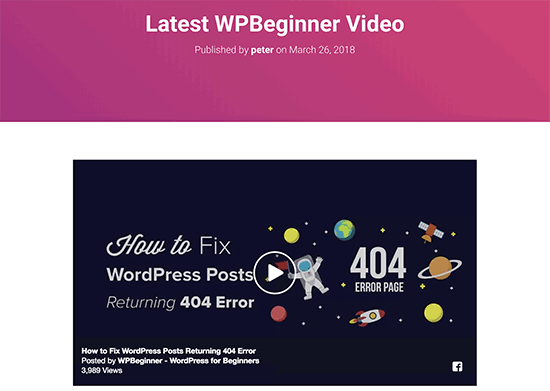
You can now visit your website to see the Facebook video in action.
How to Embed Facebook Live Video in WordPress
You can embed the Facebook Live video just like you would embed a regular Facebook video. The only difference here is how to get the URL of your Facebook live video.
Facebook doesn’t allow you to get a URL for your live video before you go live. If you want to simultaneously broadcast the Facebook Live video on your website, then you will need to first go live.
Once you are live, right click on the date and select copy link address to get the live video URL.

Once you have the URL, you can go to the Facebook embedded video player website and paste the link in the ‘URL of video’ field.
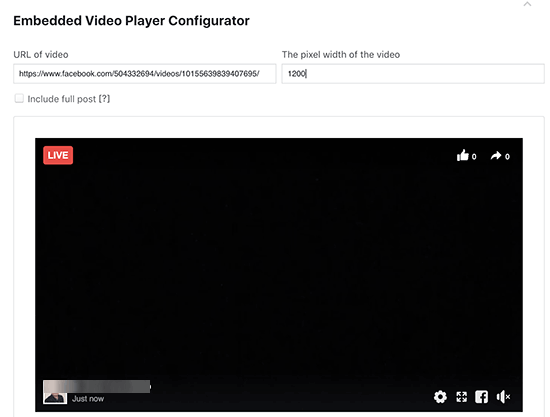
The video embed code generator will now fetch and display a preview of your Facebook live video. You need to click on the Get Code button to continue and follow the instructions described above to add these codes to your website.
Once you have added the Facebook live video code to your site, your users will be able to view the Facebook live video directly from your website as well as their Facebook feeds.

We hope this article helped you learn how to embed Facebook videos in WordPress. You may also want to see our guide on how to get more visitors to your new WordPres website.
If you liked this article, then please subscribe to our YouTube Channel for WordPress video tutorials. You can also find us on Twitter and Facebook.
The post How to Embed a Facebook Video in WordPress appeared first on WPBeginner.
from: WPBeginner
via Editorial Staff
Source: How to Embed a Facebook Video in WordPress Via Business Advice.
Comments
Post a Comment