Are you looking for the best online grammar checker tools for WordPress? Most browsers come with a built-in spellcheck too, but it doesn’t check for grammar and readability. In this article, we have hand-picked the best grammar checker tools that you can use with WordPress.
Why Add a Grammar Checker Tool for WordPress?
Even the most experienced writers make mistakes. Proofreading your own articles often lead to making small careless errors because we often tend to rush through the pre-publish checklist.
One way to overcome this issue is to read your articles out loud. Listening to your own voice can help you find mistakes and improve the overall readability score of your articles.
To help you with the grammar and spelling, you can use a grammar checker tool. These tools can detect spelling and grammar mistakes as you type. This saves you time on proofreading while improving content across your website.
That being said, let’s take a look at the best grammar checker tools for WordPress that you can use.
1. Grammarly
Grammarly is a popular online grammar checker tool available as a browser addon for Google Chrome, Firefox, and even Microsoft Edge. It checks for grammar and spelling errors as you write your posts.
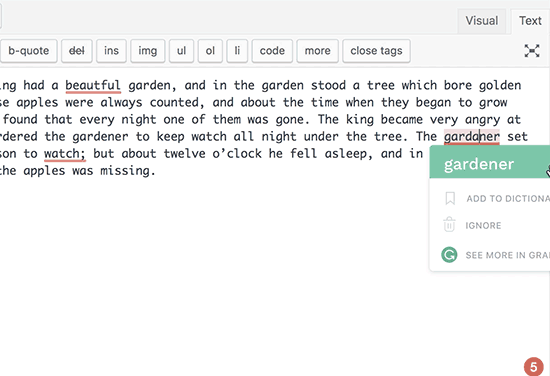
It will show an indicator at the bottom right corner of the writing area. Clicking on the indicator will show you the number of errors. Spelling, grammar, and contextual errors will be highlighted with an underline as you write.
One downside of Grammarly is that you will have to switch to the text editor for proofreading.
2. Ginger
Ginger is another handy spelling and grammar checker tool to improve your writing skills and boost productivity. It is available as a browser addon and offers a nice user experience.
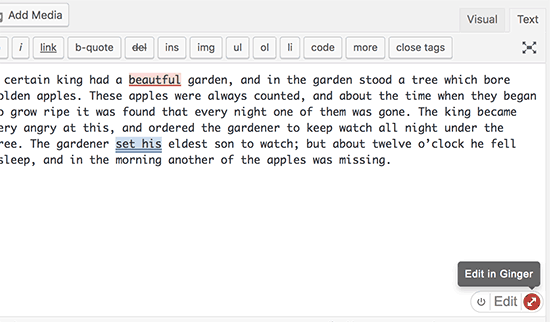
It displays a tiny icon at the bottom right corner of writing areas including WordPress post editor, Gmail, Facebook, and more. It checks for mistakes as you type and highlight errors with context.
There are a few drawbacks of using Ginger. You will need to switch to the text editor in WordPress. For better proofreading, you will need to click on the icon to launch the Ginger editor.
3. After The Deadline
After The Deadline is available as a Google Chrome extension. It comes with a built-in spell checker tool with optional grammar and readability check.
Once you have installed the addon in your browser, you will need to click on it and select options. This will open the addon’s settings page where you can check the options that you want the addon to look out for.
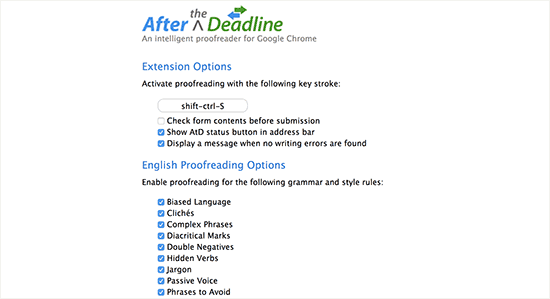
You can run the tool while writing your blog posts by clicking on the spellcheck icon at the bottom right corner of the editor.
4. Hemingway
Hemingway is available as a web-based text editor, so it doesn’t work directly inside your WordPress post editor. However you can use their free web based editor to check your articles for readability, grammar, and spelling errors.
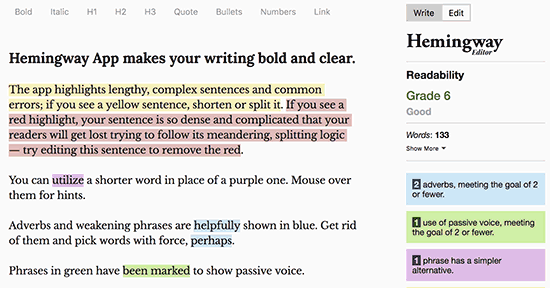
Think of Hemingway as not just a grammar checker but a style checker. It is designed to improve readability by showing you a readability score of your content and suggesting improvements. The web app has a clean and distraction free layout which can help you asses your content quickly before hitting the publish button in WordPress.
Hemingway is also available as a paid desktop app for both Windows and Mac which allows you to post directly to WordPress.
5. LanguageTool
LanguageTool is available as a free addon for Chrome, FireFox, Google Docs, and LibreOffice. It is also available as a web based editor and a complete desktop app.
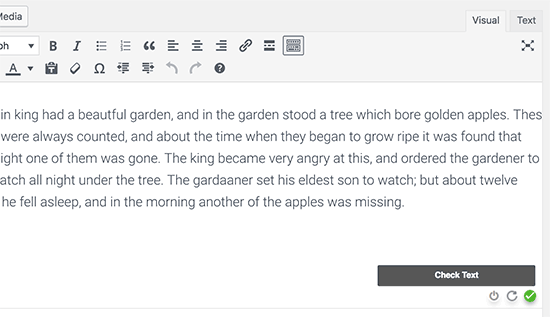
The good thing about LanguageTool is that it works with English, German, Polish, Russian, and over 20 other languages. This makes it a particularly useful tool for multilingual websites and multilingual authors.
The downside is that the free version is only limited to 20,000 characters per check, so you will need to upgrade to paid plans for more features.
6. Jetpack
Jetpack is a WordPress plugin suite that comes with a lot of useful modules. One of its core features is to add proofreading to the WordPress post editor.
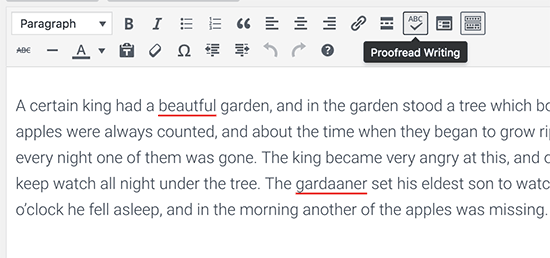
For extended grammar check, you need to visit the JetPack » Settings page. Under the writing tab, you will see the spelling, style, and grammar section. From here you can enable different proofreading options including style rules.
The downside of using JetPack is that it requires a WordPress.com account, and you will also get tons of features that you may not need.
We hope this article helped you find the best online grammar checker tools for WordPress. You may also want to see our list of best contact form plugins for WordPress.
If you liked this article, then please subscribe to our YouTube Channel for WordPress video tutorials. You can also find us on Twitter and Facebook.
The post 6 Best Online Grammar Checker Tools for WordPress (2018) appeared first on WPBeginner.
from: WPBeginner
via Editorial Staff
Source: 6 Best Online Grammar Checker Tools for WordPress (2018) Via Business Advice.
Comments
Post a Comment