Are you seeing the mixed content error in WordPress? Mixed content error in WordPress is caused by incorrect HTTPs/SSL settings. Often times it doesn’t affect your website’s functionality, but it can have adverse affects on your website’s SEO and user experience. In this article, we will show you how to fix the mixed content error in WordPress.
What is Mixed Content Error in WordPress?
It is highly recommended to add HTTPS / SSL in WordPress because after July 2018 Google Chrome will mark all http versions of website as insecure.
SSL adds an additional security layer around data transferred from your website to users’ browsers. Search engines like Google recommend using SSL on your website as well.
All best WordPress hosting companies are now offering free SSL as part of their packages. If your hosting company doesn’t offer that, then you can get free SSL through Let’s Encrypt for your WordPress site.
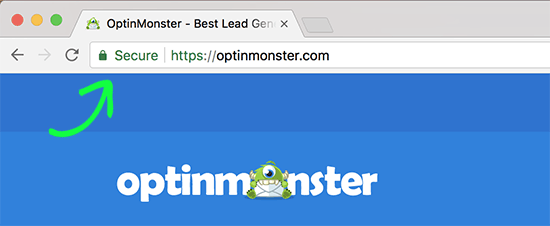
If you have correctly implemented SSL on your website, then you will see a green padlock icon next to your website’s URL in the browser address bar.
On the other hand if your HTTPs/SSL settings are not properly setup, then you will see an info sign or a broken padlock icon in the address bar.
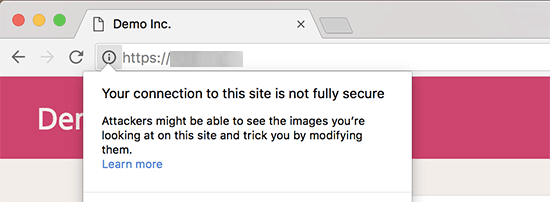
This indicates that while your website is using a SSL certificate, some content on your website is still served from non HTTPS urls.
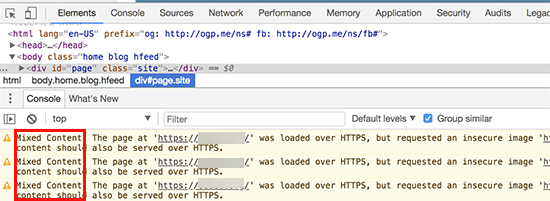
You can find out which content is served through insecure protocol by using the Inspect tool. The mixed content error will be displayed as a warning in the console with details for each mixed content item.
If it is just a single item that you can manually fix, then you can go ahead and fix it by editing the post, page, or theme file where it appears.
However, in most cases these items are added dynamically by WordPress or stored in your database. In that case, it will be hard to detect all of them and fix them manually.
That being said, let’s take a look at how to easily fix the mixed content error in WordPress.
Fixing Mixed Content Error in WordPress
First thing you need to do is install and activate the SSL Insecure Content Fixer plugin. For more details, see our step by step guide on how to install a WordPress plugin.
Upon activation, you need to visit Settings » SSL Insecure Content page to configure the plugin settings.
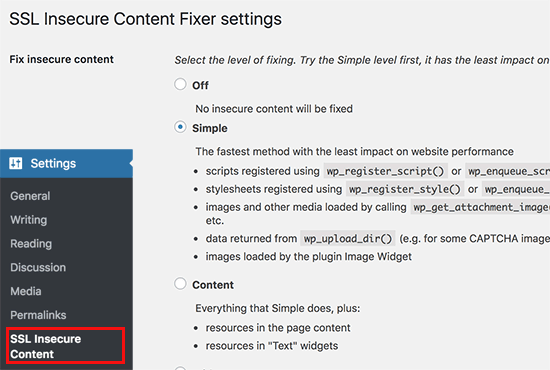
This plugin provides different levels of fixes to the mixed content error. We will explain each one of them, what they do, and which one is best for you.
1. Simple
This is the fastest and recommended method for all beginner users. It automatically fixes the mixed content error in WordPress for scripts, stylesheets, and WordPress media library images.
2. Content
If the simple method doesn’t fix the mixed content error on your website, then you should try this method. It will use all the features of simple, in addition to checks for fixes inside WordPress content and text widgets.
3. Widgets
This includes all fixes applied in content level plus an additional fix to resources loaded in all WordPress widgets on your website.
4. Capture
This method captures everything on every page of your website from header to footer and replaces all URLs with HTTPs. It is slower and would affect performance of your website.
5. Capture all
When all above levels fail, then you can try this method. It attempts to fix everything which may result in some unexpected behavior on your website. It will also have the most negative impact on performance.
After selecting a content fix level, you need to scroll down to the HTTPS detection section. This is where you can choose how to detect the HTTPs content on your website.
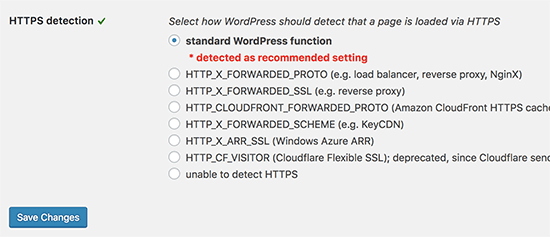
The default option is to use a WordPress function, which would work for most website.
Below that you will find other options which are particularly useful if you’re using Cloudflare CDN, nginx web server, and more. Go ahead and select the method that you think applies to your website depending on your particular setup.
Don’t forget to click on the save changes button to store your settings.
You can now visit your website to see if this resolved the insecure content issues on your website. Make sure to clear your WordPress cache before checking your website.
If the mixed content error in WordPress is not fixed, then revisit the plugin’s settings page and readjust the fix levels.
We hope this article helped you learn how to fix the mixed content error in WordPress. You may also want to see our list of the most common WordPress errors and how to fix them.
If you liked this article, then please subscribe to our YouTube Channel for WordPress video tutorials. You can also find us on Twitter and Facebook.
The post How to Fix the Mixed Content Error in WordPress (Step by Step) appeared first on WPBeginner.
from: WPBeginner
via Editorial Staff
Source: How to Fix the Mixed Content Error in WordPress (Step by Step) Via Business Advice.
Comments
Post a Comment