Do you want to display your most popular posts by day, week, month, and all time in WordPress? Popular posts allow your visitors to quickly discover your top content which helps you increase user engagement and page views. In this article, we will show you how to display popular posts by day, week, month, and all time in WordPress.
Why Display Popular Posts in WordPress?
When you start a WordPress blog, you don’t have much content, which allows you to manually display selected posts in a sidebar widget.
However as your website grows, you will notice that older articles on your website don’t get much exposure. By showcasing your top content, you allow new users to quickly discover the best articles on your website. This boosts user engagement on your website and increases your page views.
Now the problem is that if you are showing your all time popular articles, then a very limited set of articles get repeated exposure. You can diversify it by displaying popular posts by day, week, or month as well.
Let’s take a look at how to easily display popular posts in WordPress by day, week, month, or all time.
Creating Popular Posts By Day, Week, Month, and All Time Widgets
First, you will need to install and activate the WordPress Popular Posts plugin. For more details, see our step by step guide on how to install a WordPress plugin.
WordPress Popular Posts plugin is the best popular posts plugin for WordPress. It offers tons of options like time range, excerpt, featured images, views count, and more.
Upon activation, you need to head over to Appearance » Widgets page to drag and drop the WordPress Popular Posts widget to any sidebar.
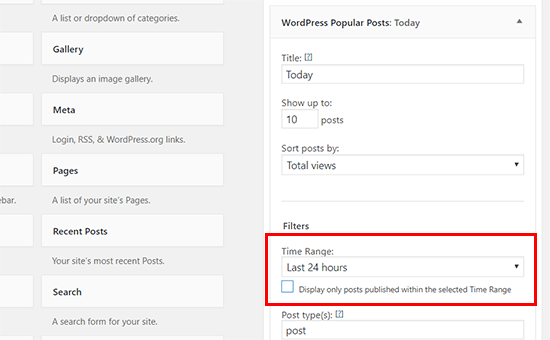
You can name this widget ‘Today’ and under the time range field select last 24 hours. After that you can review other widget options and set them to your liking. Don’t forget to click on the save button to store your widget settings.
Next, you need to add another popular posts widget and name it ‘Week’. In the widget settings, you need to select ‘7 days’ under time range field and then click on the save button.
Repeat the process to add monthly and all time popular posts widgets as well.
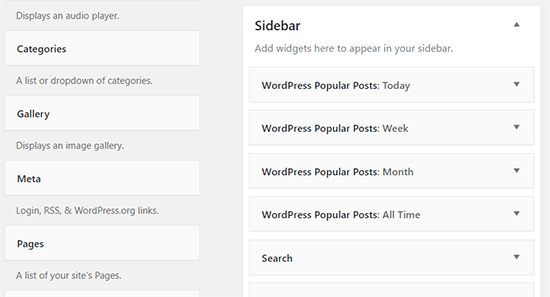
Don’t worry about the widget placement at this time because we will adjust them in the next step.
Creating a Tabbed Widget for Popular Posts
In this part of the tutorial, we will create a tabbed widget for our WordPress sidebar. This will allow us to show our popular posts widgets inside a single widget with tabs.
First, you need to install and activate the Ultimate Tabbed Widget plugin. For more details, see our step by step guide on how to install a WordPress plugin.
Upon activation, head over to Appearance » Widgets page, and you will notice a new widget ready area labeled ‘Default Tabbed Widget Area’.
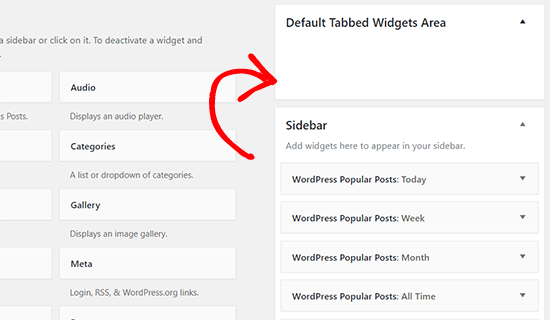
You will need to move all your popular post widgets into this particular widget area.
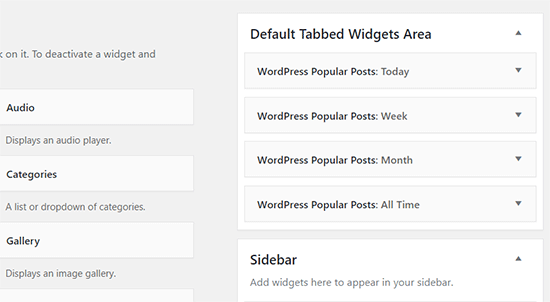
Next, you need to locate the ‘Ultimate Tabbed Widgets’ in the available widgets and add it to your website’s sidebar where you want to display popular posts.
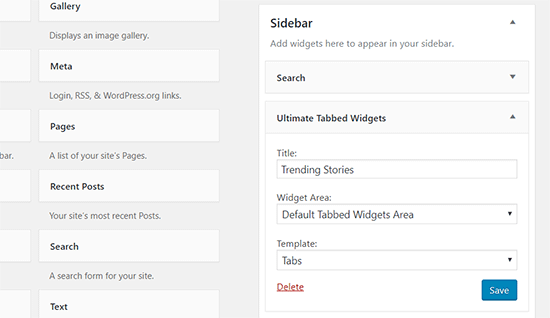
In the widget settings, provide a title for your popular posts widget. Under widget area field, you need to select ‘Default tabbed widget area’, and select tabs for template field.
Don’t forget to click on the ‘Save’ button to store your changes.
You can now visit your website to see your popular posts widget showing top articles by day, week, month and all time tabs.
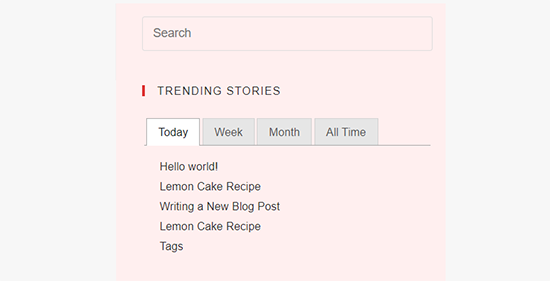
You can rearrange the tab order by simply moving widgets up and down in the ‘Default tabbed widget area’.
We hope this article helped you display popular posts by day, week, month, and all time in WordPress. You may also want to see these actionable tips to drive traffic to your WordPress blog.
If you liked this article, then please subscribe to our YouTube Channel for WordPress video tutorials. You can also find us on Twitter and Facebook.
The post How to Display Popular Posts by Day, Week, and Month in WordPress appeared first on WPBeginner.
from: WPBeginner
via Editorial Staff
Source: How to Display Popular Posts by Day, Week, and Month in WordPress Via Business Advice.
Comments
Post a Comment