Recently one of our readers asked if it is possible to disable specific WordPress plugins on the mobile version of their website? Like with anything in WordPress, there’s a plugin for that. In this article, we will show you how to easily disable specific WordPress plugins in mobile version of your site.
Why Disable Specific WordPress Plugins for Mobile Users
WordPress does not load inactive plugins when someone visits your website. However, it does loads all the active plugins and then depending on a plugin it will load required scripts and stylesheets as well.
See our guide on how WordPress works for a behind the scene look at how it loads plugins.
All good WordPress plugins try to only load when needed. However, sometimes it is difficult for plugin authors to guess whether you will need the plugin or not. In such situations, they opt to load the required files just in case.
Some users who want to get a perfect score in the Google speed and performance test, often want to disable specific plugins for mobile.
That’s where this article can help.
Let’s take a look at how to easily disable individual WordPress plugins for mobile version of your website.
Setting up WordPress Plugin Organizer Plugin
First thing you need to do is install and activate the Plugin Organizer plugin. For more details, see our step by step guide on how to install a WordPress plugin.
Important: Plugin organizer is a very powerful plugin. Reordering or disabling plugins can cause conflicts and unexpected behavior which could make your site inaccessible. We recommend that you create a complete WordPress backup before disabling or reordering any plugins.
Upon activation, you need to visit Plugin Organizer » Settings page to configure plugin settings.
Apart from default options, right now you just need to turn on the following options.
- Selective plugin loading
- Selective mobile plugin loading
Don’t forget to click on the ‘Save Settings’ button to store your changes.
Creating a Must-Use Plugin for Plugin Organizer
Plugin Organizer needs a must-use plugin to work properly. It will automatically try to create it for you, but if it fails, then you will have to create it on your own.
Let’s start by checking if the plugin was able to create the MU plugin automatically.
You can do this by going to the Plugins » Installed Plugins page. You will see a new link labeled Must-Use and clicking on it will show you the installed MU plugins on your site.
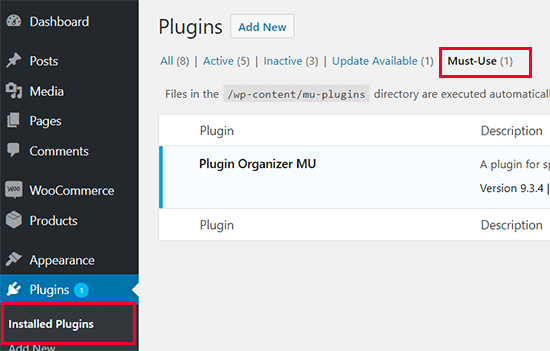
If you don’t see the plugin or Must-Use plugins link, then this means that the plugin organizer failed to create the file, and you will need to manually do it yourself.
First, you need to connect to your website using an FTP client or File Manager app in cPanel.
Next, you need to go to the /wp-content/mu-plugins/ folder. If you don’t have a mu-plugins folder in your /wp-content/ folder, then you need to create one.
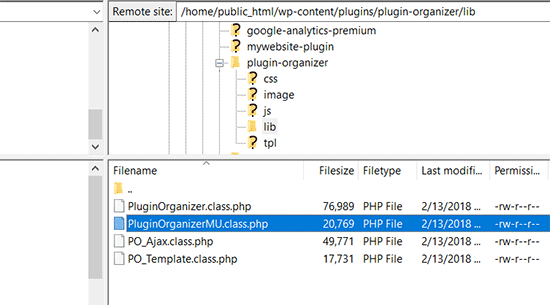
After that you need to go to /wp-content/plugins/plugin-organizer/lib/ folder and download the file called ‘PluginOrganizerMU.class.php’ to your computer.
Next, you need to go to the /wp-content/mu-plugins/ folder and upload the file from your computer.
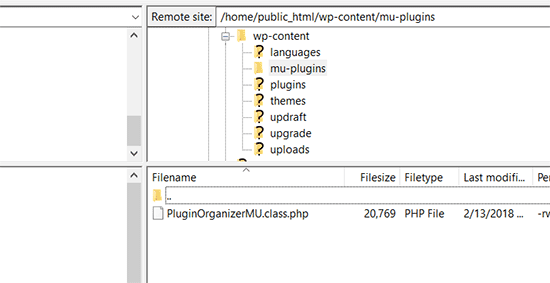
The Plugin Organizer can now use this file to properly manage your plugins on mobile as well as desktop.
Disable Specific WordPress Plugins in Mobile Version
Plugin Organizer makes it very easy to disable any WordPress plugins on mobile. Simply head over to the Plugin Organizer » Global Plugins page.
You will see two columns on the screen. The first column is for ‘Available items’ which contains all your installed WordPress plugins. The second column is for ‘Disabled items’ with disabled standard and disabled mobile boxes.
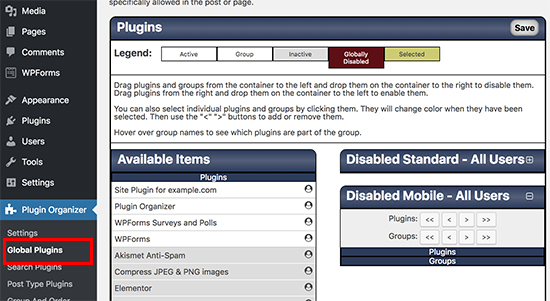
First you need to click on the Disabled Mobile box to expand it. After that drag and drop the plugins you want to disable from the available column to the disabled mobile box.
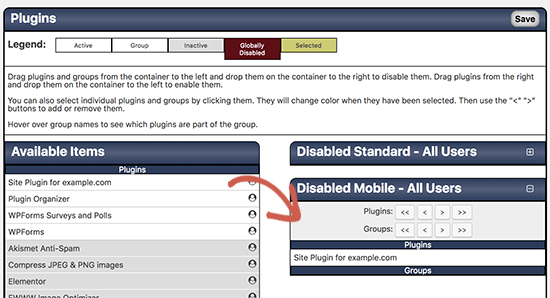
After adding the plugins don’t forget to click on the ‘Save’ button to store your changes.
That’s all. The plugin organizer will now disable these plugins on your mobile site.
Plugin Organizer also makes it easy to disable individual WordPress plugins for specific posts, pages, user role, and other parameters. For more detailed instructions, see our guide on how to use Plugin Organizer to speed up WordPress.
We hope this guide helped you learn how to easily disable specific WordPress plugins in mobile version. You may also want to see our list of must have WordPress plugins you should install on your website.
If you liked this article, then please subscribe to our YouTube Channel for WordPress video tutorials. You can also find us on Twitter and Facebook.
The post How to Disable Specific WordPress Plugins for Mobile Users appeared first on WPBeginner.
from: WPBeginner
via Editorial Staff
Source: How to Disable Specific WordPress Plugins for Mobile Users Via Business Advice.
Comments
Post a Comment