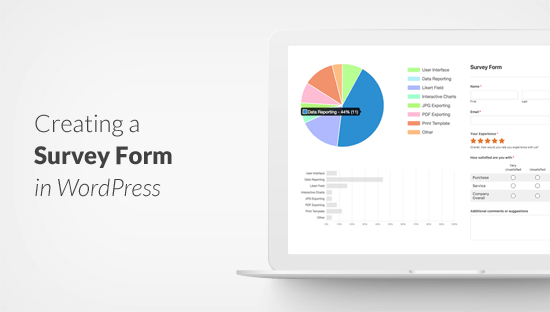
Do you want to create a survey in WordPress? Surveys help you gather valuable information, so you can use to make data-driven decisions. In this article, we will show you how to easily create a survey in WordPress and generate beautiful reports.
Choosing The Best Survey Tool for WordPress
There are many online services that allow you to create survey forms and embed them in WordPress. The downside of these forms is that the data is stored on third-party servers, and you have limited customization options.
Some of these forms are also limited to the number of responses you can collect. You have to pay extra to get more responses and usually these services have high monthly costs.
Wouldn’t it be nice if you could run surveys on your own website without relying on third-party services?
This is where WPForms comes in. It is the best WordPress form builder plugin in the market.
They recently announced a powerful new WordPress surveys and polls addon that you can use to easily create survey forms on your website.
With WPForms survey feature, you get the following:
- Powerful drag and drop form builder to create surveys
- Smart survey fields like Rating, Likert Scale, and more
- Conditional logic to personalize survey fields based on user input
- Interactive survey reports with bars, graphs, charts, and tables
- Ability to export survey graphs as JPEG, PDF, or Print Formats
- Export survey results as CSV to use elsewhere
That being said, let’s take a look at how to easily create and add survey in your WordPress website.
Disclosure: WPForms is created by the same team behind WPBeginner. It is one of our premium WordPress plugins.
Creating a Survey in WordPress
First thing you need to do is install and activate the WPForms plugin. For more details, see our step by step guide on how to install a WordPress plugin.
WPForms surveys and polls addon is part of their Pro plan. WPBeginner users can use our WPForms coupon to ge 10% OFF on all WPForms licenses.
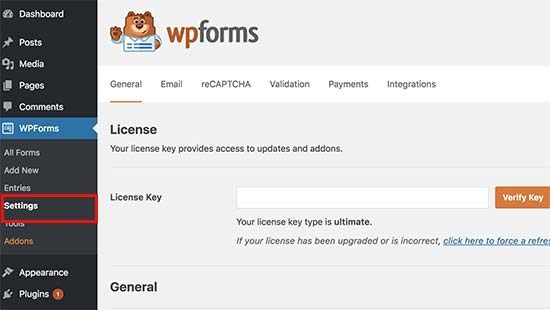
Once the plugin is activated, you need to head over to WPForms » Settings page to enter your license keys. You can find this information under your account on the WPForms website.
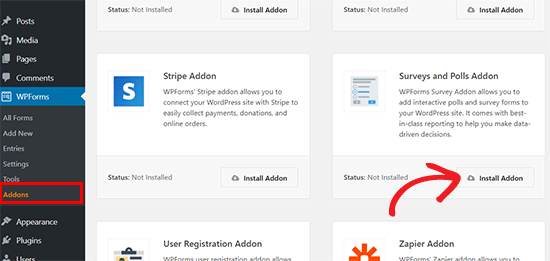
Next, you need to visit the WPForms » Addons page and scroll down to the Surveys and Polls addon. Go ahead and click on the Install addon button to install the survey addon. Once installed, you need to click on the ‘Activate’ button to start using the addon.
Now you are ready to create a survey form.
You need to visit WPForms » Add New page to create a new form. This will launch the WPForms’ drag and drop form builder interface.
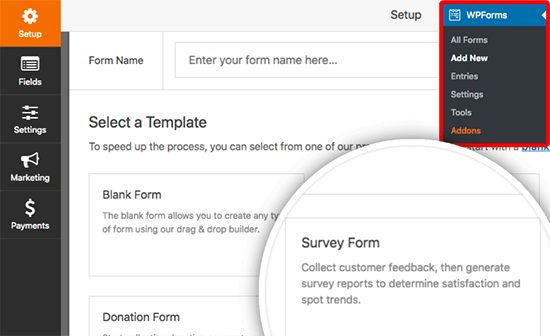
First you need to provide a title for your survey form and then click on the Survey Form template.
This will load a sample customer feedback form template with several fields already added into the form.
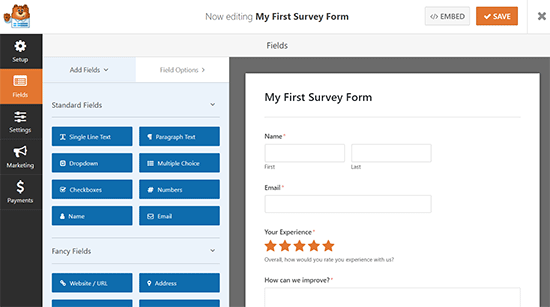
You can just point and click to edit any field, rearrange them with drag and drop, or remove them from the form. You can also add new form fields from the left column.
WPForms supports all commonly used form fields including drop down, radio buttons, checkboxes, likert scale, text input, rating scale, and many more. This makes it super easy for you to build highly interactive survey forms.
WPForms also includes conditional logic which means you can personalize your survey questions based on user input in one of the previous fields.
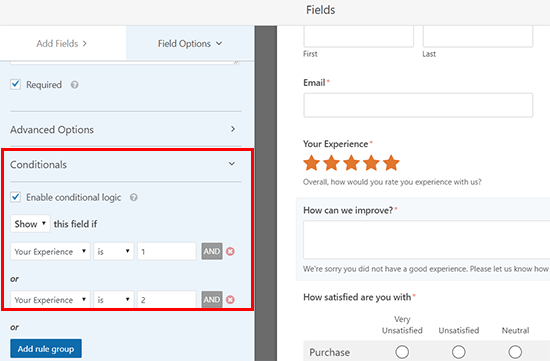
Once you have created the form, you need to click on the save button to store your form settings. You can now click on the close button to exit the form builder.
Adding The Survey Form in Your WordPress Website
WPForms makes it very simple to add your forms anywhere on your website. You can easily add your survey form in any WordPress post, page, custom post type, or your sidebar.
To add the survey form in a WordPress post, page, or post type, you need to visit the post edit screen and click on the ‘Add Form’ button.
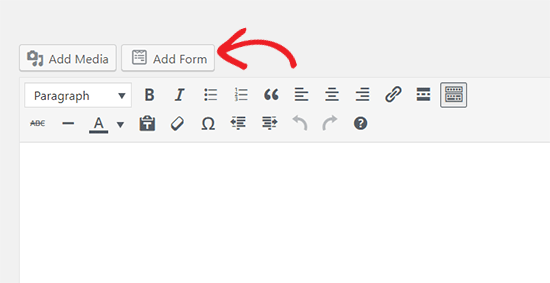
This will bring up a popup where you can select the survey form you created earlier and click on the insert form button to continue.
You will now see the form shortcode added into the post editor.
Once you are done editing the post, go ahead and publish it. You can visit your website to see your survey form live in action.
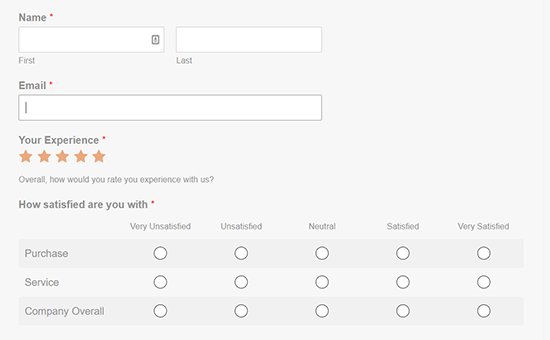
WPForms also allows you to easily add your survey form into any sidebar or widget ready area. Simply head over to the Appearance » Widgets page in your WordPress admin area and drag the WPForms widget to any sidebar.
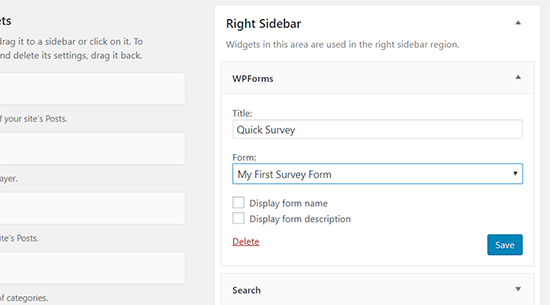
In the widget settings, select the survey form you created earlier and don’t forget to click on the save button to store your changes.
You can now visit your website to see your survey form displayed in the sidebar.
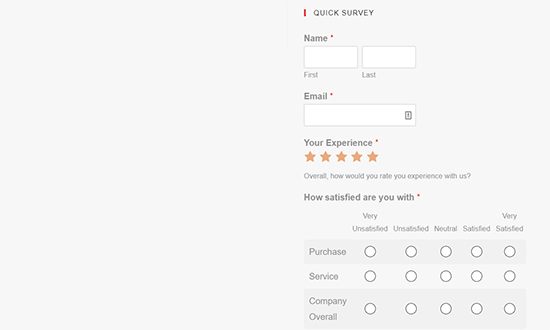
Viewing Your Survey Form Results
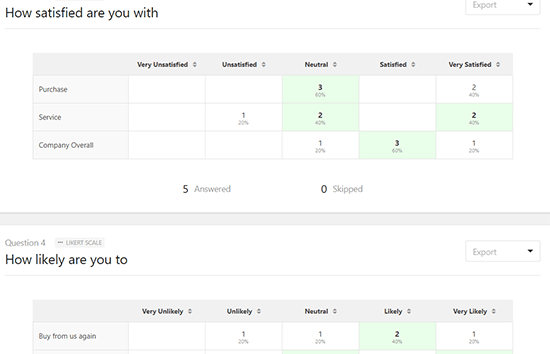
WPForms shows survey results in beautiful charts and graphs. You can also print survey results and export them to use in your favorite spreadsheet software.
To view your survey results, you need to visit WPForms » All Forms page and click on the ‘Survey Results’ link below your survey form.
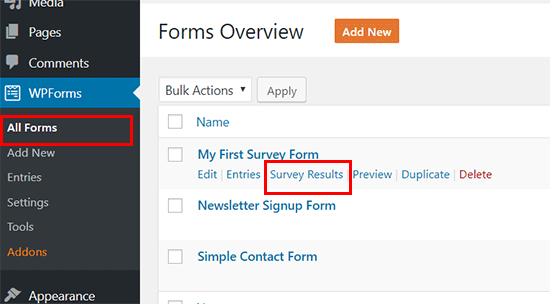
On the results page, you will see your survey responses displayed in an interactive chart and tables. You can export responses to a single question, as well as the entire survey.
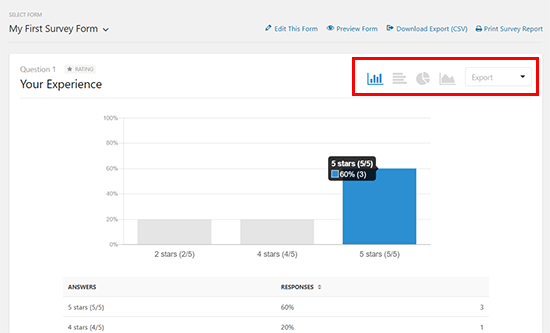
On the top, you will see options to switch to different chart types and the export option. You can save individual survey results as JPEG, PDF, and Print formats to easily share them on presentation slides, blog posts, or social media.
Convert Any Form into a Survey
WPForms also allows you to make any form into a survey form and display past results as a survey. You can even select specific form fields that you want to be treated as survey fields.
This is particularly useful if you want to gather data through other forms like a contact form, user registration, or newsletter sign up forms.
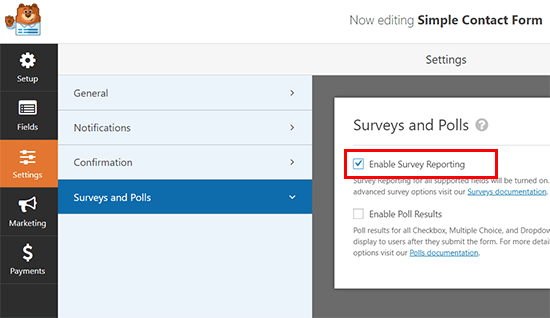
To convert an existing WPForms form into a survey, simply edit the form in WPForms and go to the Settings » Surveys and Polls section. You need to check the box next to ‘Enable Survey Reporting’ option and save your changes.
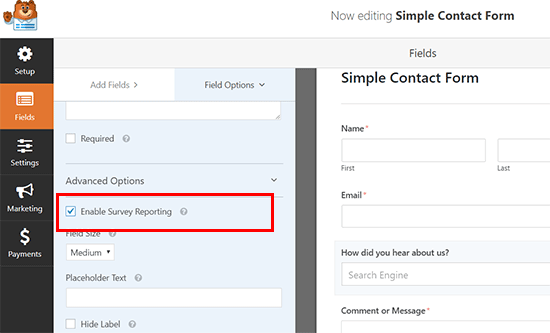
To enable survey reporting for an individual form field, simply edit the form and then click on the field that you want to enable.
Under the ‘Field Options’ section on your left side, you need to click on the Advanced Options and check ‘Enable Survey Reporting’ option.
We hope this article helped you learn how to easily create and add beautiful survey forms in WordPress. You may also want to see our beginner’s guide on how to track user engagement in WordPress with Google Analytics.
If you liked this article, then please subscribe to our YouTube Channel for WordPress video tutorials. You can also find us on Twitter and Facebook.
The post How to Create a Survey in WordPress (with Beautiful Reports) appeared first on WPBeginner.
from: WPBeginner
via Editorial Staff
Source: How to Create a Survey in WordPress (with Beautiful Reports) Via Business Advice.
Comments
Post a Comment