WordPress 5.0 was released just a few hours ago. It is the first and the only major WordPress release of 2018 with a whole new set of improvements and some big changes. In this article, we will show you what’s new in WordPress 5.0 and which features you should try after updating your websites.
WordPress 5.0 is a major release and unless you are on a managed WordPress hosting service, you’ll have to manually initiate the update.
Important: Don’t forget to create a complete WordPress backup before starting the update.
Introducing Gutenberg The New Block Based Editor
WordPress 5.0 comes with a completely new editor codenamed Gutenberg. It is a block-based editor which allows users to create beautiful layouts using content blocks.
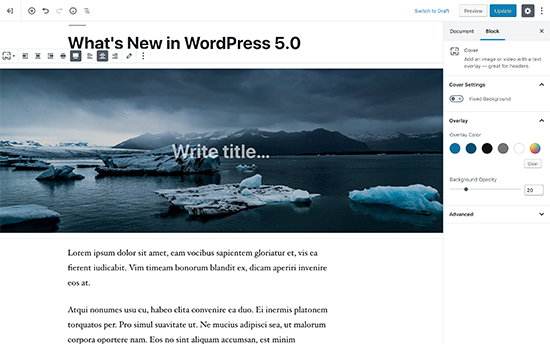
The old WordPress editor was a simple text window. While it worked well, you had to use different approaches to add images, create galleries, shortcodes, video embeds, and other content elements.
The new editor replaces them with a streamlined writing experience where each content element is wrapped in a block. You can move them around the editor, change their settings, and create engaging layouts without writing code.
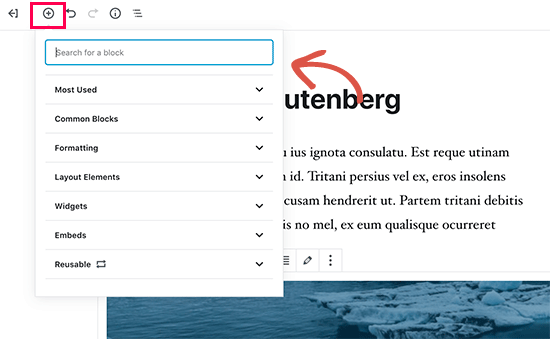
By default, it comes with several blocks to add most commonly used content elements. This includes blocks to add images, audio, video, photo gallery, cover image, lists, quote, media, text, buttons, and more.
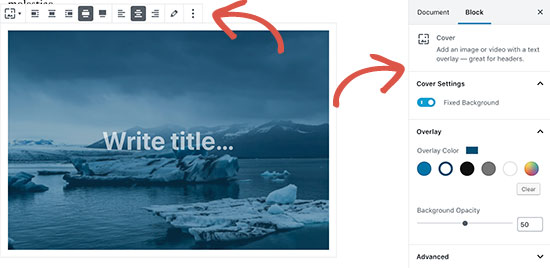
Blocks come with their own toolbar and settings. Apart from basic formatting options, you can also change width, colors, and other attributes.
Widgets are also included as blocs, so you can easily add shortcodes, recent posts, recent comments, categories, and archives.
If you relied on adding shortcodes to your articles, then you can continue using them as a block.
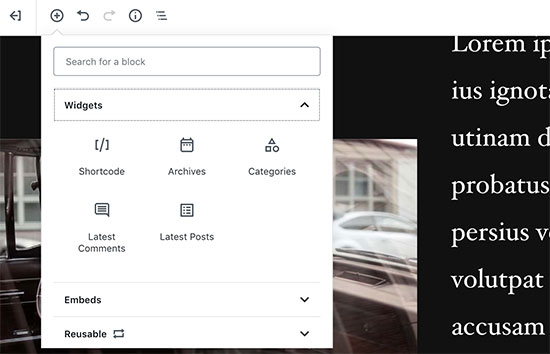
The new editor also makes embeds much easier. Simply expand the embeds section under the add block button, and you will be able to see all supported embed options.
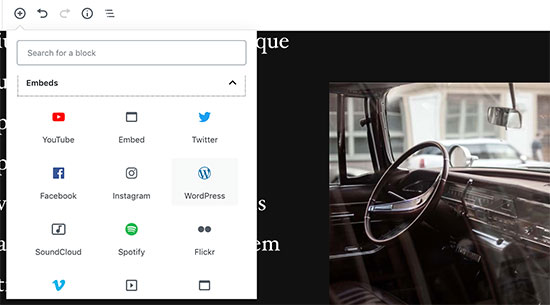
This makes adding videos, tweets, and facebook embeds a lot easier. Each embed is its own block, so you can adjust their settings just like any other blocks.

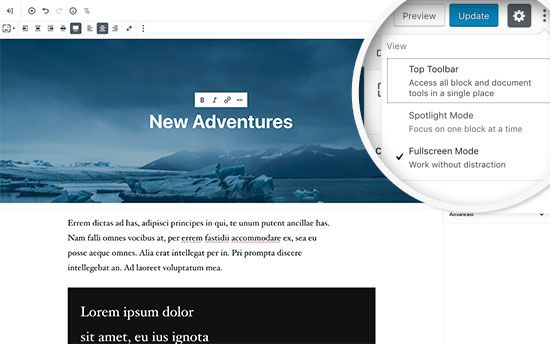
If you feel a bit distracted by the WordPress admin sidebar, then simply switch to the distraction-free full-screen mode. This will hide the WordPress admin sidebar, and you will have a lot more room to design your content.
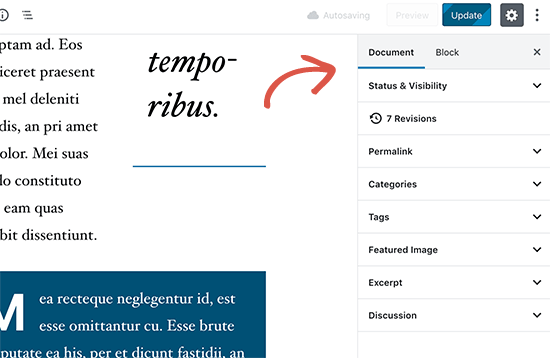
You will find all your usual post editing features neatly tucked under the sidebar. This includes publishing and saving options, permalink or post-slug, categories and tags, excerpt, and more.
Create and Reuse Blocks
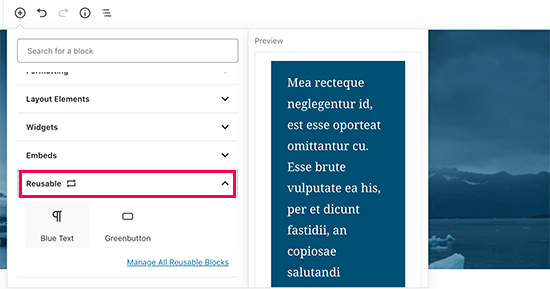
If you often add things with the same style or content, then you can now save them as reusable blocks to use later when needed.
Simply edit a block you want to make reusable. Once you are satisfied with it, click on the menu dots in the block toolbar and select ‘Add to reusable blocks’.

You will be asked to provide a name for this block. After that, WordPress will save this as a reusable block. You can find it under the Add Blocks button and reuse it in other posts.
Editing Existing Content After Upgrading to WordPress 5.0
WordPress 5.0 will not affect any of your old content, and you would still be able to edit older articles. When editing an older article, you will see your content wrapped inside a “Classic” editor block.
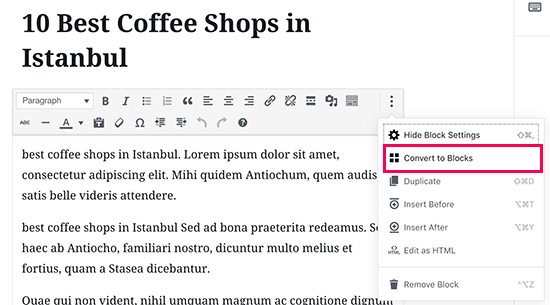
You can continue editing the article inside the classic block. You can also break it into multiple blocks which will allow you to use all the features of the new WordPress editor.
Can I Still Use The Old WordPress Editor?
Yes, you can use the old WordPress editor by simply installing and activating the Classic Editor plugin. For more details, see our step by step guide on how to install a WordPress plugin.
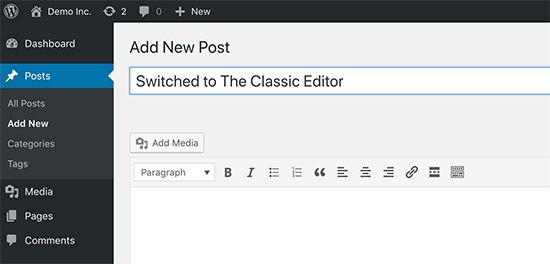
Upon activation, the plugin will disable the new blocks based editor, and you’d be able to use WordPress with the old classic editor that you are used to. For more details, see our article on how to disable Gutenberg and keep classic editor in WordPress.
Twenty Nineteen – The New Default WordPress Theme
WordPress 5.0 ships with a new default theme called Twenty Nineteen. It is a versatile and minimalist WordPress theme that can be used to start a blog or make a website.

Twenty Nineteen is based on Gutenberg starter theme, which means it is fully compatible with the new WordPress editor. It offers a clean canvas with minimal distractions, which gives you the freedom to experiment with the new editor and create beautiful layouts for your WordPress posts and pages.
WordPress 5.0 Compatibility with Themes and Plugins
WordPress 5.0 brings a big change to how users create content using WordPress. It has been under development for quite some time, which provided plugin and theme developers enough time to test their products and add compatibility for the new editor.
Most essential WordPress plugins like WPForms and Yoast SEO are already compatible with WordPress 5.0 and the new editor.
All top WordPress theme shops have also made their themes compatible with the new editor.
However if a plugin or theme on your website is not working properly, then reach out to that plugin or theme developer and ask them to update it.
If you do not hear back from them, then you can temporarily disable the plugin / theme and find an alternative. Alternatively, you can install the Classic Editor until your favorite plugin / theme have switched over.
We hope this article offered you a good insight into what’s new in WordPress 5.0. We are particularly excited about the new WordPress editor and the new ways to create content in WordPress. What are you excited about?
If you liked this article, then please subscribe to our YouTube Channel for WordPress video tutorials. You can also find us on Twitter and Facebook.
The post What’s New in WordPress 5.0 (Features and Screenshots) appeared first on WPBeginner.
from: WPBeginner
via Editorial Staff
Source: What’s New in WordPress 5.0 (Features and Screenshots) Via Business Advice.
Comments
Post a Comment