
How to Add Social Media Icons to WordPress Menus

Do you want to add social media icons on your WordPress menu? While WordPress does not come with a social media profiles section, you can easily use WordPress navigation menus to add and display social media icons on any widget-ready area in WordPress. In this article, we will show you how to add social media icons to WordPress menus.
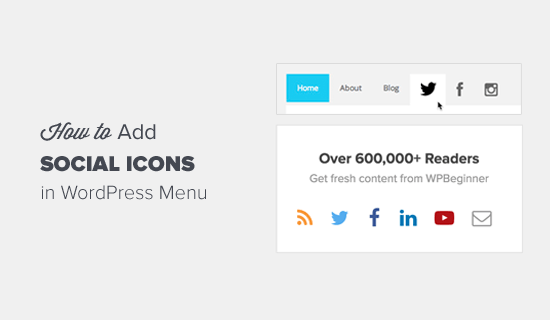
How to Add Social Media Icons in Menu

Why You Should Add Social Media Icons to Menus?

The biggest advantage of adding social media icons using WordPress menus is that you have the ability to change the order they appear in with a simple drag and drop interface.

While you can use third-party plugins to display social media icons in your sidebar, most of those solutions aren’t as flexible.

Aside from the easy drag & drop interface, when you add social media icons to WordPress menus, you can display it on any widget-ready area on your site including your sidebar, footer area, below posts, etc.

That being said, let’s take a look on how to easily add social media icons to WordPress menus.

Adding Social Media Icons to WordPress Menus

First thing you need to do is to install and activate the Menu Image plugin. For more details, see our step by step guide on how to install a WordPress plugin.

Upon activation, you need to visit Appearance » Menus page and create a new menu.
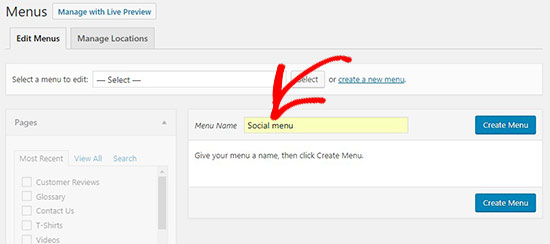
New social menu

Next, you need to add custom links for each social media channel separately in your new social menu.

You will notice that there is a menu image button option under each menu item. You can use it to upload your social media icon here.
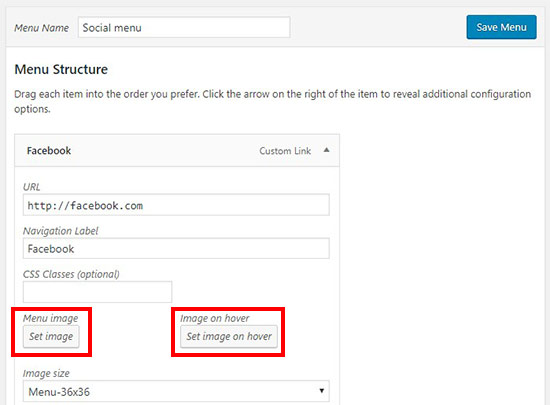
Set menu icon

It allows you to upload a different icon on hover with the main icon image to display on mouseover.

After that you can select a size for the social icon. There are multiple options for the image size. Make sure that you select the same size for all your social menu icons, so it doesn’t break the menu area.
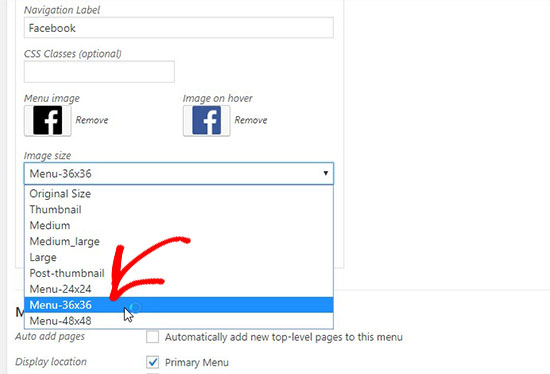
Social icon size

Next, you need to select a position to display the name of each social channel with your icon. If you only want to display the social icon without any label, then you need to select the ‘Hide’ option under the Title position setting.
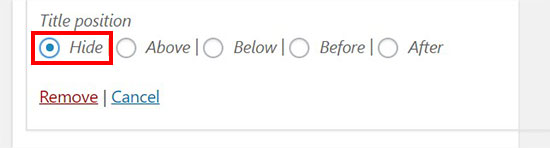
Menu title position

Simply repeat the same to add as many social icons as you need.

Once you are done adding menu items, you need to select the display location for your social menu and click on the ‘Save Menu’ button.
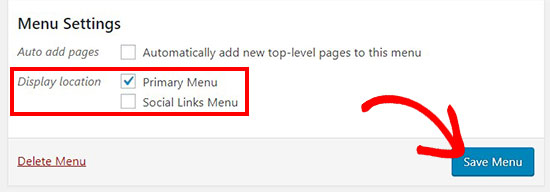
Menu display location

Now you can visit your website to see the social media icons in your WordPress menu.

Social media menu

You can also add the social icon menu in your WordPress sidebar. Simply go to Appearance » Widgets page and drag the ‘Navigation Menu’ widget in the sidebar widget area.
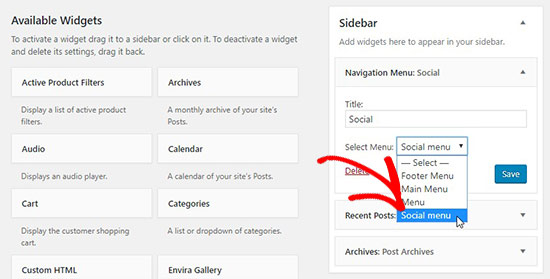
Social menu in widget

In the Select Menu dropdown, you should select the social menu that you created above and click on the ‘Save’ button.

Social menu in sidebar

Note: The above image is displayed for example purposes only. To get the widget to look exactly like that, you will need to add custom CSS.

That’s all. We hope this article helped you learn how to add social media icons to WordPress menus. You may also want to see our guide on how to style WordPress navigation menus.

If you liked this article, then please subscribe to our YouTube Channel for WordPress video tutorials. You can also find us on Twitter and Facebook.

The post How to Add Social Media Icons to WordPress Menus appeared first on WPBeginner.

from: WPBeginner
via Editorial Staff

Source: How to Add Social Media Icons to WordPress Menus Via Business Advice.

Comments

Popular posts from this blog

How to Add Web Push Notification to Your WordPress Site

Do you want to add push notifications to your WordPress site? Push notifications allow you to send notifications to users even when they are not visiting your website. In this article, we will show you how to easily add web push notifications to your WordPress site. We will also talk about the best WordPress push notification plugins and how to send desktop & mobile push notifications from your WordPress site. What is Push Notification? Push notifications are clickable messages displayed on top of user’s desktop or notification area on their mobile device. They can be shown even when the user’s browser is not open. Aside from desktop, web push notifications also work on mobile devices. This allows you to reach your users across devices with latest updates and offers. Web push notifications have proven to be a very effective way to convert website visitors into customers and loyal followers. Why Add Web Push Notifications to Your WordPress Site? We have already discussed tha...

5 Things You Should Know about Purchasing a Company Vehicle

  Many businesses require a vehicle to do business. It transports both goods and people from point A to point B and allows you to keep business dealings in-house. However, choosing a good company vehicle can be somewhat complex. You shouldn’t take the decision lightly. Here are a few things you should know before you buy a vehicle for your business: Accidents can happen, placing liability on you. You might think that an accident won’t happen if you hire drivers with a good track record and write a rule-book with strict policies and procedures. These are good tactics for mitigating some of the risks associated with commercial car accidents, but they won’t protect you completely. More than two million car accidents happen each year. Many of them are commercial truck accidents, costing millions in damages. Since commercial drivers are on the road more than personal drivers, they’re significantly more likely to cause an accident. Understanding the liability that’s placed on yo...

5 Essentials for Starting a Business in 2019

Is 2019 the year that you finally start your own small business or startup? There are a lot of good reasons to consider starting your company this year. You can do it. You don’t necessarily need a degree in business or finance to be successful. But keep reading—there are a few essentials for getting up and running that you won’t want to miss. 1. A great business idea If you’re kicking around a few ideas for your new company, or you think you have a concept but aren’t sure it will work, use these resources to help you think it through before you invest a ton of money and time. Validate your best ideas Our guide to coming up with a great business idea is packed with ideas for all kinds of industries. This article on generating hundreds of business ideas is a great place to start. When you’ve settled on one (or a few) favorites, download our free Business Idea Validation Checklist , which is an excellent tool for making sure your idea has legs before you invest any more time or...