Do you want to add a JavaScript in your WordPress pages or posts? Sometimes you may need to add a JavaScript code to the entire website or into specific pages. By default, WordPress does not let you add code directly in your posts. In this article, we will show you how to easily add JavaScript in WordPress pages or posts.

What is JavaScript?
JavaScript is a programming language that runs not on your server but on the user’s browser. This client-side programming allows developers to do a lot of cool things without slowing down your website.
If you want to embed a video player, add a calculator, or some other third-party service, then you will be often asked to copy and paste a JavaScript code snippet into your website.
A typical JavaScript code snippet may look like this:
<script type="text/javascript">

// Some JavaScript code

</script>

<!-- Another Example: --!>

<script type="text/javascript" src="/path/to/some-script.js"></script>
Now, if you add a javascript code snippet to a WordPress post or page, then it will be deleted by WordPress when you try to save it.
That being said, let’s see how you can easily add JavaScript in WordPress pages or posts without breaking your website.
Method 1. Add JavaScript Site-Wide Using Insert Headers and Footers
Sometimes you will be asked to copy and paste a JavaScript code snippet into your website to add a third-party tool. These scripts usually go to the head section or at the bottom before the </body> tag of your website. This way the code is loaded on every page view.
For example, Google Analytics installation code needs to be present on every page of your website, so it can track your website visitors.
You can add such code to your WordPress theme’s header.php or footer.php files. However, these changes will be overwritten when you update or change your theme.
That’s why we recommend using a plugin to load javascript on your site.
First, you need to install and activate the Insert Headers and Footers plugin. For more details, see our step by step guide on how to install a WordPress plugin.
Upon activation, you need to visit Settings » Insert Headers and Footers page. You will see two boxes, one for the header and the other for the footer section.
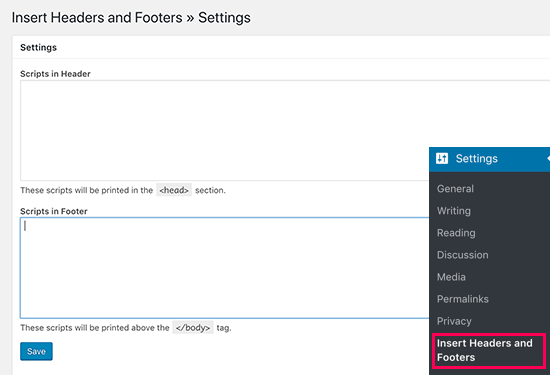
You can now paste the JavaScript code you copied to one of these boxes and then click on the save button.
Insert Headers and Footers plugin will now automatically load the code you added on every page of your website.
Method 2. Adding JavaScript Code Manually Using Code
This method requires you to add code to your WordPress files. If you haven’t done this before, then please see our guide on how to copy and paste code in WordPress.
First, let’s take a look at how to add code to your WordPress site’s header. You will need to add the following code to your theme’s functions.php file or a site-specific plugin.
function wpb_hook_javascript() {
    ?>
        <script>
          // your javscript code goes
        </script>
    <?php
}
add_action('wp_head', 'wpb_hook_javascript');
Adding JavaScript to a Specific WordPress Post or Page Using Code
Let’s suppose you only want to load this javascript on a specific WordPress post. To do that, you will need to add conditional logic to the code. Take a look at the following example:
function wpb_hook_javascript() {
  if (is_single ('16')) {
    ?>
        <script type="text/javascript">
          // your javscript code goes here
        </script>
    <?php
  }
}
add_action('wp_head', 'wpb_hook_javascript');
If you take a closer look at the code above, you will see that we have wrapped javascript code around conditional logic to match a specific post ID. You can use this by replacing 16 with your own post ID.
Now, this code would work for any post type except for pages. Let’s take a look at another example except this one will check for a specific page ID before adding the javascript code to the head section.
function wpb_hook_javascript() {
  if (is_page ('10')) {
    ?>
        <script type="text/javascript">
          // your javscript code goes here
        </script>
    <?php
  }
}
add_action('wp_head', 'wpb_hook_javascript');
Instead of is_single, we are now using is_page to check for page ID.
We can use the same code with slight modification to add javascript code to your site’s footer. Take a look at the following example.
function wpb_hook_javascript_footer() {
    ?>
        <script>
          // your javscript code goes
        </script>
    <?php
}
add_action('wp_footer', 'wpb_hook_javascript_footer');
Instead of hooking our function to wp_head, we have now hooked it to wp_footer. You can also use it with conditional tags to add Javascript to specific posts or pages.
Method 3. Adding Javascript Code Inside Posts or Pages Using Plugin
This method will allow you to add code anywhere inside your WordPress posts and pages. You will also be able to select where in the content you want to embed the javascript code.
First, you need to install and activate the Code Embed plugin. For more details, see our step by step guide on how to install a WordPress plugin.
Upon activation, you need to edit the post or page where you want to add the javascript. On the post edit page, click on the ‘Screen Options‘ button and check the ‘Custom Fields’ option.
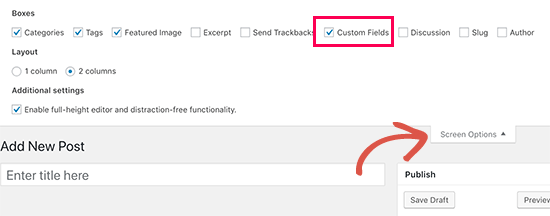
Now scroll down and below the post editor, you will see the ‘Custom Fields’ metabox where you need to click on the ‘Enter new’ link.
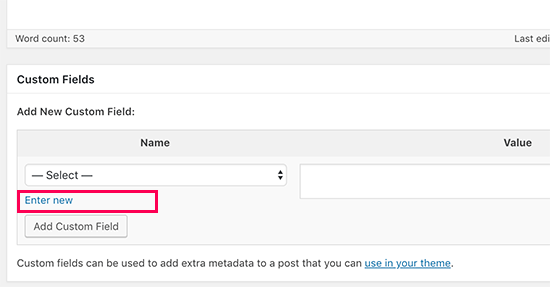
The custom field name and value fields will now appear.
You need to provide a name for the custom field with a CODE prefix (for example, CODEmyjscode) and then paste the javascript code in the value field.
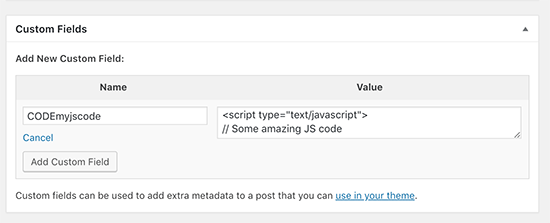
Don’t forget to click on the ‘Add Custom Field’ button to save your custom field.
Now you can use this custom field to embed the JavaScript code anywhere in this post or page. Simply add this embed code anywhere in your post content.
You can now save your post or page and view your site. You will be able to see the javascript code by using the Inspect tool or by viewing the page source.
Tip: These methods are for beginners and website owners. If you are learning WordPress theme or plugin development, then you need to properly enqueue JavaScript and stylesheets to your projects.
We hope this article helped you learn how to easily add JavaScript in WordPress pages or posts. You may also want to see our list of extremely useful tricks for the WordPress functions file.
If you liked this article, then please subscribe to our YouTube Channel for WordPress video tutorials. You can also find us on Twitter and Facebook.
The post How to Easily Add JavaScript in WordPress Pages or Posts (3 Methods) appeared first on WPBeginner.
from: WPBeginner
via Editorial Staff
Source: How to Easily Add JavaScript in WordPress Pages or Posts (3 Methods) Via Business Advice.
Comments
Post a Comment