WordPress comes with a user role management system which defines what a specific user can and cannot do on your website. Knowing these user roles and permissions are essential as your WordPress site grows. In this beginner’s guide to WordPress user roles, we will compare each WordPress user roles and permissions in an easy to follow infographic.
Out of the box when you install WordPress, there are five default user roles:
- Administrator
- Editor
- Author
- Contributor
- Subscriber
You can see a full comparison between each user role by viewing the infographic below:
![Beginner's guide to WordPress User Roles Infographic [Thumbnail]](https://cdn.wpbeginner.com/wp-content/uploads/2015/03/userrolesmini.png "Beginner's guide to WordPress User Roles Infographic [Thumbnail]")
Alternatively, you can read the summary of each user role permissions below. We will also cover how to create new user roles and/or customize existing WordPress user roles.
Video Tutorial
If you don’t like the video or need more instructions, then continue reading.
Let’s start by looking at each default user role and their permissions.
1. Administrator
On a regular WordPress install, Administrator is the most powerful user role. Users with the administrator role can add new posts, edit any posts by any users on the site, and even delete those posts.
They can install, edit, and delete plugins as well as themes. Most importantly an administrator user can add new users to the site, change information about existing users including their passwords as well as delete any user (yes other administrators too).
This role is basically reserved for site owners and gives you the full control of your WordPress site. If you are running a multi-user WordPress site, then you need to be very careful who you assign an administrator user role.
We also recommend that you read this article: Should You Give Admin Access to Plugin Developers for Fixing Bugs?
2. Editor
Users with the editor role in WordPress have full control on the content sections your website. They can add, edit, publish, and delete any posts on a WordPress site including the ones written by others. An editor can moderate, edit, and delete comments as well.
Editors do not have access to change your site settings, install plugins and themes, or add new users.
3. Author
As the name suggests, users with the author role can write, edit, and publish their own posts. They can also delete their own posts, even if they are published.
When writing posts, authors cannot create categories however they can choose from existing categories. On the other hand, they can add tags to their posts (See: Categories vs Tags – Which one is better for SEO?).
Authors can view comments even those that are pending review, but they cannot moderate, approve, or delete any comments.
They do not have access to settings, plugins, or themes, so it is a fairly low-risk user role on a site with the exception of their ability to delete their own posts once they’re published.
4. Contributor
Contributors can add new posts and edit their own posts, but they cannot publish any posts not even their own. When writing posts they can not create new categories and will have to choose from existing categories. However, they can add tags to their posts.
The biggest disadvantage of a contributor role is that they cannot upload files (meaning they can’t add images on their own article).
Contributors can view comments even those awaiting moderation. But they cannot approve or delete comments.
They do not have access to settings, plugins, or themes, so they cannot change any settings on your site.
5. Subscriber
Users with the subscriber user role can login to your WordPress site and update their user profiles. They can change their passwords if they want to. They cannot write posts, view comments, or do anything else inside your WordPress admin area.
This user role is particularly useful if you require users to login before they can read a post or leave a comment.
Bonus: Super Admin
This user role is only available on a WordPress Multisite Network. Users with the super admin user role can add and delete sites on a multisite network. They can also install plugins and themes, add users, and perform network wide actions on a WordPress multi-site setup.
Customizing Existing User Roles
Default WordPress user roles are designed to have capabilities that fits the requirement of most websites. For example if you run a magazine site, then you can assign Editor user role to your senior staff and author user role to the junior staff. You can assign contributor user role to your guest authors and subscriber user role for your site visitors.
But what if you wanted to modify the permissions of an existing WordPress user role?
One thing we do not like about the author role is that not only can they publish their own posts, but they can also delete them after it’s published. This can undermine your entire editorial workflow. Also can be disastrous if a paid author leaves on bad terms and decides to delete all the posts they wrote (the ones you paid them for).
Let’s suppose that you want to modify the author user role, so that the authors cannot delete their posts once they’re published.
First thing you need to do is install and activate the Capability Manager Enhanced plugin. Upon activation, go to Users » Capabilities to modify user roles.
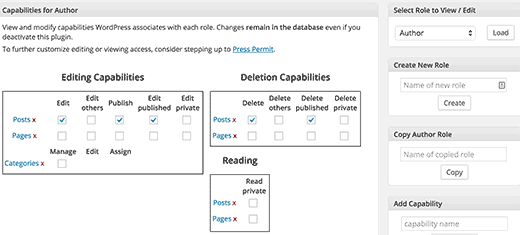
Next, select the user role you want to edit from the top box in the right column and then click the load button. This will load users capabilities in the boxes on the left.
All you need to do is uncheck the capabilities that you want to remove from that user role. For example, in this case we want to remove the capability to delete published posts from authors. We will uncheck ‘Delete Published’ capability. Once you are done, scroll down to the bottom of the page and click on the save changes button to store your settings.
Creating Your Own Custom User Roles in WordPress
You can create your own custom user roles in WordPress with your own set of capabilities by using the same Capability Manager Enhanced plugin. After installing and activating the plugin, go to Users » Capabilities and enter the user role name under ‘Create New Role’.
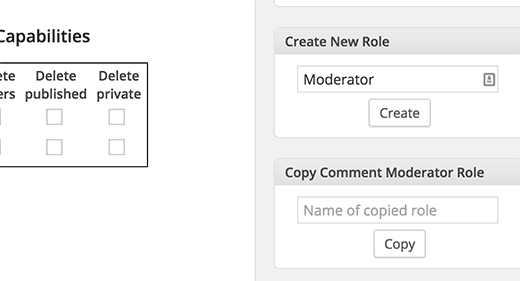
For example, a magazine site may need some staff member to actively moderate comment. In that case, you may want to create a user role that can only moderate comments. All you need to do is create a new user role, and then select the moderation comment option from under ‘Other WordPress Capabilities’.
For more detailed instructions, please see our tutorial on how to add/remove capabilities to user roles in WordPress.
We hope this article helped you understand WordPress user roles and permissions. You may also want to check out our guide on 21 great plugins to efficiently manage multi-author blogs in WordPress.
If you liked this article, then please subscribe to our YouTube Channel for WordPress video tutorials. You can also find us on Twitter and Google+.
The post Beginner’s Guide to WordPress User Roles and Permissions appeared first on WPBeginner.
from: WPBeginner
via Editorial Staff
Source: Beginner’s Guide to WordPress User Roles and Permissions Via Business Advice.
Comments
Post a Comment